SmartVision & SmartVision LITE – User Guide (Rev. 2.7) – Version 1943.4105 51
Receiving and reading an email
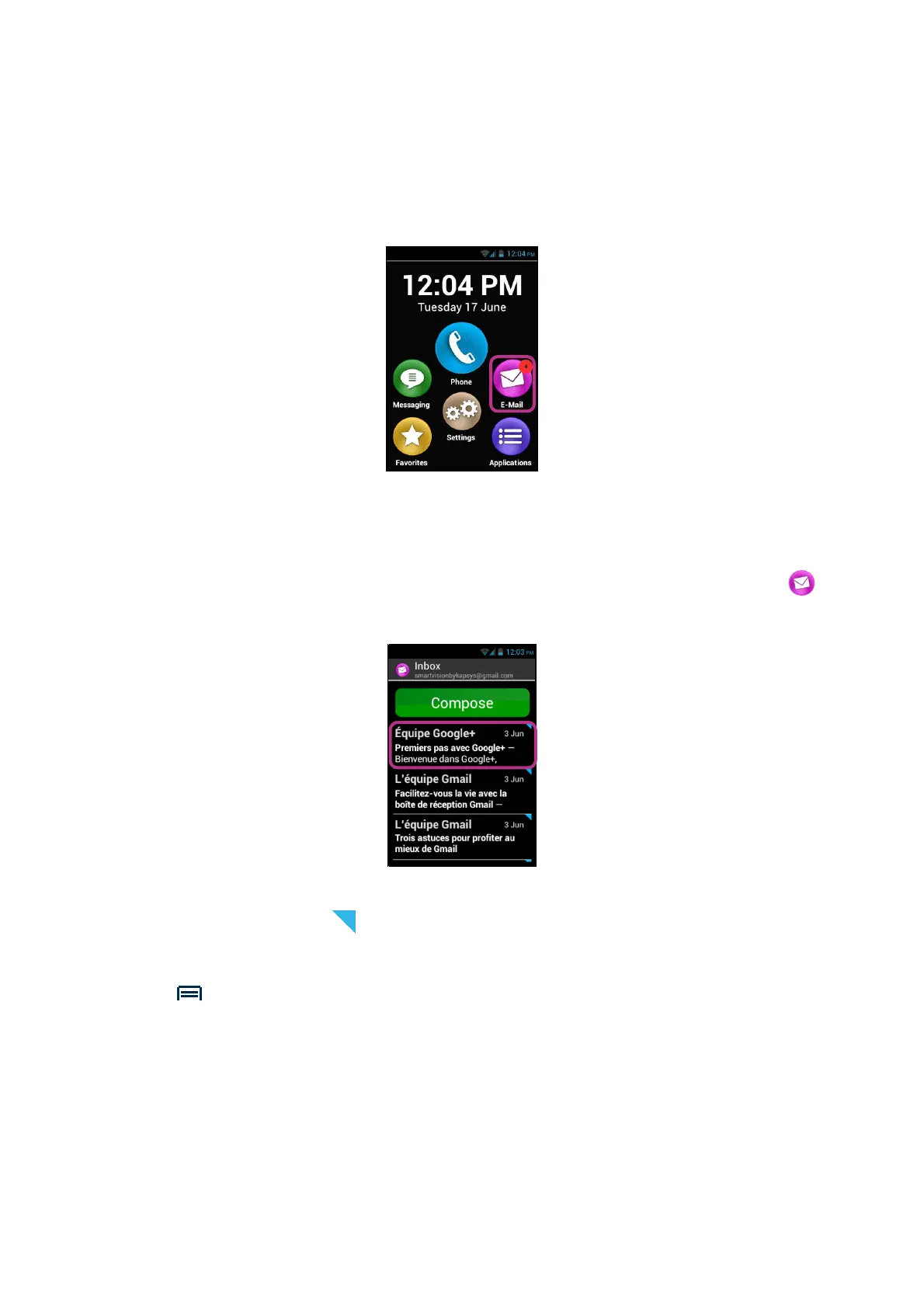
When you receive an email, the home screen will show the Email icon flagged with a
red bubble.
This will also be notified to you via the status bar (provided the "Email notification"
option has been enabled when you set up your email account).
To access the Inbox and read your incoming emails, click on the "E-Mail"
application from the Home screen, or on the new email notification from the
notification panel.
Click on the new email. Emails that are unread are placed on top of the list and
flagged with a blue triangle .
Once the email opened, use the navigation keys to browse your email.
To read the contain of an email you can also use the “text mode” option through
“menu” , this option allows a better and easier vocalization.
In this mode, you can use the following shortcuts to navigate into the email:
- Short press on key « OK » : Play / pause.
- Short press on key “1” : Read left character.
- Short press on key “2” : Read right character.
- Short press on key “4” : Read left word.
- Short press on key “5” : Read right word.
- Short press on key “7” : restart from the beginning
- Short press on key “8” : move to the end



 To Next Page