44 45
ENEN
KBSOUND
®
STARKBSOUND
®
STAR User ManualUser Manual
14.15 iOS AND ANDROID MULTITASKING
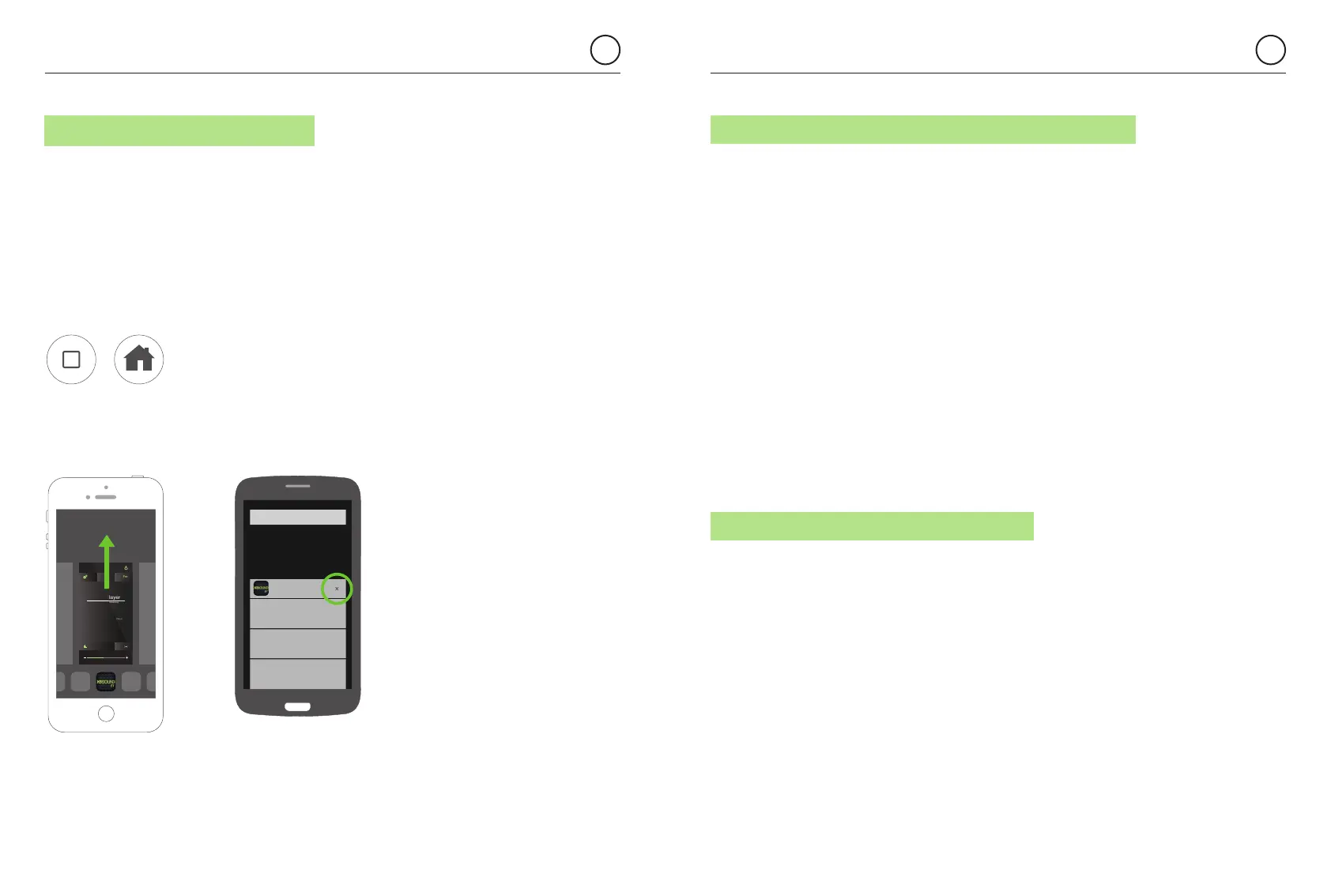
It is very important to distinguish between App’s operating in the background
and the App’s in the foreground.
Multitasking allows Apps to perform certain tasks in the background while you
are using other Apps. The App in the foreground is the active App that user can
see in the screen. Simultaneously, other Apps can be operating in background.
When you press the device HOME button, the App is sent to the background.
Take note that an App operating in the background consumes data and battery.
To close the App means that the App is permanently closed and it is not
operating in background. Closing the App can be different for each device,
although the process can be similar. Check their user manuals.
KBSOUND
Fm
Bluetooth Audio Streaming
See information in your Music Player
Music Player
00001 KBSOUN...
KBSound
14.16 WHAT TO DO IF THE KBSOUND STAR APP IS NOT WORKING
14.17 BLUETOOTH CONNECTION INTERRUPTED
If the App has connection issues, do the following:
- Close the App (important: Do not send it to the background, see 14.15 FAQ’s)
- Turn OFF the Bluetooth in the IOS/ANDROID Bluetooth Settings Menu
- Turn ON the Bluetooth in the IOS/ANDROID Bluetooth Settings Menu
- Be sure that the MASTER is not connected to any other Bluetooth device
- Be sure that the Bluetooth device is in range with the MASTER and the MASTER
is correctly powered (this can be checked with the Remote Control Accessory,
if available)
- Re-open the App
- If the Bluetooth device was previously paired, forget it in the list of previously
paired devices and eliminate it from the device Bluetooth settings menu
- Pair and connect again (see chapter 3)
If still not working properly
- Reset the MASTER to factory default (see chapter 10.3)
- Power off the MASTER, wait some seconds and power on the MASTER
- Repeat the process
When the App (BLE) and the Bluetooth audio streaming (A2DP) are in different
devices, some of them sometimes interrupt the Bluetooth communication.
In that case do the following:
- Close the App (important: Do not send it to the background, see 14.15 FAQ’s)
- Disable Bluetooth in both devices (BLE and A2DP)
- Wait 1 minute until the BLE in the MASTER has recovered
- Connect the Bluetooth audio source in the device which is going to send
the streaming (A2DP)
- After A2DP connection, open the App (BLE)
- Select Bluetooth audio channel
If it still does not work, it may be necessary to reset the MASTER and power off
and power on the Bluetooth device.


 To Next Page