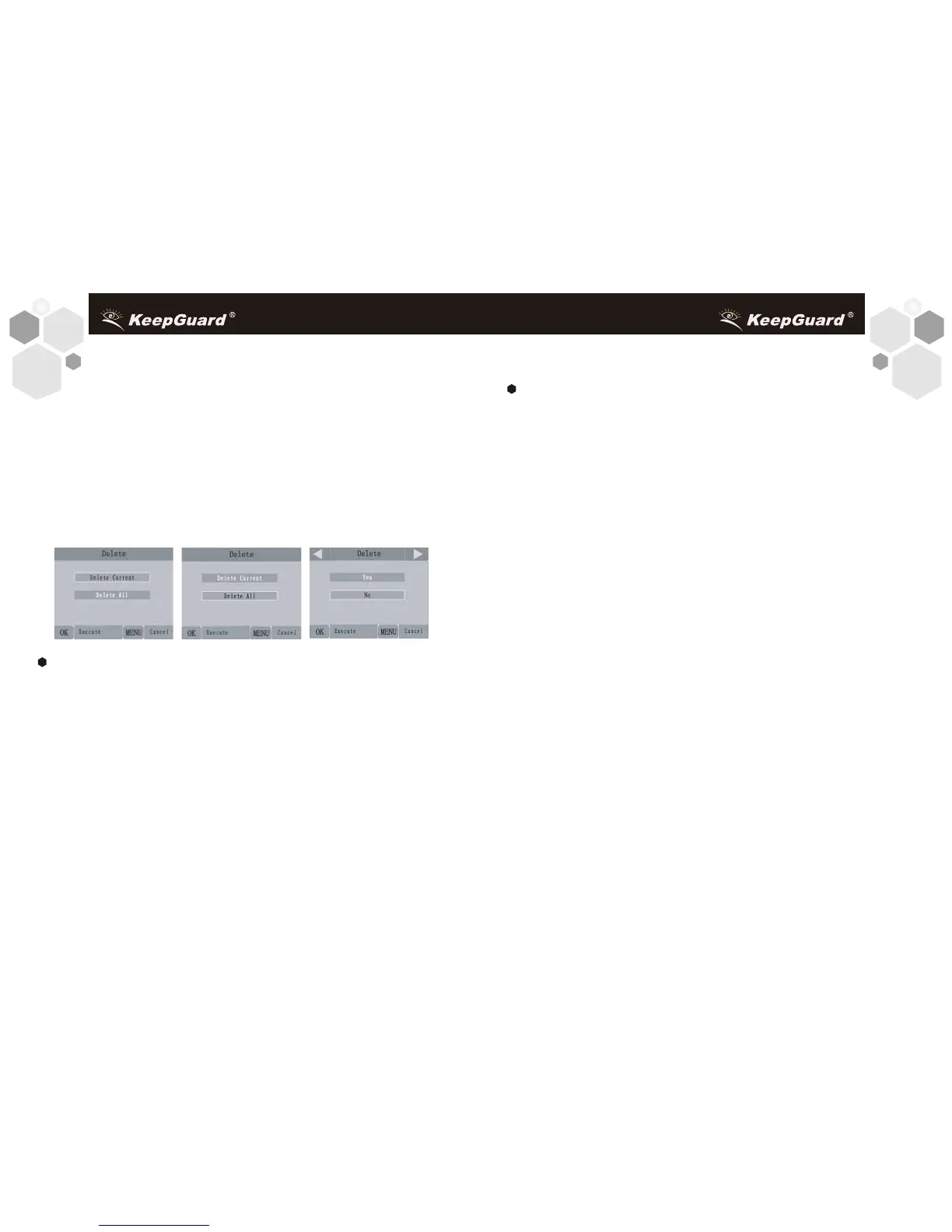
photos/videos (see below).
• Highlight the″Delete Current″ or ″Delete All″option, then press OK.
• Next, select ″Yes″ and pres OK to erase only the last displayed photo or video
(if you selected″Delete Current″), or every photo and video file on the card (if
you selected ″Delete All″ or select ″No″ and press OK to cancel the operation
without deleting any files.
NOTE: After deleting a picture or a video file, the deleted files can′t be
restored! It is also possible to delete all files from the card by using the
Format parameters.
Reviewing Images Directly From the SD Card
This is the most popular method of viewing images. Since
unmounting the camera and taking it to your computer isn′t very
convenient, you may find it easier to just take the card out. By
removing the SD card (swapping it for a new empty card if you like)
and taking it to your home or campsite to view the images by using
an SD card″reader″(user supplied) connected to your computer
(some computers and TVs have a built in SD card slot), you can
leave the camera in place ready to capture more images. Once
connected, the card reader works the same way as described
below-please read that section if you have any problem finding
your files.
3736
Reviewing Images by Connecting the Camera to a Computer
You can always unmount the entire camera from the tree and
connect its USB port to a computer-it will be recognized as
a″removable disk″,without the need to install any drivers or
software. When using a PC (or Mac*) to view photos (or video
clips), first connect the device to the computer with the supplied
USB cable. Then use commercial software with an image browser
feature, or an image browser included with the PC′s operating
system to view images saved on the SD card in the folder DCIM
100EK113. Each new image or video will be numbered
incrementally in order of the time it was captured. For example, you
will see file names such as ″PICT0001.JPG″or″PICT0001.ASF″.
Through the file format suffix you can distinguish whether the file is
a still photo (with suffix .jpg) or a video (with suffix .asf).
*″ASF″video iles may require additional software for viewing
on a Mac
The KeepGuard Cam supports 3 kinds of file system formats,
FAT12, FAT16, and FAT32.
The default value is FAT16 to save photos and videos. Here are
some related notes:
• You don′t need to be concerned about the file system format of
the KeepGuard Cam unless your equipment has problems
reading the SD card. If this happens, please format the SD card
with the KeepGuard Cam or in your computer first and then insert
the card into your KeepGuard Cam and try again.


 To Next Page