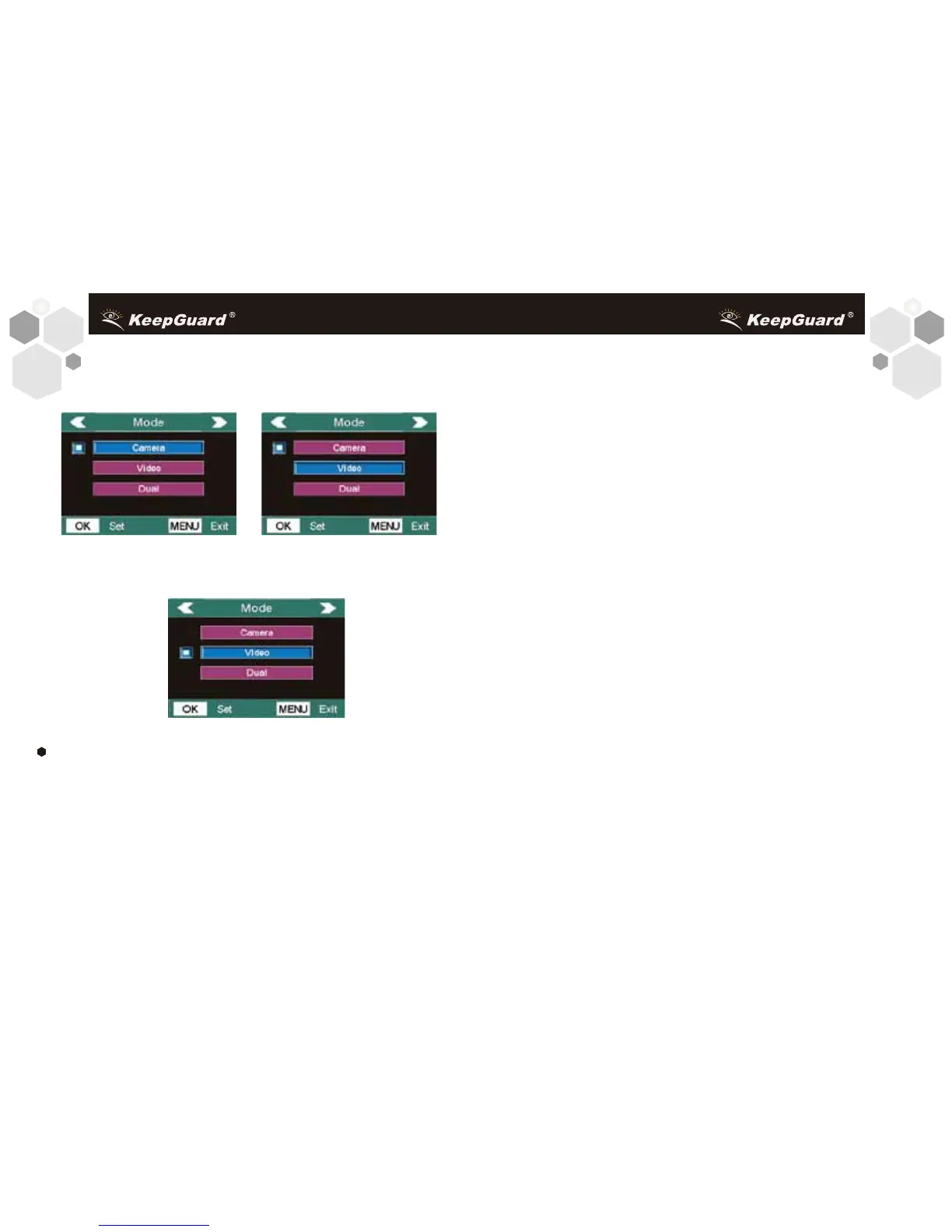
Press MENU (4a) Press DOWN (4b)
Press OK (4c)
EXAMPLES-Changing the Settings of Some Common
Parameters
Following this page, you will find tables listing all of the parameters
found in the SETUP Menu, along with their possible settings (or
range of settings), and a detailed description of what the parameter
controls and what the settings do. If you read the previous section
detailing how to select parameters and change their settings, you
1514
should be able to dive right in, find the parameter(s) you want, and
setup the camera to your preferences. But maybe you'd rather walk
through an example or two first:
To change any parameter's setting, always start with the power
switch in the SETUP position. After the LCD comes on, press the
MENU key.
The first parameter you will when you first enter the SETUP Menu
is "Mode". To change it from its default setting of "Camera"
(still photos) to "Video" (shoot video clips), press the DOWN key
to highlight"Video〞(color viewer models). Press the OK key to
"execute〞(Set) the new setting you′ve selected for this
parameter.
Now press the RIGHT key to move to another parameter in the
Menu. Pressing it four times will take you to″Video Length″. Try
using the UP and DOWN keys to scroll through the range of
settings, then press OK to lock in your setting for the length of each
video clip the camera shoots.
Pressing the RIGHT key several more times will get you to
the″Default Set″parameter. Highlight or select″Execute″(using UP
or DOWN) and press OK to restore all parameters (including the
Mode and Video Length parameters you changed a minute ago)
back to their original factory default settings. The default settings
for each parameter are indicated in bold type in the SETUP Menu


 To Next Page