28
|
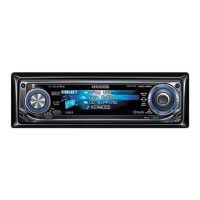
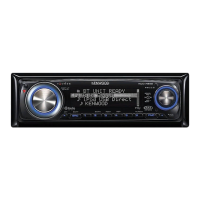
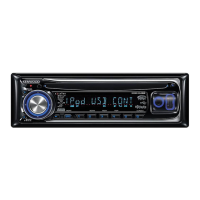
KDC-X993/ KDC-HD942U/ KDC-X693/ KDC-MP642U
Audio Adjustments
Audio Control
You can adjust following Audio Control items;
Adjustment Item Display Range
Rear volume “REAR VOLUME” 0 — 35
Subwoofer level “SUBWOOFER LEVEL” –15 — +15
Balance “BALANCE” Left 15 — Right 15
Fader “FADER” Rear 15 — Front 15
Exit Audio Control mode (Volume control mode)
1 Enter Audio Control mode
Press the [AUD] knob.
2 Select the Audio item to adjust
Press the [AUD] knob.
3 Adjust the Audio item
Turn the [AUD] knob.
4 Exit Audio Control mode
Press any button.
Press a button other than the [AUD] knob or [0]
button.
Audio Setup
You can set Sound system , such as follows;
Adjustment Item Display Range
Volume offset “VOL-OFFSET” –8 — ±0 (AUX: -8— +8)
Dual Zone System “2 ZONE” OFF/ON
⁄
• Volume offset: Sets each source’s volume as a difference
from the basic volume.
• Dual Zone System
Main source and sub source (Auxiliary input) output
Front channel and Rear channel separately.
- Set up the channel of sub source by “ZONE2” of
<Function Control> (page 6).
- Select Main source by [SRC] button.
- Adjust the volume of Front channel by [AUD] knob.
- Adjust the volume of Rear channel by <Audio Control>
(page 28) or [5]/[∞] button on the remote control
(page 43).
- The Audio Control has no effect on sub source.
1 Select the source to adjust
Press the [SRC] button.
2 Enter Audio Setup mode
Press the [AUD] knob for at least 1 second.
3 Select the Audio Setup item to adjust
Press the [AUD] knob.
4 Adjust the Audio setup item
Turn the [AUD] knob.
5 Exit Audio Setup mode
Press the [AUD] knob for at least 1 second.
B64-4416-000009FLIPKen.indd28B64-4416-000009FLIPKen.indd28 09.1.73:54:08PM09.1.73:54:08PM


 To Next Page
 Loading...