3.8.10 Restore Factor y Setting
In the system setting page, press【up/down】key to move cursor to the【Restore
Factory Settings】. Then,press【OK】button or press key【0】directly to enter into
the Restore Factory Setting page , as shown in Figure 3-16.
3.8.10.1 Partial Restoration
After entering into Restore Factor y Setting page, press 【OK】button, the host will
remind whether to restore factory settings. After restoring factor y setting, the
remote controls and detectors added before would not be deleted, but all the
other parameters will be restored to the factor y state.
3.8.10.2 Full Restoration
After entering into Restore Factor y Setting page, press【2】key and then long
press【OK】key until a host reboot is completed. In this situation, all the remote
controls and detectors will be deleted and all the parameters will be restored to
factor y state, as shown in Figure 3-17.
3.9 Recording Setting
Host will play the preset recording after dialing the preset alarm number . And the
recording setting method is as below:
Message Record
Recording……09
Picture 3-18 Picture 3-19 Picture 3-20
OK.Ent e r ES C . Retur n OK.En ter E SC. Ret u rn
Message Record
Press 1 to start recording
Message Record
OK.Ent e r ES C . Retur n
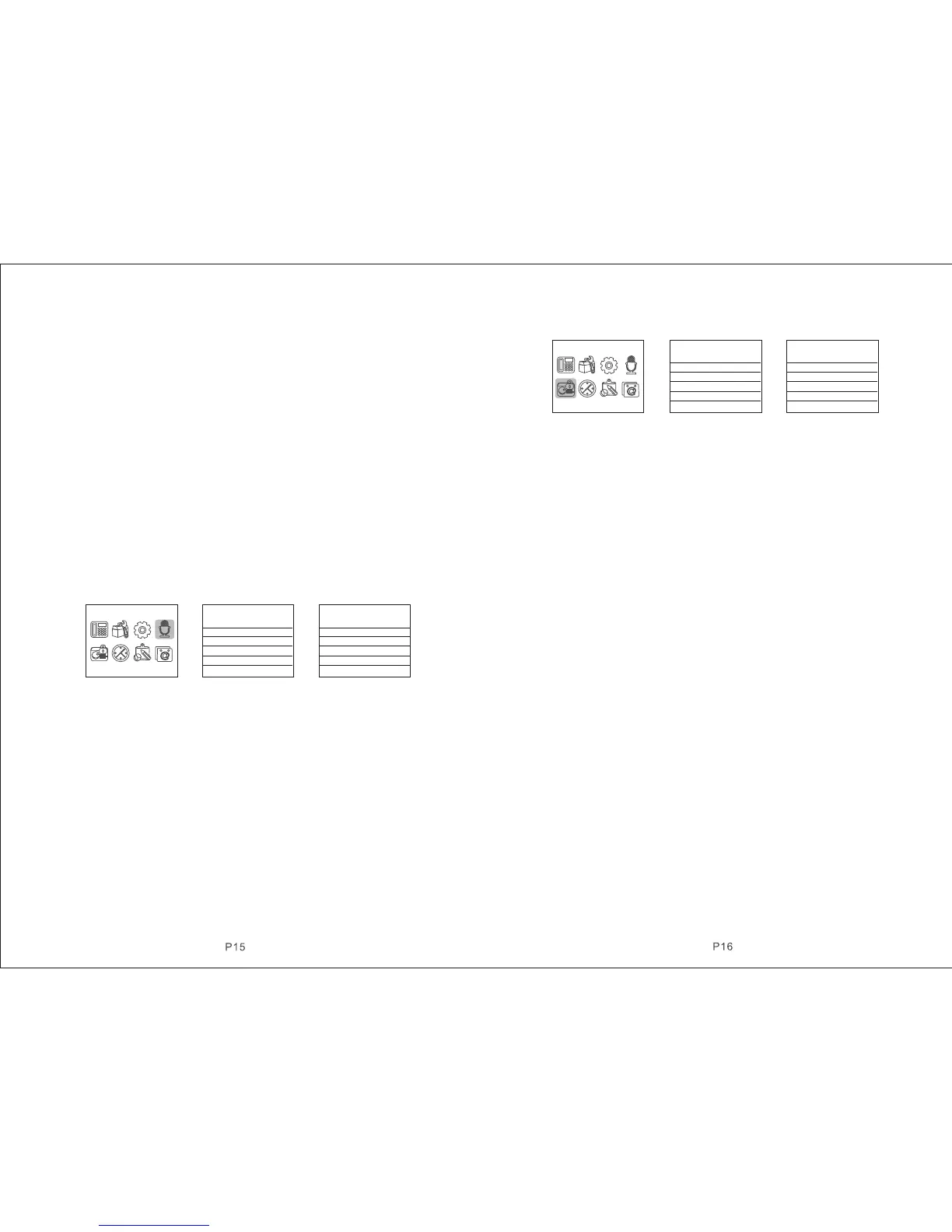
On main menu. as shown in picture 3-18, press【UP/DOWN】key to move the
cursor at【Recording】, then press key【OK】or number 4 directly to enter recording
setting page, as shown in picture 3-19; On recording setting page, press key【
BACK】to return to the main menu; Press any key to start recording. The recording
time is 10s, as shown in picture 3-20. The recording should be brief, e.g. “ This is
XXX’s house, it ’s intruded illegally, please help”.
Host will exit automatically after 10s, and user can press any key to end recording
during recording process.
3.10 Zone Management
On the main menu page, as shown in Figure 3-21, press [Up / Down] key to move
the cursor to the zone management. Press [OK] button or press number 5 directly
to enter zone management page, as should in Figure 3-22 . Then input the zone
number (1-99) and press [OK] to enter the next level menu. Zone attribute setting
mainly includes networking feature code setting, built-in siren on/off setting , zone
type setting, dialing group when alarming and wired zones open/closed alarms,
etc as shown in Figure 3-23. The setting is as follows:
CID Event code:130
Siren:ON
Types:NORMAL
Zone dial:123456
Zone Settings
Picture 3-21 Picture 3-22 Picture 3-23
OK.Ent e r ES C . Retur n OK.En ter E SC. Ret u rn OK.Ent e r ES C . Retur n
Enter Number(00-99):01
Zone Settings Zone Settings
3.10.1 Network Even Code
After entering next level menu, input event code in the Networking Event Code.
100 means medical aid, 110 represents fire, 121 denotes robber y, 122 denotes
a noiselessly rob, 130 represents burglar y, 131 denotes the perimeter burglary,
151 denotes gas leakage. Press OK to save.【 】
3.10.2 Internal Siren On/off
After entering the next menu, press Down key to move the cursor to Alarm 【 】 【
alerting .Press Menu key to switch ON and OFF and then press OK to 】 【 】 【 】
save. If you select Off, it indicates that host will not alert when the detectors in
that Zone receives alarms.
3.10.3 Set Zone Type
After entering the next level menu, press DOWN key to move cursor to Zone 【 】 【
Type . Press Menu key or press numbers directly to select: 【1】Normal,【2】】 【 】
Stay,【3】Intelligent,【4】Emergency,【5】Close,【6】doorbell,【7】Welcome,
【8】Help the Senior, then press key[ OK] to save.
3.10.4 Set Sub Zone Dialing
After entering the next menu, press Down key to move the cursor to Zone 【 】 【
Dialing . Input user number when this Zone alarms. It can be any desired phone 】
groups among 123456, but if the zone type is for Help the Senior , the group 【 】
is fixed to help number and can’t be set, then press OK to save.【 】
3.11 Clock Management
On the main page, press Up / Down key to move the cursor to clock 【 】 【
management , then press the OK button or press number 6 to enter clock 】 【 】
management page. Press Menu button to switch the display format of the 【 】
date, and press Up / Down key to switch among year, month, date, hour,【 】
minute and second; Press numeric key to input the numbers then press OK【 】
to save, as shown in Figure 3-24.


 To Next Page