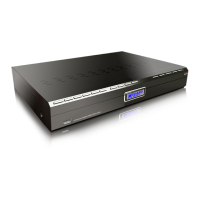
Quad Camera DVR
22
7
7
.
.
C
C
o
o
n
n
n
n
e
e
c
c
t
t
i
i
n
n
g
g
t
t
h
h
e
e
D
D
V
V
R
R
U
U
n
n
i
i
t
t
t
t
o
o
a
a
P
P
C
C
7.1 Installing Software
1. Make sure the DVR unit is not connected to the PC.
2. Insert the Software CD in your Optical Drive.
3. Run the Setup program. Note: If installing the software on Windows Vista, install the
software in Administration mode by right clicking on the file and selecting “Run as
Administrator”
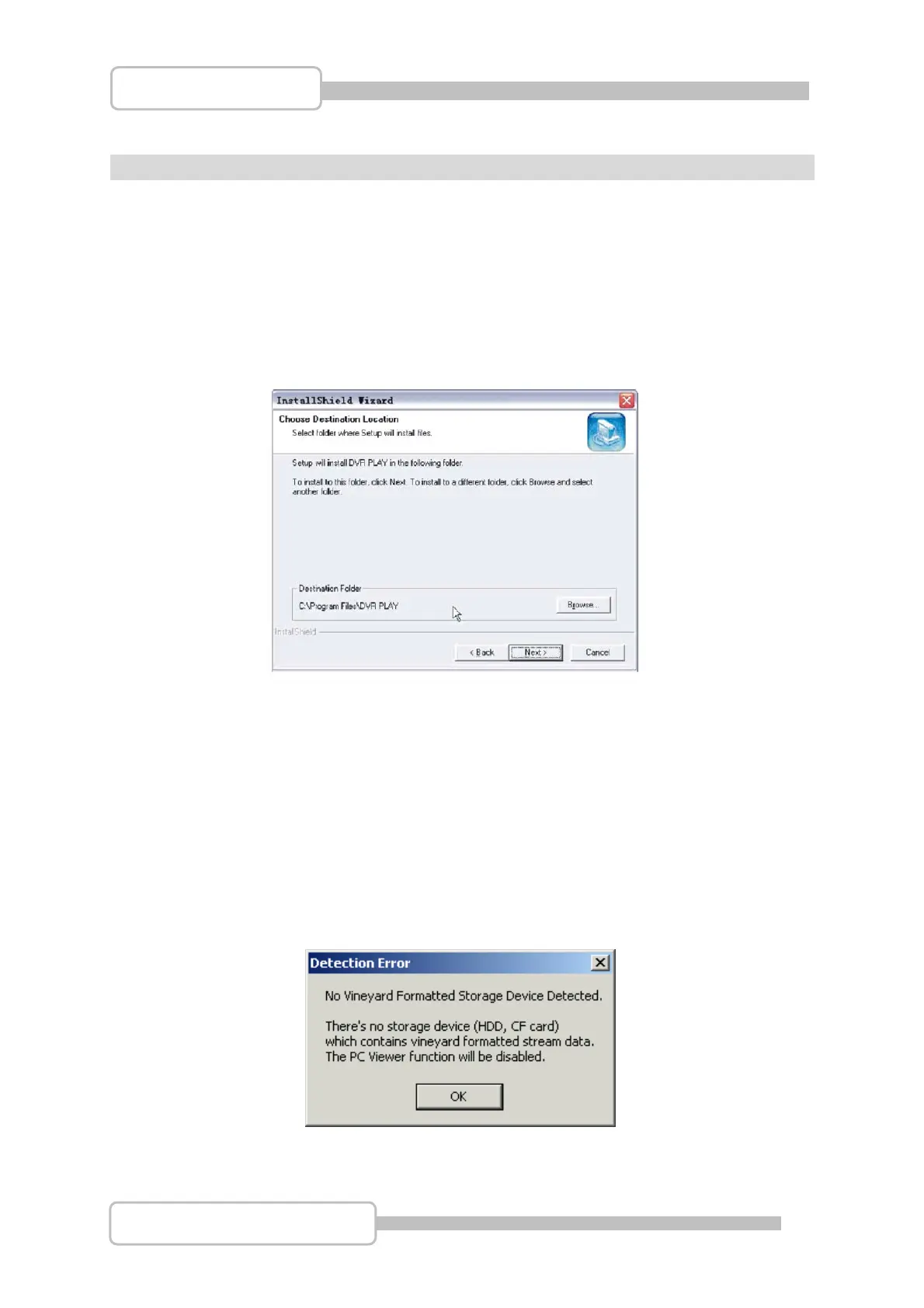
4. Change the Destination Folder if necessary, or just click Next.
5. Once the program has been installed, connect the DVR system via the USB cable.
6. Run the program by selecting Start > Programs> DVR Viewer. If installed on Vista,
you must also run it as an Administrator by right clicking on the DVR Viewer link
and selecting “Run as Administrator”
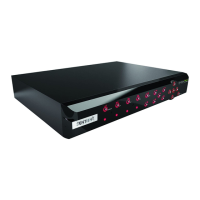
Note: The Hard Drive must already have been formatted for use with the system,
otherwise you will receive and error “No Vineyard Formatted Storage Device
Detected when trying to access the DVR unit from a PC using the USB connection.
See chapter 4.13 for more details.
Digital Video Recorder



 To Next Page