OPTIMA FEATURES & FUNCTIONS GUIDE
2
*IF EQUIPPED
How to snap a QR code
1. With your mobile
device, download
a QR Code Reader
App. With many
devices, you can do
this through an App
Store or Marketplace
2. Open the QR Code
Reader App on your mobile device
3. The App will utilize your device’s camera.
Center the code in the camera viewing area:
• With some Apps, as soon as the App
recognizes the code, it will launch the
corresponding video
• With other Apps, you will have to snap or
“take a picture” of the code. The app will
then launch the corresponding video
• For operation specifics, refer to the
instructions that come with the QR Code
Reader App
Kia One Click
Fuel Cap Video
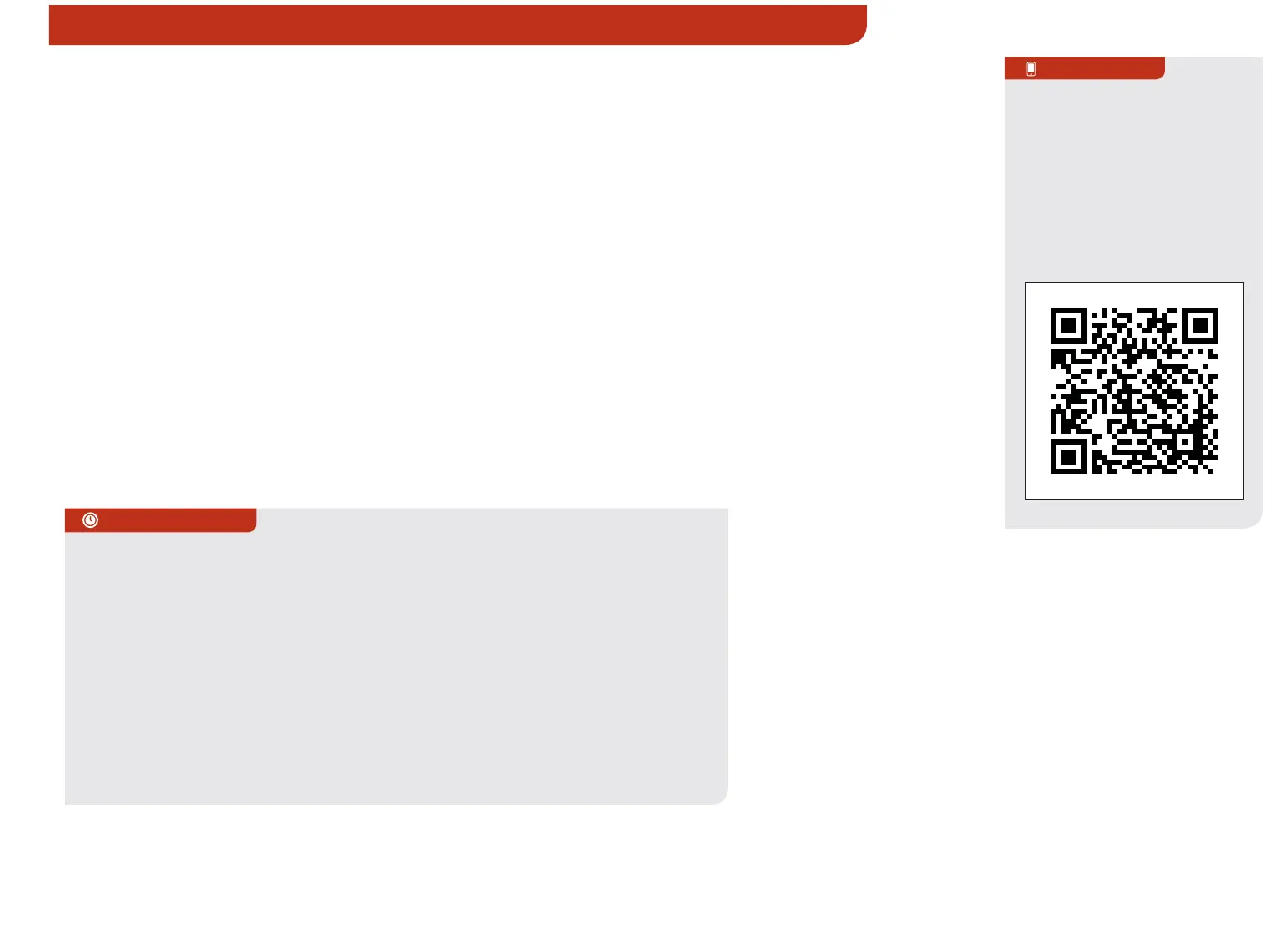
To view a video on your
mobile device, SNAP this
QR code or visit the listed
website.
Refer to page 2 for more
information.
QR CODE
REMINDER: When accessing videos on your mobile device, standard cellular data
rates may apply.
www.KuTechVideos.com/qf13/2014
VIDEOS & QR CODES - SMART PHONES, TABLETS AND COMPUTERS
Kia provides a number of video resources at your disposal to assist you with becoming
familiar with the features and functions found in your Kia vehicle. You can access these
resources by snapping the QR codes with your smart phone/tablet (mobile devices) or by
visiting the following website: www.KuTechVideos.com/qf13/2014. Continue reading for a
more in-depth look at QR codes and for instructions on how to use them.
What are QR Codes?
A QR Code is a square, 2-dimensional Bar Code that can be read by mobile devices loaded
with an appropriate Bar Code or QR Code Reader App. The App reads the Bar Code image
and then launches/uploads the specific information the code contains, such as URLs, text,
photos, videos, and so much more.
1.
1. If you’re having trouble scanning codes, check the following:
• The code should be centered and focused in your mobile device’s
camera screen
• Consider moving your device closer to or farther away from the code
• The code should be well lit, without significant shadow
• Avoid scanning from a significant angle
• Confirm that the device’s app supports 2D QR Code Scanning.
Try another QR Code App; not all apps are created equal
2. After scanning, a “connecting” message appears and then
nothing happens or there’s a “connection error” message.
These messages typically indicate that your device is having
trouble connecting to the Internet
How to Use QR Codes
If you have a mobile device with a QR Code Reader App, you can
snap the code with your phone and you’ll be provided a video
with additional information pertaining to the topic. For example,
in the Kia One Click Fuel Cap section, if you would like additional
information, just snap the code with your mobile device to view the
selected Kia Features & Functions Video.
QUICK TIPS








 To Next Page