01-01-2023
4K
00:00:00
00:00:00
4. Recording
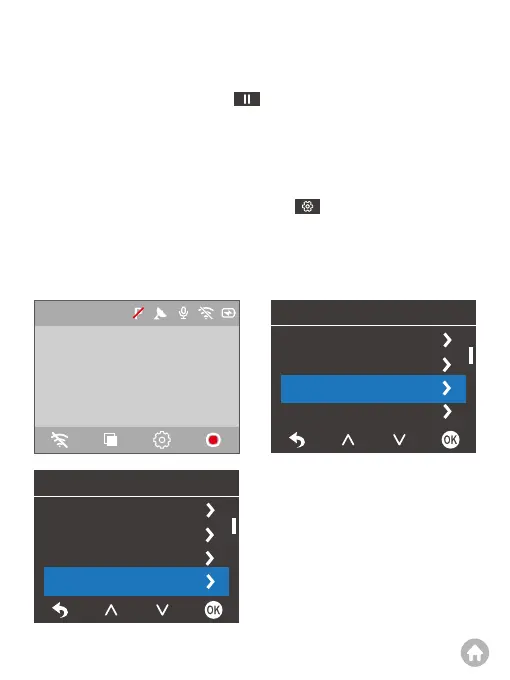
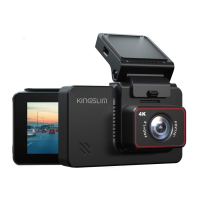
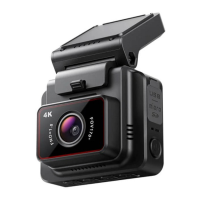
KINGSLIM 4K D5 dash cam is programmed to turn on and start recording automatically
when it receives power. It will also start recording after you finish changing settings.
To pause recording, please press the button. When unplugged, this dash cam
will also automatically stop recording, safely save the last video, and shut down
within 5 seconds.
5. Setting Time Zone
Before using this dash cam, please manually set the time zone according to your
location. To do this, please press the Settings button to enter the Setup
screen, then navigate to “TimeZone”, and then press the OK button to complete the
setting. When the GPS is functioning properly, the dash cam's date and time will
automatically synchronize with your local time. You can also manually set the date
and time by accessing the setup menu.
Setup
Wifi
EV
Timezone
Off
0
On
UTC/GMT-Off
GPS
Setup
Screen Saver
License
Frequency
Off
ON
MM/DD/YY
60Hz
Date/Time


 To Next Page