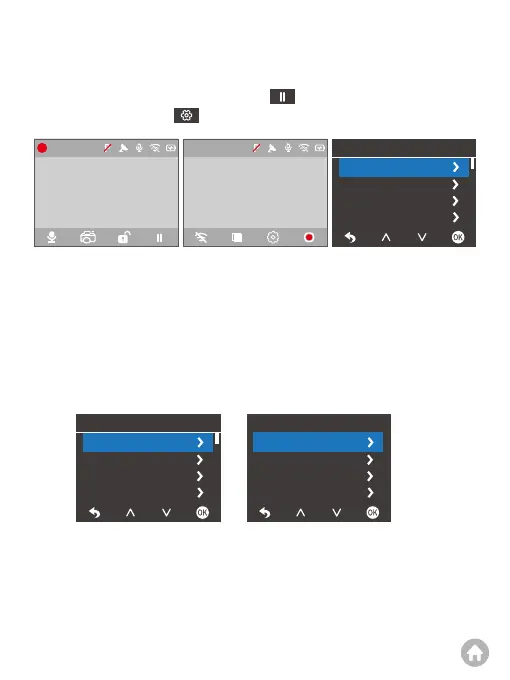
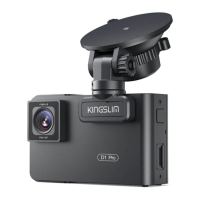
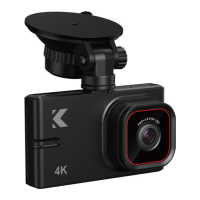
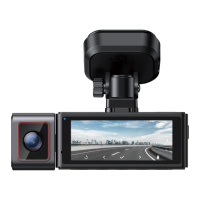
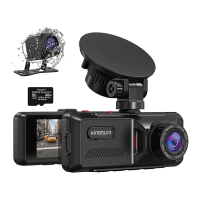
When the dash cam is turned on, press the button to stop recording, then
press the Settings button to enter the Setup screen.
1. Resolution: 4K P30 (default), 2K P30, 1080P P60
This dash cam records 4K P30 video by default. To change the resolution, first
ensure that the dash cam is in setup mode. Second, press the OK button to
access the resolution settings screen. From there, press the Down button to
choose from one of the three options: 4K P30 (default), 2K P30, or 1080P P60.
After selecting your desired resolution, please press the OK button to save your
changes. The system will exit the menu automatically.
2. Loop Recording: 1 Minute (default), 2 Minutes, 3 Minutes
The camera is designed to record video and save the content every minute by
default. When the memory is full, new video files will overwrite the old ones to
ensure continuous recording. To change the video length, simply access the loop
recording settings screen to select your desired loop recording time.
Setup Menu
01-01-2023
4K
00:00:01
00:00:01
01-01-2023
4K
00:00:00
00:00:00
Setup
Resolution
Loop Recording
Time Lapse
4K P30
1 Min
Low
Off
G-sensor
Setup
Resolution
Loop Recording
Time Lapse
4K P30
1 Min
Low
Off
G-sensor
Resolution
4K P30
2K P30
1080P P60


 To Next Page