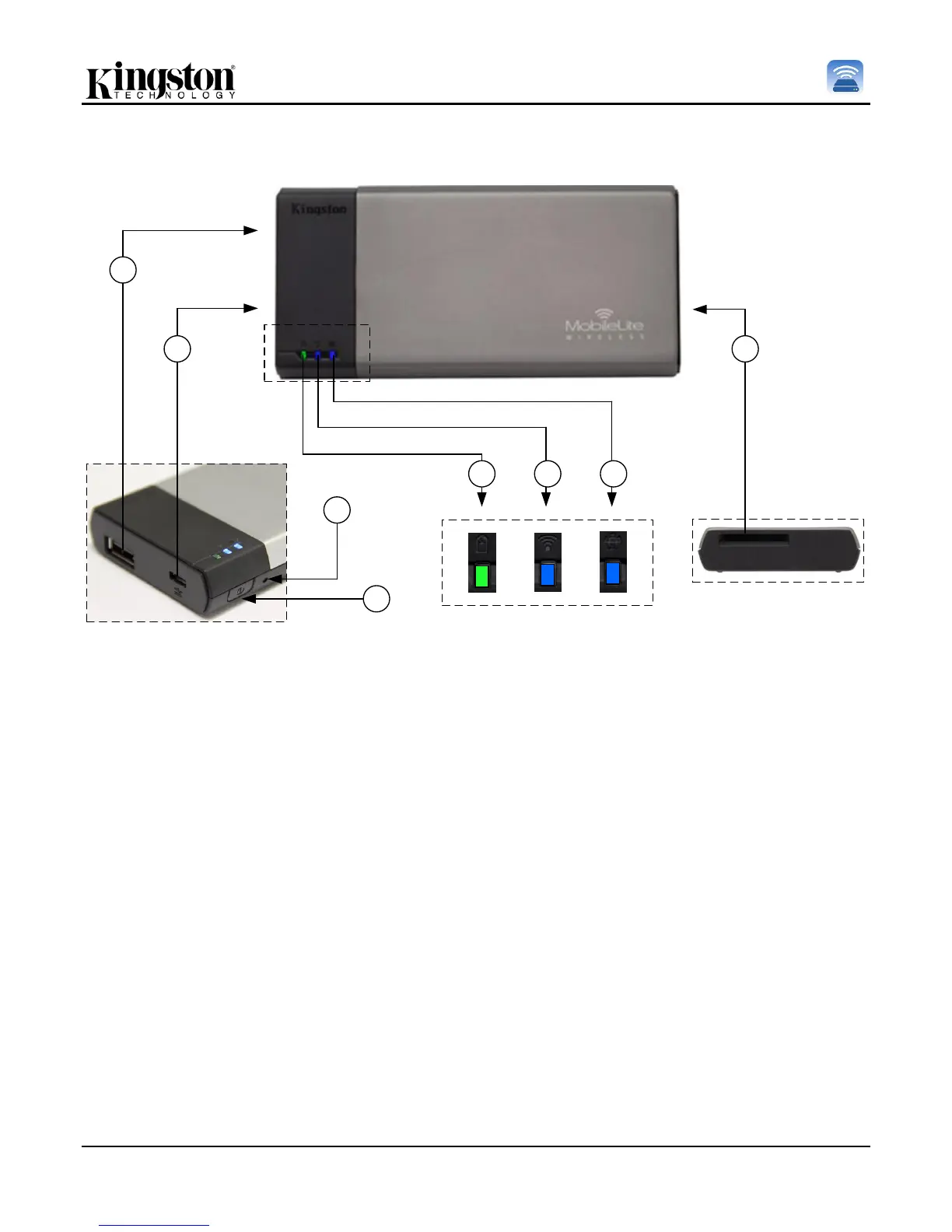
A. USB 2.0 Port - Allows you to expand the storage capacity of MobileLite Wireless by connecting an external
USB storage device.
B. Micro-B USB Port - Allows you to charge MobileLite Wireless or connect it to a standard USB port for fast,
easy data transfer. Each media expansion port will require its own drive letter if media is inserted.
C. Power Button - Powers on or powers off the MobileLite Wireless device (requires a press and hold for 3
seconds.)
D. Reset Button - Allow you to reset the MobileLite Wireless device back to its original (default) configuration.
E. Battery LED/Power* - Indicates current battery status and current power state.
F. WiFi LED - Indicates current status of WiFi broadcast.
G. Bridged LED - Indicates whether or not MobileLite Wireless is bridged to an Internet gateway.
H. SD Slot - Allows you to expand the storage capacity of MobileLite Wireless by inserting a compatible SD card.



 To Next Page