Document No. 480-15FUM-001.A00
Kingston MobileLite Wireless
Photos
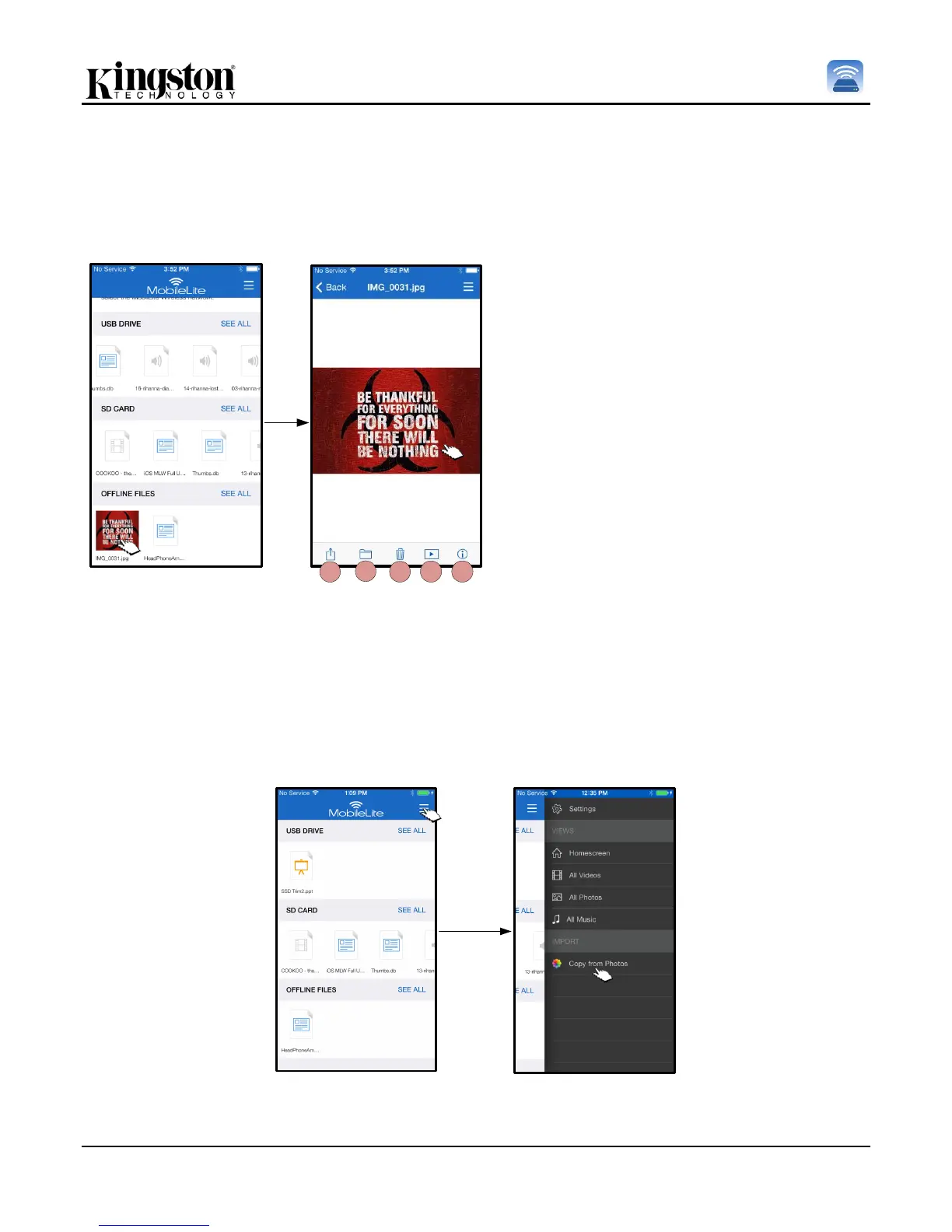
The MLW device makes it simple for users to share pictures of memorable events whether it is on social media, in
a slide show, or via other means. Selecting a photo will open the photo, if the user would like to view the image in
full screen then, they may do so by selecting the photo once more. There are also file management options
available to the user. Please see Figure 12.1.
A. Share – Allows the user to upload
photos to social networks or share
via e-mail, or other apps
B. Copy/Move – will transfer or copy
the file to another location
depending on the option that is
chosen
C. Delete – Permanently deletes the
current file
D. Slideshow – Plays all the photos
located in the destination
E. Info – Displays file properties and
Metadata. This is also where the
user can change the file/folder
name.
Import Photos
MobileLite Wireless App allows users to import photo(s) from their iOS device to the MobileLite Wireless with a
few simple steps.
Step 1: Begin by selecting ‘Copy from Photos’. This option is available from the side panel. See Figure 12.2.
Figure 12.2 – Import Destination



 To Next Page