13
INSTALLATION
OPERATION
Operating the Automation App and III Remote
Syncing and Programming Your Remote
■
Activate the remote by pulling both plastic tabs from the back battery compartment.
■
Download the Automation App for your smartphone or tablet at getshadeapp.com.
■
Open the Automation App and follow the steps to set up your new shades and remote.
■
Use the Automation App to program and manage your Automation III remote(s) as accessories.
■
For more details, refer to the digital Automation III Remote Control Guide.
Basic Operation
■
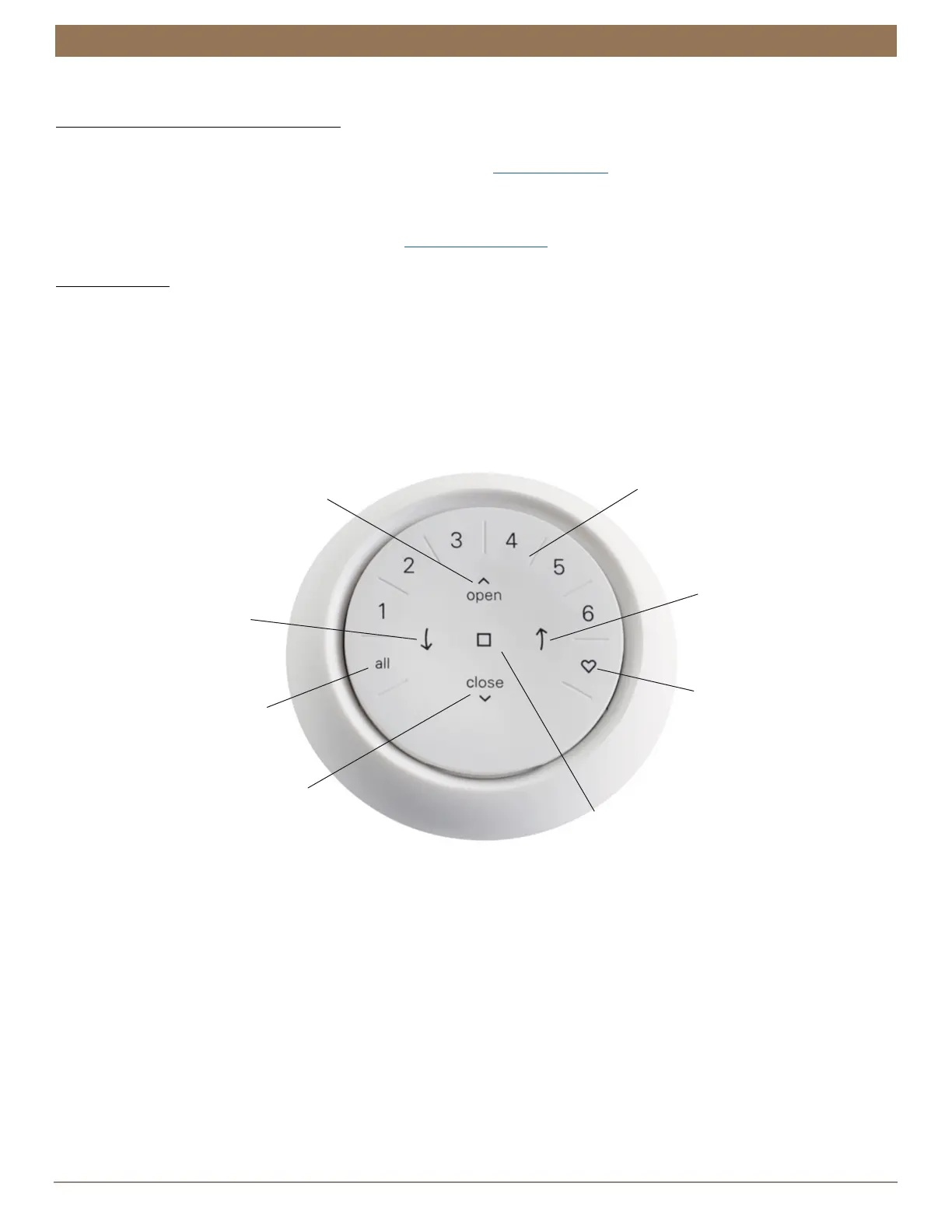
Wake up the remote by picking it up or pressing ■ STOP.
■
Press group number(s) 1, 2, 3, 4, 5, and/or 6 to select one or more groups. Selected group numbers light up white on the
remote.
■
Press selected group number(s) 1, 2, 3, 4, 5 and/or 6 a second time to deselect one or more groups. Deselected group numbers
are not lit.
Bottom-Up Shades
OPEN
LEFT ARROW
RIGHT ARROW
STOP
- Stops motion
GROUP NUMBERS
Each number represents
a different group
- Raise shade(s)
- No function
- No function
CLOSE
- Lower shade(s)
* The default first Favorite position is the front shade(s) at 50% open.
**Both Favorite positions can be updated in the Automation App > Shade Settings.
FAVORITE
- Press once to send
shade(s) to your first
Favorite position*
- Quickly press twice
to send shade(s) to
your second Favorite
position**
ALL
- Press to select
all groups



 To Next Page