18 19
Exiting audio recording mode
1. Press the “M” button to enter the camera setting menu
2. Press the – or + button to select “Exe.: audio only” mode and press the “OK” button to confirm
3. Press the < or > button to select “Exe.: video” and press “OK” to confirm. The camera will return to
recording standby mode
Photo Shooting
Operating procedure for photo shooting
1. Turn on the camera to enter recording standby mode
2. Aim the lens towards the subject and preview it on the display
3. Press the “Shutter” button once to switch the mode to “photo shooting”
4. Press the “Shutter” button again to shoot one photo
• The green indicator will flash once
• A click will indicate completion and the system will
return to photo shooting standby mode
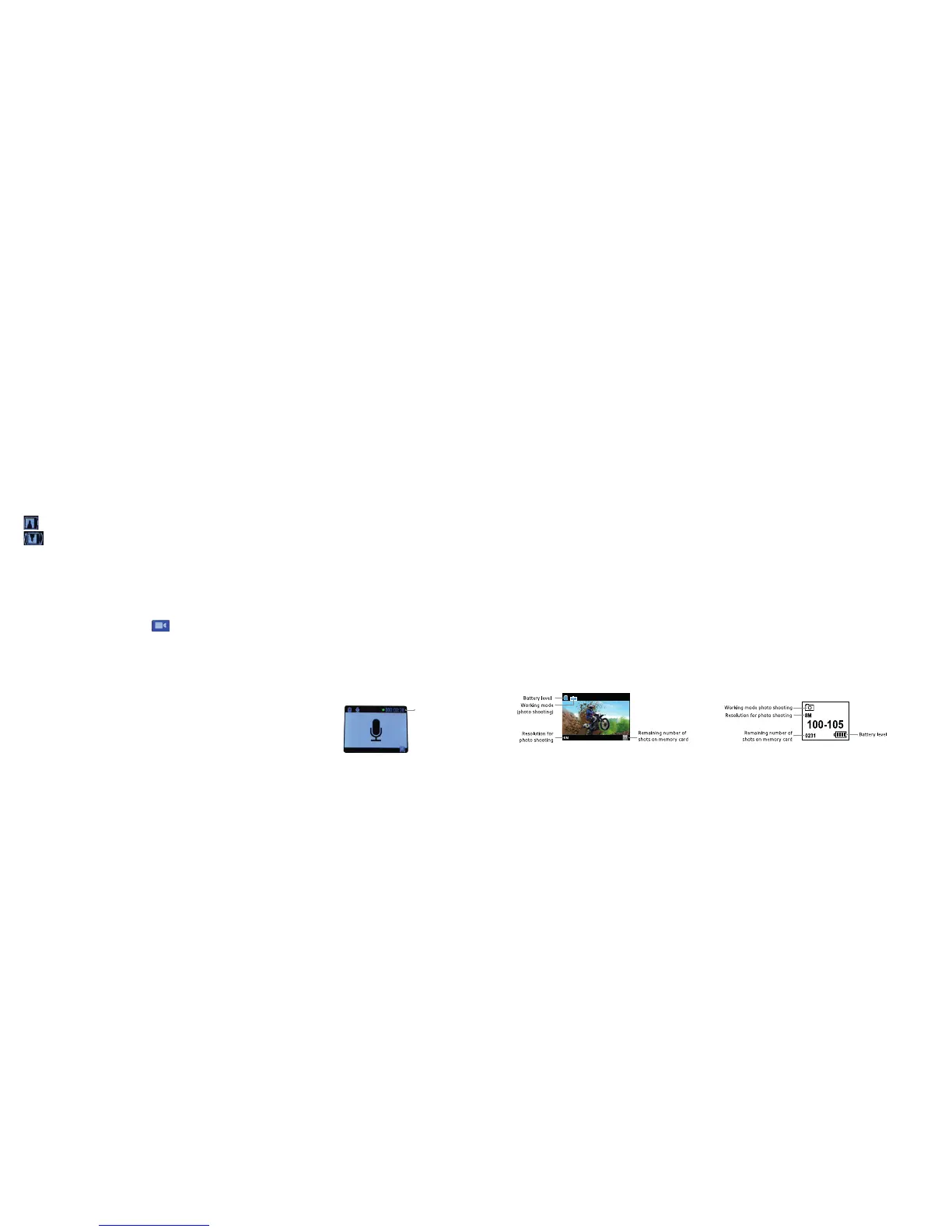
– TFT display under photo shooting mode is shown as below
– During photo shooting, LCD segment display is shown as below
180° rollover
• When this function is activated, upright video files can be obtained when using the Edge HD30W to shoot video
upside down.
OFF: upside-down video files can be obtained when using the Edge HD30W to shoot video upside down.
ON: upright video files can be obtained when using the Edge HD30W to shoot video upside down.
Note: This function is not available for PAL: 480p–100 FPS and NTSC: 480p–120 FPS.
Audio recording
Enter audio recording mode
1. Turn on the camera to enter recording standby mode
2. Press the “M” button to enter the camera setting menu
3. Press the < or > button to select
4. Press the – or + button to select “Exe.: video” and press the “OK” button to confirm
5. Press the < or > button to select “Exe.: audio only” and press the “OK” button to confirm
Operating procedures for audio recording
1. Enter audio recording mode and press the “Video Recording” button to start audio recording
• The camera will tick once to indicate that recording has begun
• The green indicators will flash slowly
2. During audio recording, press the “Stop” button once to stop recording
• The system will tick twice, indicating that the video recording has stopped
• The green indicators will turn off
• The display will return to recording standby mode
Recording time
TFT display LCD screen



 To Next Page