32 33
Fast Shot
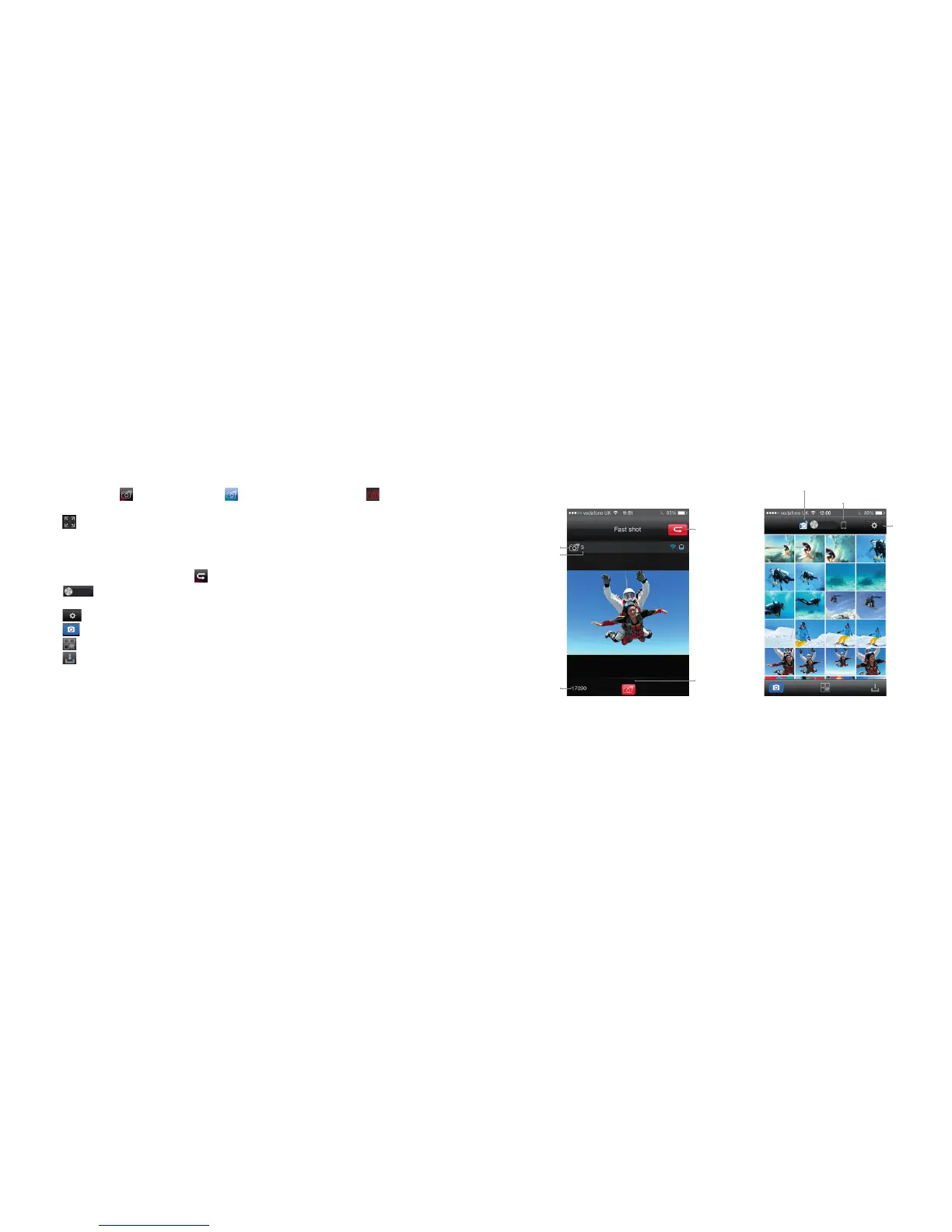
• Click the fast shot mode
icon and it will turn blue . The current state icon will display . Click it to take
multiple pictures within one second
• Click the
icon to maximize the preview (see Fig. 5). You can set how fast the camera takes pictures in the
camera setting interface
Playback
• To remotely play videos and photos, click the
icon to enter the interface shown in Fig. 6
• Slide the
icon. If you select “Camera Storage”, you can replay the files stored on the camera. If you
select “Mobile Device Storage”, you can replay the files downloaded from the camera to the mobile device
• Click the
icon to enter the App settings interface
• Click the
icon to return to the Wi-Fi control interface
• Click the
icon to enter the File selecting/Media sharing interface
• Click the
icon to download media files from the camera to your mobile device
• Click on the thumbnail to view the file in large preview. You can slide left and right to select the desired file
Fig. 5 – Fast shot mode Fig. 6 – Playback interface
Return to
main interface
Settings
Current state
Burst number
Recording
duration
Photo
number
Camera storage
Mobile device storage



 To Next Page