28 29
Using Wi-Fi
Thanks to the Edge HD30W’s built-in Wi-Fi feature, it can be connected to a Wi-Fi remote control, smartphone, tablet
or PC, enabling it to be controlled remotely.
Downloading the Wi-Fi App
• The Wi-Fi app is available to download for free at the Apple App Store and Google Play
• Android users: Enter the Google Play store, search for “AEE APP” (including quotation marks), download and install,
following this user manual to connect the Wi-Fi and operate
• iPhone users: Enter the Apple App store, search for AEE, download and install, following this user manual to connect
the Wi-Fi and operate. APP icon:
Switching on Wi-Fi
Switch the Wi-Fi button to the “ON” position
• The blue indicator will start to flash and the Wi-Fi signal icon
will be seen in the
upper left corner of the TFT display
• Turn the camera on and wait for the blue Wi-Fi indicator to flash slowly.
• Search for a Wi-Fi hotspot on a mobile receiving device, select the “EDGE” network
and connect (default password: ‘00000000’). The camera and the mobile device will then be connected.
• Click the app icon
on the mobile device to display the
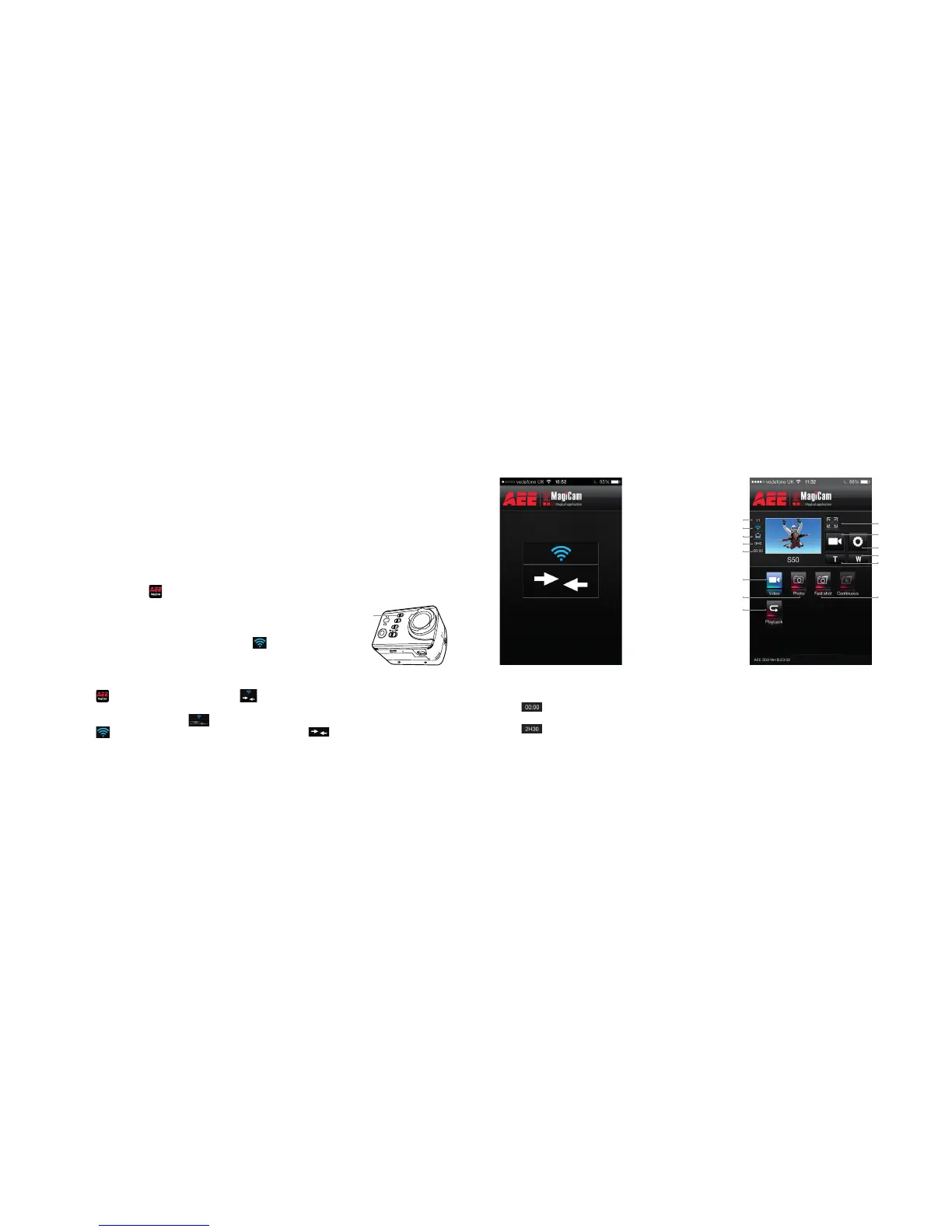
icon shown in Fig. 1. Enter the interface shown
in Fig. 2 to remotely view your camera’s screen and set up parameters.
Note: To indicate Wi-Fi connection failure, the
icon will appear. Select “Yes” to try to connect again. If you select
“No”, click the icon to enter the WLAN settings interface or click the
icon to enter the main interface
to view local files only (no other operation is supported).
Wi-Fi key
Fig. 1 – Wi-Fi connection interface Fig. 2 – Wi-Fi control interface
Maximize preview
Total number of files
Parameter settings
Battery status
Current state icon/
Start/Stop button
Wi-Fi status
Zoom in
Remaining recording time or number of shots
Zoom out
Recording duration
Single shot mode Fast shot mode
Video recording mode
Playback mode
Note: You can remotely control your camera by clicking the icons in the main interface.
: Display the remaining recording time in video recording mode/display the remaining number of shots in
photo shooting mode.
: Recording duration/photo number.
Note: The mobile device must be used within a distance of 100 metres from the Edge HD30W in an obstacle-free area
and at a horizontal angle.



 To Next Page