26 27
When playing audio files, the functions of various buttons are listed as below:
Note: This function is not available when connecting to Wi-Fi.
Button Functions Button Functions
– Decrease volume + Increase volume
Reset to play from the beginning. Press
again to return to the playback interface
OK Play/pause
Deleting files
1. In file playback or thumbnail preview mode, move the cursor to the file icon you want to delete
2. Press the “M” button to enter file operation mode and move the cursor to “Delete file”
3. Press the “OK” button to confirm
4. Move the cursor to select “delete single” or “delete all” and press the “OK” button to delete the file(s)
: Delete single
: Delete all
File protection and unlocking
Move the cursor to select “file protection” and press the “OK” button to enter the file protection interface.
Select protection type and press “OK” to confirm:
: Protect single
: Unlock single
: Protect all
: Unlock all
Note: A protected file cannot be deleted. However, such a file can be deleted by formatting.
Uploading audio/video/photo files to a PC
1. Use the USB cable to connect the camera to a PC
2. Switch on the Edge HD30W
3. Click the “My Computer” icon on the desktop and find the “Removable Disc”. If the camera is not detected, close
the “My Computer” window, wait, then reopen it. The “Removable Disc” should then be displayed
4. Double click the “Removable Disc” icon
5. Copy/move the files to the PC’s hard drive
Viewing videos/photos on HDTV
• The recorded files can also be played on a TV or a display with an HDMI interface
• Ensure that your camera is properly configured to NTSC (North America) or PAL (Non-North America) video format;
otherwise, the video and images on the camera cannot be properly displayed
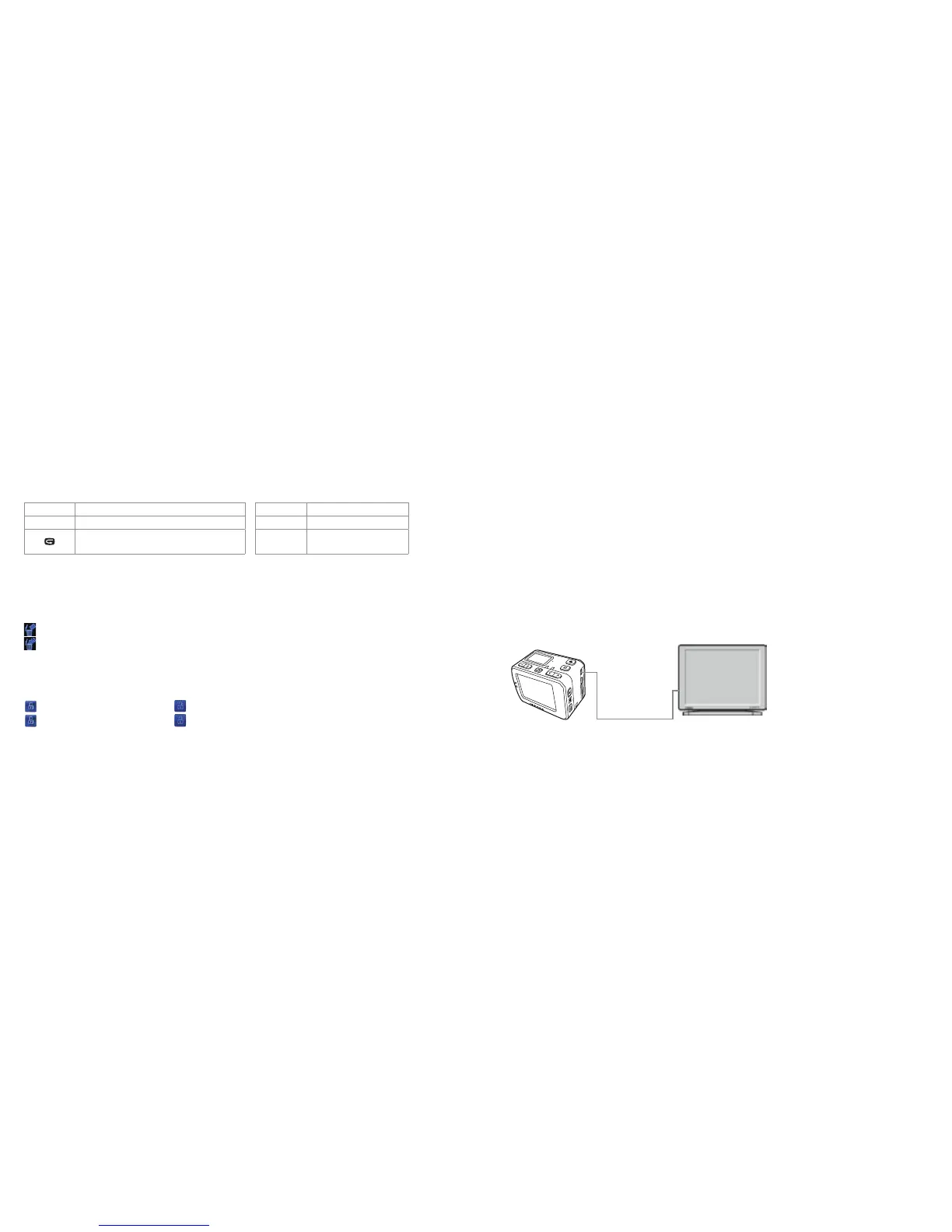
• Use the HDMI cable to connect the Edge HD30W to the TV set:
Video camera
HDMI interface
HDMI cable
TV/Mo nitor



 To Next Page