KMS MD35 manual
Version 4.16 51
3.2.4.1.18 Communication port
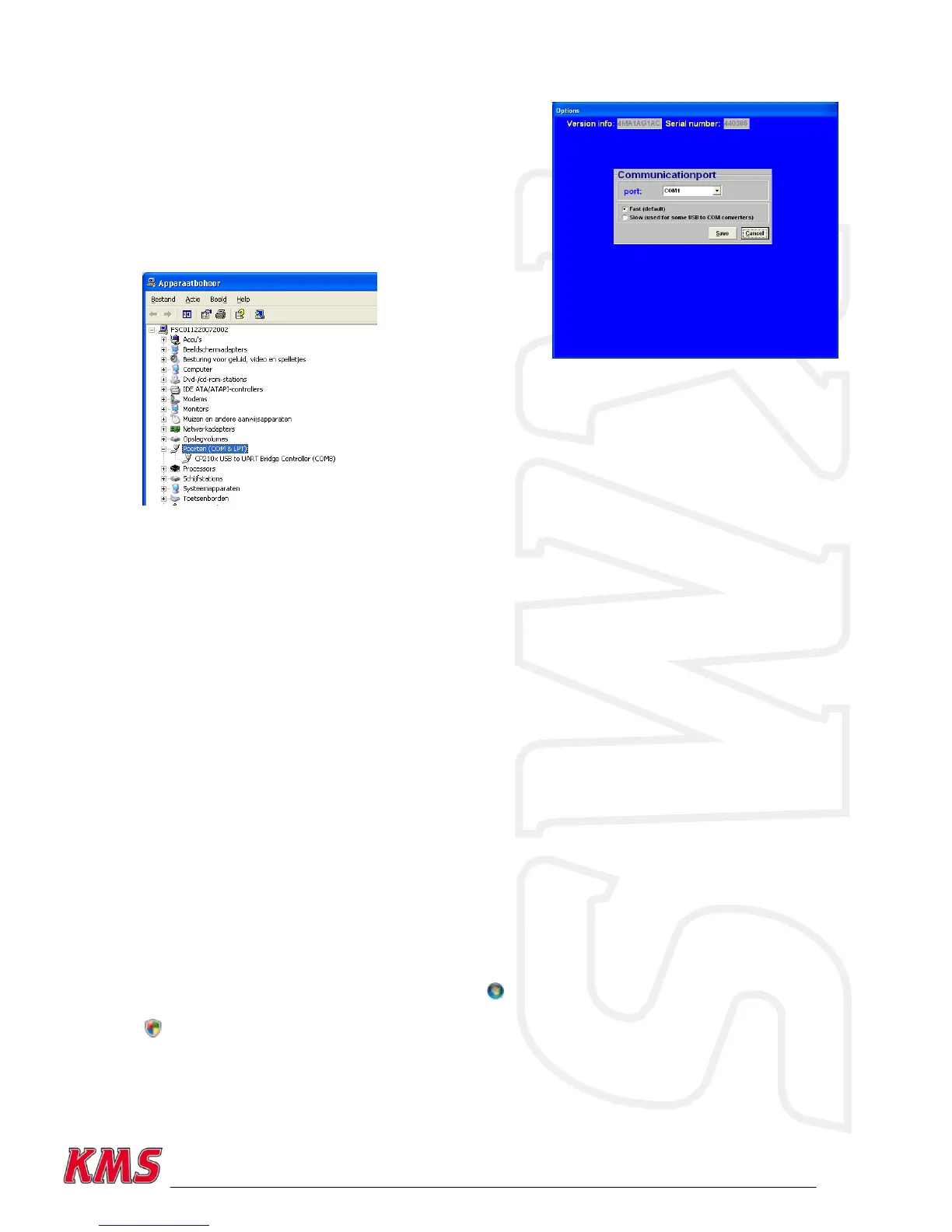
Select the required communication port and save using the
'Save' button.
The MD35 system is based on USB communication.
Depending on your laptop/desktop system your
communication port will be selected for you. You can see
this on your computer in the hardware profile.
In this example you
can see that the USB
connection has set to
COM 8.
(If you have the datalog software installed, then you can see it
in that software. There‟s an option in de KMS datalog software
which automatically searches the right communication port)
3.2.4.1.18.1 Communication with a Windows Vista or Windows 7 based desktop/laptop
Windows Vista and Windows 7 use a different kind of communication compared to for example
Windows XP.
The KMS software must be modified to match the compatibility of Windows XP. To match the KMS
software compatibility to a Vista or 7 computer, look for the „KMS motormanagement.exe‟ file. (if
you installed the KMS software the standard way, you can find this file at C:/program files/KMS/KMS
Motormanagement).
Click with the right mouse button on this file and select „properties‟. You will now see a screen with
some tabs. Select the tab „compatibility‟ and set the compatibility mode in this screen to Windows
XP SP2. Don‟t forget to click the box above it to select the compatibility modes.
The KMS software will now „see‟ the different communication ports and you will be able to connect
the ECU to the computer.
If this is not the case, another communication driver should be installed. These communication
drivers can be found on our website. Unpack the file after downloading and double click on the
'.exe' file. Follow the instructions on your screen to successfully complete the installation.
3.2.4.1.18.2 Windows Firewall
To start this procedure you must logged in as administrator on your computer. Open Windows
Firewall. By default, most programs are blocked by Windows Firewall, to help make your computer
more secure. To work properly, some programs might require you to allow them to communicate
through the firewall. Here's how to do that:
Open Windows Firewall by clicking the Start button , clicking Control Panel, clicking Security, and
then clicking Windows Firewall. In the left pane, click Allow a program through Windows Firewall.
If you are prompted for an administrator password or confirmation, type the password or provide
confirmation. Select the check box next to the program you want to allow, and then click „OK‟ .


 To Next Page