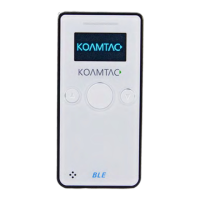
KDC180
Quick Guide
See Reference Manual for more detailed information
Visit store.koamtac.com to purchase additional products and accessories.
QG_KDC180_20201014 p3
1.2 How to turn on and off
Refer to the figure in section 1.1 to locate the SCAN and DOWN buttons.
Note: The trigger on the Ring Scanner and Finger Trigger Glove work as SCAN buttons.
On the keypad variation, the DOWN button is in the lower area.
a) Press and hold the SCAN + DOWN buttons simultaneously for 3 seconds.
b) The KDC will beep when it is turned ON.
Pairing (Bluetooth or NFC)
Connecting your KDC using Bluetooth is made easy with the below pairing barcodes.
If using an Android device, pairing via NFC is even easier: just approaching the KDC to the back of the host
device’s NFC area is enough for pairing. For more details, see section 2.3
2.1 Bluetooth Profiles Explained
a. HID Profile: Allows one-way Bluetooth communication with an Android or iOS host
device. The KDC only transmits data to the host device.
b. SPP Profile: Allows two-way Bluetooth communication. The KDC transmits data to the
host device and the host device can transmit data back to the KDC.
c. HID Windows Profile: Allows one-way Bluetooth communication with Windows host
device. The KDC only transmits data to the host device.
Note: HID inputs data directly into an application. SPP requires the KOAMTAC SDK to
input data into an application. To gain access to the SDK, please complete the form here:
https://www.koamtac.com/sdk/



 To Next Page