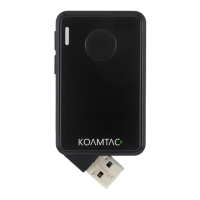
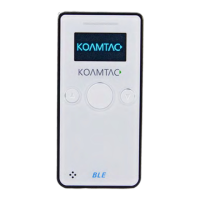
KDC180
Quick Guide
See Reference Manual for more detailed information
Visit store.koamtac.com to purchase additional products and accessories.
QG_KDC180_20201014 p5
e. In SPP Profile for iOS, the KDC is NOT listed on your host device, so you should launch
KTSync or your application and select the KDC180 listed by serial number in brackets that
matches the serial number found on the back side of the KDC180. KDC180 will beep upon
connection and display “Bluetooth Connected” on its screen. Now it is ready to use.
2.3 Bluetooth Pairing a KDC180 to your smart device with NFC (Android Only)
This feature applies only to Android. KDC may be paired in either HID or SPP only.
a. Navigate to the NFC setting on the host device and ensure that Bluetooth is both
enabled and searching for devices.
b. On the KDC, make sure NFC pairing is enabled by navigating to KDC MENU BLE
Config NFC Pairing Enabled Save & Exit.
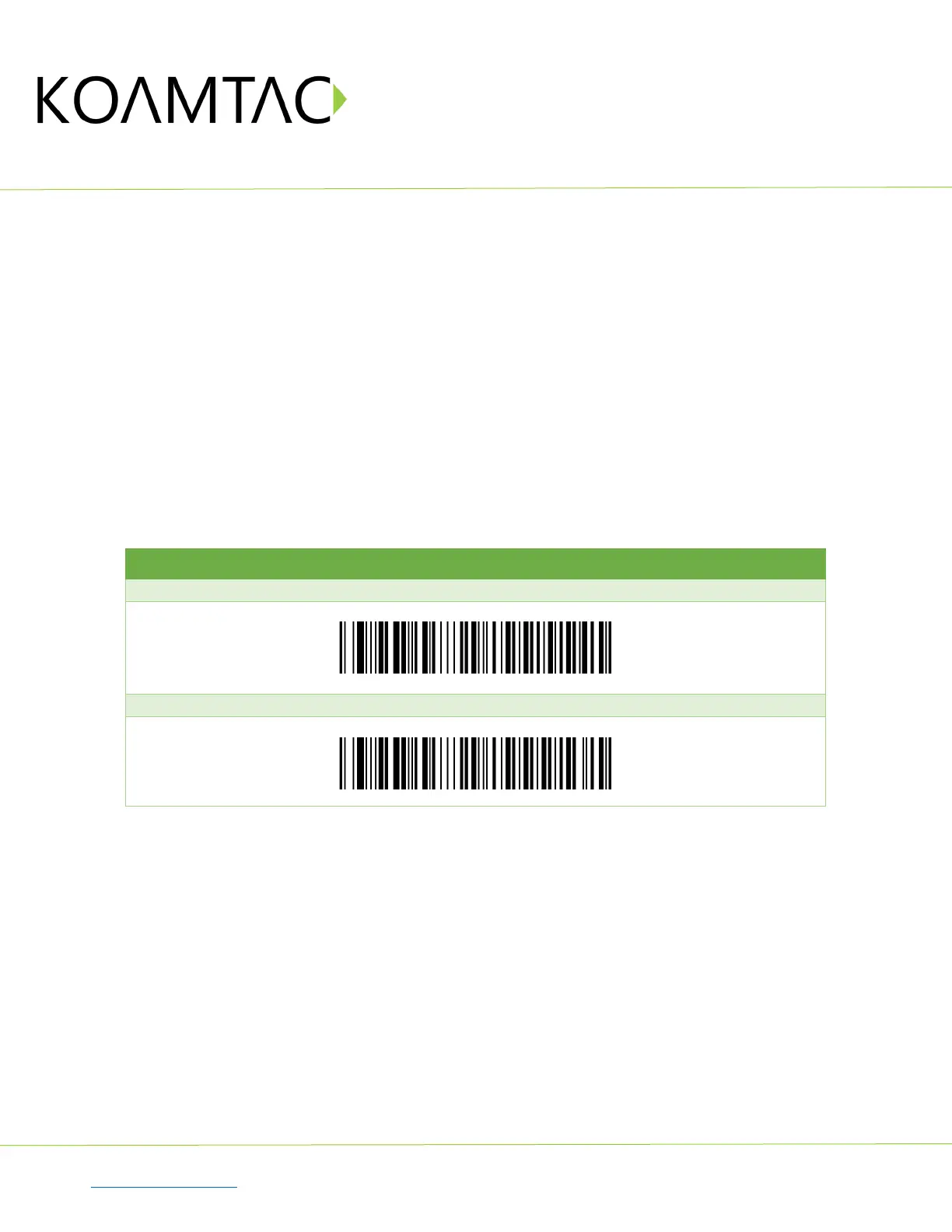
c. On the KDC, select the pairing profile by navigating to KDC MENU BT Config
Connect Device Select HID or SPP Save & Exit.
Or, select the profile using the special barcodes below:
d. Approach the NFC area on the back of the host device with the KDC to complete pairing.
#1. HID Profile (Android Only)
#2. SPP Profile (Android Only)



 To Next Page