EasyManua.ls Logo

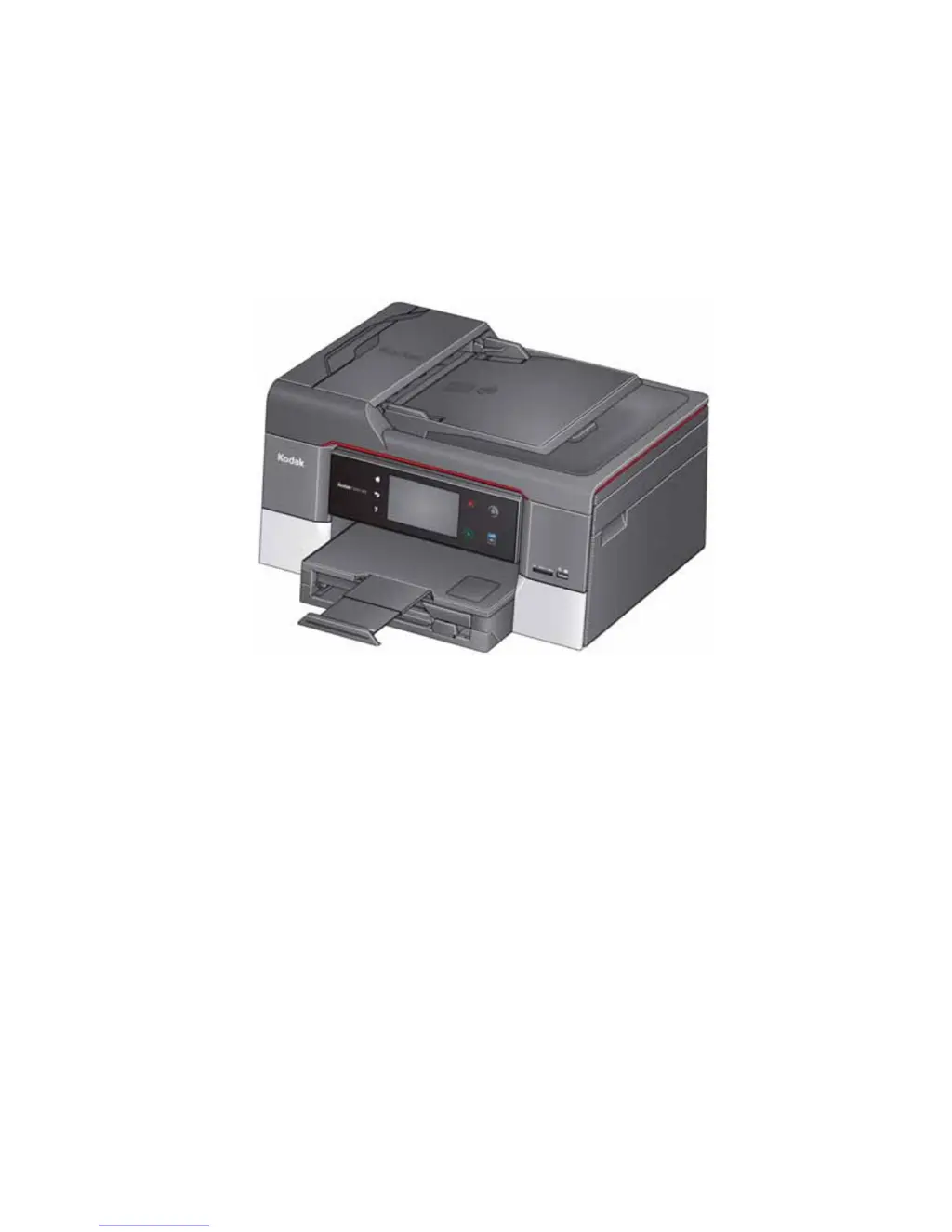
Kodak HERO 9.1 - User Manual

Kodak HERO 9.1
145 pages
Print Icon
To Next Page IconTo Next Page
Loading...
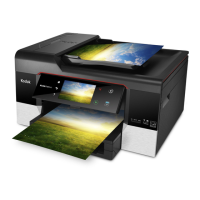
KODAK HERO 9.1
All-in-One Printer
Extended User Guide

Table of Contents

Questions and Answers

  • A
    Aaron KingAug 19, 2025
    What to do if Kodak HERO 9.1 All in One Printer shows ink cartridge errors?
    • A
      Alex TravisSep 12, 2025
      To address ink cartridge errors in your Kodak All in One Printer, ensure that KODAK Ink Cartridges are installed. If they are already installed, try removing and then reinstalling the cartridges.
  • B
    bassdavidAug 21, 2025
    What to do if my Kodak HERO 9.1 displays ink cartridge errors?
    • J
      Jeffrey MooreAug 21, 2025
      If your Kodak All in One Printer displays ink cartridge errors, make sure KODAK Ink Cartridges are installed and that you are not using non-Kodak brand or refilled ink cartridges. Remove and then reinstall the cartridges, ensuring they click into place.
  • S
    Shelly PittsAug 23, 2025
    What to do if my Kodak HERO 9.1 All in One Printer is not detected?
    • M
      Melanie HudsonAug 25, 2025
      To resolve the issue of your Kodak All in One Printer not being detected, ensure it is plugged in and powered on. If using a USB connection, verify it's a USB 2.0 high-speed cable connected to both the printer and computer. Restart your computer if the USB cable was reconnected or power was interrupted. For wireless connections, confirm the Wi-Fi LED is lit and the printer is connected to your network. Check the network configuration on the printer to ensure the Active Connection Type is Wi-Fi and the IP Address is not all zeros. Also, verify that your router is transmitting data and that your firewall settings (excluding WINDOWS Firewall) are allowing the necessary services for the printer.
  • W
    William SmithAug 26, 2025
    Why my Kodak All in One Printer does not power on?
    • M
      Melinda HansenAug 26, 2025
      If your Kodak All in One Printer does not power on, ensure you are using the power cord that came with the printer. Check that the power cord is connected to the AC adapter and plugged into an outlet or power strip, and that the LED on the AC adapter is lit. Also, verify that the power cord is securely connected to the power cord port on the back of the printer.
  • S
    Sarah BondAug 28, 2025
    How to fix a paper jam in Kodak All in One Printer?
    • A
      Anthony DayAug 28, 2025
      If you experience a paper jam in your Kodak All in One Printer, check for paper behind the duplexer in the cleanout area. Make sure the paper in the tray is free of tears or creases, and ensure that you do not overload the paper tray.
  • M
    Margaret LozanoAug 29, 2025
    What to do if Kodak HERO 9.1 has a carriage jam?
    • C
      Christine PerryAug 29, 2025
      To resolve carriage jams in your Kodak All in One Printer, open the access door and clear any obstructions. Also, make sure the printhead and ink cartridges are installed correctly.
  • J
    Joseph ValdezSep 1, 2025
    How to improve print quality on Kodak HERO 9.1 All in One Printer?
    • J
      Joseph BridgesSep 1, 2025
      To improve the print quality of your Kodak All in One Printer, use KODAK Paper or paper with the COLORLOK Technology logo. Ensure the paper is loaded correctly. You can also try cleaning the printhead and calibrating the printer.
  • D
    Danielle FreemanSep 3, 2025
    How to prevent paper curl in Kodak All in One Printer?
    • E
      Erica DodsonSep 3, 2025
      To reduce paper curl after printing with your Kodak All in One Printer, especially when printing pictures or documents with large image areas, increase the top and bottom margins when printing in portrait mode, or the left and right margins in landscape mode. Try using a heavier paper, such as 24 lb (90 gsm) paper or KODAK Ultimate Paper. Apply a border instead of printing in borderless mode. If the paper is not stacking properly in the output tray, remove the pages as they exit.
  • K
    Kristen GraySep 5, 2025
    Why is my Kodak HERO 9.1 not detected?
    • T
      Tammy BennettSep 5, 2025
      Your Kodak All in One Printer might not be detected for several reasons. First, ensure the printer is plugged in and turned on. If using a USB cable, verify it's a USB 2.0 high-speed cable and properly connected to both the printer and computer. Restart your computer if the USB cable was reconnected or power was interrupted. For wireless connections, check that the Wi-Fi connectivity LED is lit, the printer is connected to your wireless network, and your router is transmitting data. Also, ensure your firewall (excluding WINDOWS Firewall) is allowing the necessary services for your printer.
  • D
    Daniel LeachSep 7, 2025
    What to do if my Kodak HERO 9.1 All in One Printer has a paper jam?
    • T
      Tami ChurchSep 7, 2025
      If your Kodak All in One Printer is experiencing a paper jam, check for paper behind the duplexer in the cleanout area. Also, make sure the paper in the tray is free of tears or creases, and avoid overloading the paper tray.

Summary

Networking Your Printer

Online Printer Management Tool

Accessing the Online Printer Management Tool

Provides two methods to access the printer's management tool via browser.

Setting up Scan To Email

Guide to configure the printer to scan documents directly to email.

Setting up Scan To Network Folder

Guide to configure the printer to scan documents directly to a network folder.

Mobile Printing

Printing using Google Cloud Print

How to print wirelessly using Google Cloud Print from various devices.

Printing using KODAK Email Print Service

How to print emails, documents, and pictures by sending them to the printer's email.

Scanning

Scanning to a computer

Instructions for scanning documents or photos directly to a computer.

Scanning to email

Steps to scan documents and send them directly to an email address.

Maintaining Your Printer

Replacing ink cartridges

Step-by-step guide for replacing black and color ink cartridges.

Updating the software and printer firmware

How to update the printer's software and firmware for optimal performance.

Troubleshooting

Basic troubleshooting

General steps to resolve common printer issues by restarting or checking connections.

Product and Safety Specifications

Safety information

General safety warnings and precautions for using the printer.

Warranty Information

Details on the limited warranty, coverage, and limitations.

Kodak HERO 9.1 Specifications

General IconGeneral
Print TechnologyInkjet
Maximum Print Resolution4800 x 1200 dpi
Scanner TypeFlatbed
Maximum Scan Resolution1200 x 1200 dpi
Max Copying Resolution600 x 600 dpi
Operating System CompatibilityWindows, Mac
Media TypesPlain Paper, Photo Paper, Envelopes
USBYes
FunctionsPrint, Copy, Scan
ConnectivityUSB
Display2.4-inch LCD
Paper SizesLetter, Legal
Paper Handling100-sheet input tray
Ink TypeDye-based

Related product manuals