
 To Next Page
N
Nicole NguyenAug 30, 2025
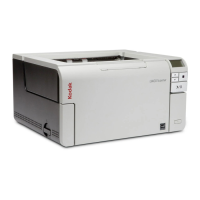
How to resolve false paper jams on Kodak i3200?
- AAshley TurnerAug 30, 2025
If you are experiencing “false” paper jams or multifeeds with your Kodak scanner, make sure that the transport area is clean.

How to resolve false paper jams on Kodak i3200?
If you are experiencing “false” paper jams or multifeeds with your Kodak scanner, make sure that the transport area is clean.
How to fix documents being skewed during scanning on Kodak scanner?
If documents are skewed during scanning with your Kodak scanner, ensure the input tray side guides are adjusted to fit the documents being fed. Make sure documents are fed perpendicular to the feed module. Remove all staples and paper clips from the documents. Ensure the feed module, separation roller, and drive rollers are clean. Also, make sure the scanner cover is firmly closed.
Why is my Kodak i3200 running so slow?
If your Kodak scanner is running slowly, there might be several reasons. First, your PC may not meet the minimum requirements for the scanner. Disable any anti-virus or security suite software. If the problem resolves, consult the anti-virus or security suite software documentation for how to use exceptions or exclusions and add the Kodak folders. Some image processing functions will reduce scanner speed. The resolution (dpi) setting may be set too high. Your virus software may be scanning all TIFF or JPEG files. Ensure you are scanning to a local drive.
How to scan long documents on Kodak i3200?
If you are having trouble feeding or are jamming 11 inches / 27.94 cm or longer documents in your Kodak scanner, make sure the input and output tray extenders are pulled out to provide support for long documents. Also see problem U9 (document jam) on page 6-1.
How to improve Kodak i3200 Scanner image quality?
If the image quality from your Kodak scanner is poor or has decreased, make sure that the scanner and imaging guides are clean. Refer to “5 Maintenance” on page 27.
What to do if my Kodak i3200 Scanner shows '0' and won't communicate with PC?
If you see a '0' displayed in the operator control panel after powering on your Kodak scanner, indicating it's not communicating with the PC, check that the USB cable is in good working condition and securely plugged into both the PC and the USB port. Ensure you are using a USB 2.0 (or higher) connection, as USB 1.1 will not work. Be sure the software is loaded. Verify that the PC is recognizing the scanner: Click Start>Settings>Control Panel>Administrative Tools>Computer Management to display the Computer Management window. Select Device Manager and select your PC. The Kodak i3200 (or i3250/i3300/i3400/i3450/i3500) Scanner should be displayed under Imaging Devices. Click Action>Scan for hardware changes.
What to do if my Kodak scanner will not scan documents?
If your Kodak scanner will not scan or feed documents, make sure the power cord is plugged in and the power is on. Ensure the power button has been pushed and the green LED is lit. Verify that the scanner cover is completely closed. Check that documents are making contact with the feed module and are covering the paper present sensor, and that documents meet specifications for size, weight, and type. For thicker documents, turn the gap release dial vertically to open the space between the feed module and separation module. Check the feed module and separation roller for signs of wear, and replace these parts if necessary. You can also power the scanner down and power it up again.
 General
| Film scanning | No |
|---|---|
| Color scanning | Yes |
| Grayscale levels | 256 |
| Maximum scan size | 305 x 4100 mm |
| Output color depth | 24 bit |
| Output grayscale depth | 8 bit |
| ADF scan speed (b/w, A4) | 50 ppm |
| Optical scanning resolution | 600 x 600 DPI |
| Duplex ADF scan speed (b/w, A4) | 100 ipm |
| Black/white scanning color modes | Grayscale |
| Display | LCD |
| Scanner type | ADF scanner |
| Product color | Black, Grey |
| Sensor type | Dual CCD |
| Scan drivers | ISIS, TWAIN, WIA |
| Scan file formats | BMP, JPG, PDF, RTF, TIFF |
| Scanning noise level | 60 dB |
| Daily duty cycle (max) | 15000 pages |
| Maximum scan area (ADF) | 305 x 863.6 mm |
| Minimum scan area (ADF) | 63.5 x 63.5 mm |
| Scanning media types supported | Plain paper |
| Maximum ISO A-series paper size | A3 |
| Auto Document Feeder (ADF) media weight | 34 - 413 g/m² |
| USB version | 3.2 Gen 1 (3.1 Gen 1) |
| Standard interfaces | USB 2.0, USB 3.2 Gen 1 (3.1 Gen 1) |
| Input voltage | 100-240 V |
| Power supply type | AC |
| AC input frequency | 50 - 60 Hz |
| Power consumption (off) | 0.5 W |
| Power consumption (typical) | 75 W |
| Operating temperature (T-T) | 15 - 35 °C |
| Operating relative humidity (H-H) | 15 - 80 % |
| PC connection | USB 2.0 |
| Sustainability certificates | ENERGY STAR |
| Linear (1D) barcodes supported | Code 128, Code 25 (IR 2 of 5), Code 39, EAN-13, EAN-8, U.P.C. |
| Minimum RAM | 4000 MB |
| Mac operating systems supported | Mac OS X 10.10 Yosemite, Mac OS X 10.7 Lion, Mac OS X 10.8 Mountain Lion, Mac OS X 10.9 Mavericks |
| Linux operating systems supported | Ubuntu 14.04 |
| Windows operating systems supported | Windows 7 Enterprise, Windows 7 Enterprise x64, Windows 7 Home Basic, Windows 7 Home Basic x64, Windows 7 Home Premium, Windows 7 Home Premium x64, Windows 7 Professional, Windows 7 Professional x64, Windows 7 Starter, Windows 7 Starter x64, Windows 7 Ultimate, Windows 7 Ultimate x64, Windows 8, Windows 8 Enterprise, Windows 8 Enterprise x64, Windows 8 Pro, Windows 8 Pro x64, Windows 8 x64, Windows 8.1, Windows 8.1 Enterprise, Windows 8.1 Enterprise x64, Windows 8.1 Pro, Windows 8.1 Pro x64, Windows 8.1 x64, Windows Vista Business, Windows Vista Business x64, Windows Vista Enterprise, Windows Vista Enterprise x64, Windows Vista Home Basic, Windows Vista Home Basic x64, Windows Vista Home Premium, Windows Vista Home Premium x64, Windows Vista Ultimate, Windows Vista Ultimate x64 |
| Auto document feeder (ADF) input capacity | 250 sheets |
| Bundled software | Capture Pro Limited Edition, Asset Management, NewSoft Presto! PageManager |
| Certification | AS/NZS CISPR 22:2009 + A1:2010 Class B (C-Tick Mark), CAN/CSA-C22.2 No. 60950-1-07 (C-UL Mark), Canada ICES-003 Issue 5 (Class B), GB4943.1:2011, GB9254:2008 (Class B), GB 17625.1:2003 Harmonics (CCC \ |
| Harmonized System (HS) code | 84716070 |
 Weight and Dimensions
| Depth | 371 mm |
|---|---|
| Width | 431.8 mm |
| Height | 238 mm |
| Weight | 15800 g |