EasyManua.ls Logo

Kodak S2085f - User Manual

Kodak S2085f
82 pages
Print Icon
To Next Page IconTo Next Page
Loading...
A-61981
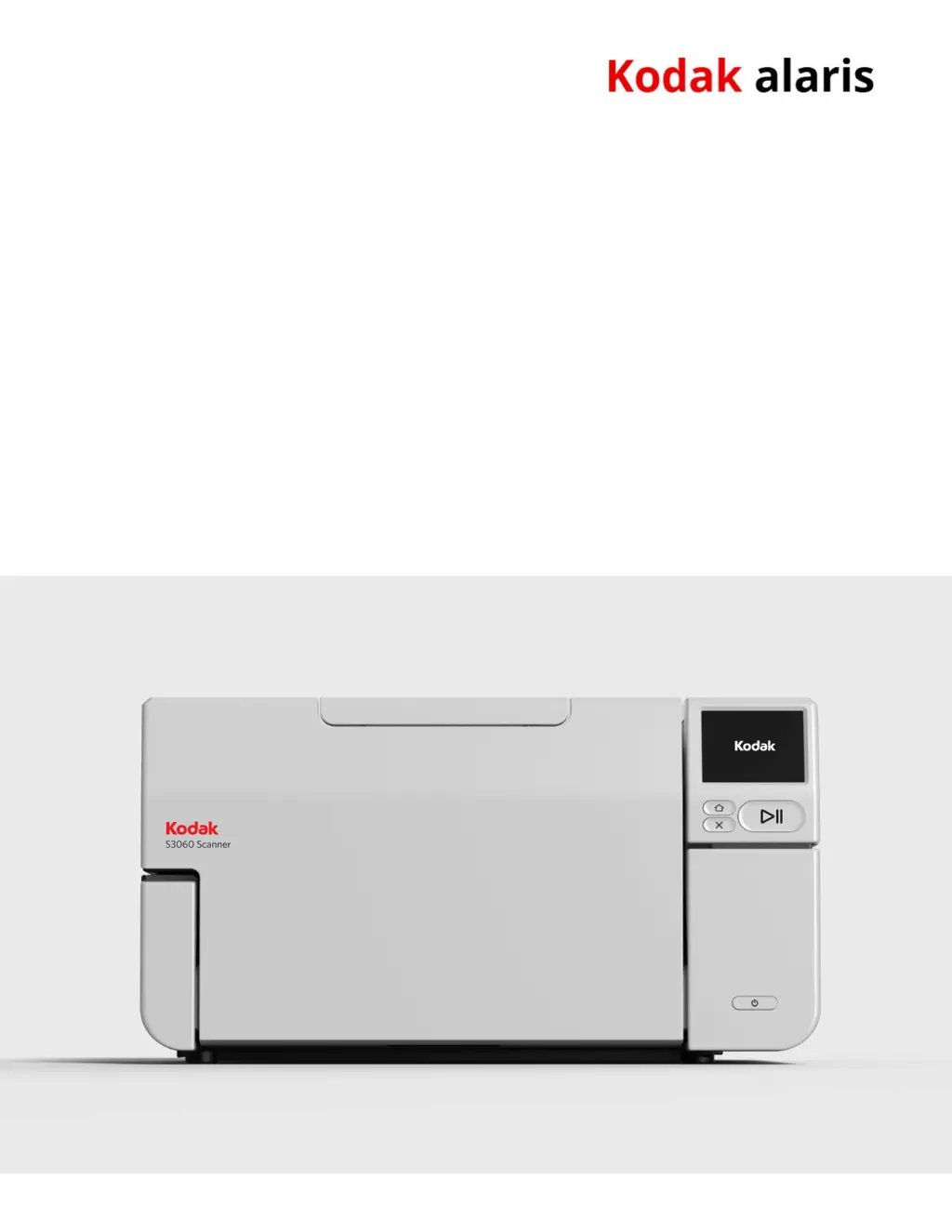
KODAK S2085f Scanner
KODAK S3060 Scanner
KODAK S3060f Scanner
User's Guide
KODAK S3100 Scanner
KODAK S3100f Scanner
KODAK S3120 Scanner
KODAK S3120
Max
Scanner
KODAK S3140 Max Scanner
Kodak S2000f/S3000 Series Scanners

Table of Contents

Questions and Answers

  • J
    Joel CoxSep 8, 2025
    How to remove roller marks from Kodak S2085f Scanner output?
    • C
      Carla GilmoreSep 8, 2025
      If roller marks or streaks appear on documents after scanning with your Kodak scanner, clean the feed module, transport rollers, separation roller and tires.
  • J
    Jeremy GrahamSep 12, 2025
    Why does my Kodak S2085f say 'Document Jam' when there isn't one?
    • R
      reynoldsmichelleSep 12, 2025
      If the “Document Jam” message appears on your Kodak scanner screen, but the paper is not actually jammed, verify that the Document Management: Maximum Length option on the Device-General tab (TWAIN Datasource) or the Longest Document option on the Scanner tab (ISIS Driver) is set to longer than the longest document being scanned. Also, the driver settings (Resolution, Compression, Bit depth) may result in the image being larger than the scanner memory. Adjust settings as needed.
  • A
    Alyssa ChavezSep 12, 2025
    What to do if Kodak S2085f Scanner says cover opened?
    • M
      Michaela WilliamsSep 12, 2025
      If your Kodak scanner indicates that the cover is opened, ensure that you close the scanner cover completely.
  • J
    Jeremy WeeksSep 14, 2025
    Why does my Kodak S2085f Scanner indicate false paper jams?
    • P
      Patrick RamosSep 14, 2025
      If your Kodak scanner is experiencing false paper jams or multifeeds, ensure the transport area is clean. Also, decrease the sensitivity setting for the multifeed and Intelligent Document Protection in the scanning application.
  • R
    Rickey ReynoldsSep 16, 2025
    What happens when a misfeed occurs on my Kodak S2085f?
    • A
      Alyssa BurtonSep 16, 2025
      If a misfeed occurs during scanning with your Kodak scanner and Interactive Multifeed Recovery is enabled, scanning will pause and a screen will be displayed. Look at the images on your PC. If the image is acceptable, touch the start/resume button to accept the image(s) and continue scanning. If the image is not acceptable, touch the stop button to reject the image and suspend scanning, or touch the button to reject the image(s) and continue scanning.

Summary

Safety

User Precautions

Essential safety guidelines and precautions for operating the scanner safely.

Installation and First Scan

Unboxing and Initial Setup

Covers unboxing the scanner and performing the initial setup procedures.

Software Installation and Updates

Guidance on installing drivers, firmware, and available scanning software.

Preparing for Scanning

Steps to get the scanner and documents ready for the initial scanning process.

Scanner Adjustments and Operation

Touch Screen and Settings Configuration

Navigating the touch screen interface and configuring scanner settings.

Document Printing

Maintenance and Replacement Procedures

Cleaning Tools and Procedures

Lists necessary tools and detailed steps for cleaning scanner components.

Troubleshooting and Service

Warranty Information

Service Programs

Kodak S2085f Specifications

General IconGeneral
Scanner TypeDocument Scanner
Optical Resolution600 dpi
Duplex ScanningYes
Color Depth24-bit
Grayscale Depth8-bit
Output File FormatsPDF, JPEG, TIFF, RTF, BMP
Maximum Document Size8.5 x 14 inches
Output Resolution75 / 100 / 150 / 200 / 240 / 300 / 400 / 600 dpi
InterfaceUSB 3.2 Gen 1
Supported Operating SystemsWindows 10

Related product manuals