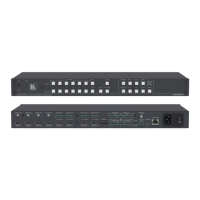
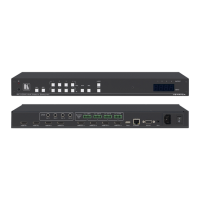
5.2 Connecting via Ethernet
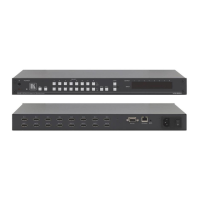
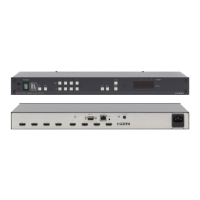
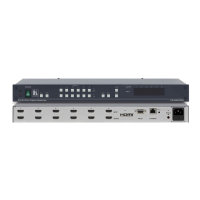
You can connect to the VS-84HDCPxl via Ethernet using either of the following
methods:
Directly to the PC using a crossover cable (see Section 5.2.1)
Via a network hub, switch, or router, using a straight-through cable (see
Section 5.2.2)
After connecting the VS-84HDCPxl to the Ethernet port, configure your local
Ethernet port by following the instructions in the Ethernet Configuration
(K-LanConfigurator) guide available from
http://www.kramerelectronics.com/support/product_downloads.asp or from the
Downloads section of the VS-84HDCPxl Web page.
Note: If you want to connect via a router and your IT system is based on IPv6,
speak to your IT department for specific installation instructions.
5.2.1 Connecting the Ethernet Port Directly to a PC
You can connect the Ethernet port of the VS-84HDCPxl directly to the Ethernet
port on your PC using a crossover cable with RJ-45 connectors.
This type of connection is recommended for identifying the
VS-84HDCPxl with the factory configured default IP address.
5.2.2 Connecting the Ethernet Port via a Network Hub or Switch
You can connect the Ethernet port of the VS-84HDCPxl to the Ethernet port on a
network hub or using a straight-through cable with RJ-45 connectors.


 To Next Page