EasyManua.ls Logo

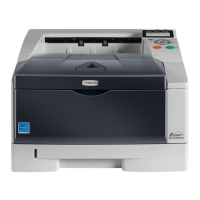
Kyocera FS-1350DN - User Manual

Kyocera FS-1350DN
190 pages
Print Icon
To Next Page IconTo Next Page
Loading...
OPERATION GUIDE
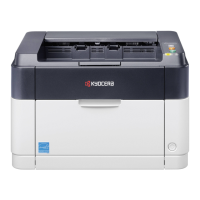
F S -110 0
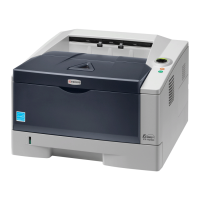
FS -130 0D
870CKGB20008
*870CKGB20008*
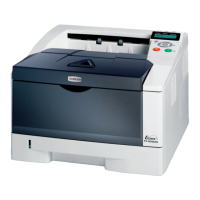
FS-1350DN

Table of Contents

Other manuals for Kyocera FS-1350DN

Questions and Answers

  • T
    Teresa BarnesSep 10, 2025
    Why is my Kyocera FS-1350DN printing status page but not computer data?
    • B
      Brittney PorterSep 10, 2025
      If your Kyocera printer prints a status page but not data from the computer, check program files and application software. Try printing another file or using another print command. If the problem occurs with a specific file or application, check the printer settings for that application. Also, check the interface cable by connecting both ends securely and trying a replacement cable.
  • B
    betty06Aug 25, 2025
    Why does my Kyocera FS-1350DN Printer not turn on?
    • M
      morgankennethAug 25, 2025
      If nothing lights up on the operation panel, even when the power is turned on and the fan makes no noise, first check that the power cord is properly plugged into the power outlet, connecting both ends of the power cord securely. If that doesn't work, try replacing the power cord. Also, make sure the power switch is in the On (|) position.
  • M
    michaelsanfordAug 25, 2025
    Why my Kyocera FS-1350DN Printer won't turn on?
    • K
      krystaldavisAug 26, 2025
      If nothing lights up on the operation panel of your Kyocera printer, and the fan isn't making noise, check that the power cord is properly plugged into the power outlet. Ensure both ends of the power cord are securely connected. You can also try replacing the power cord. Also, ensure the power switch is in the On (|) position.
  • C
    cynthia22Sep 23, 2025
    What does 'Low security' mean on Kyocera FS-1350DN?
    • J
      Jared PaulSep 23, 2025
      This message is displayed when Low was selected in Security Level.
  • W
    Walter EdwardsSep 12, 2025
    How to resolve gray background issue on Kyocera FS-1350DN?
    • J
      jeffrey59Sep 12, 2025
      If your Kyocera printer is producing a gray background on prints, check the toner container and replace if necessary. Also, ensure the developer unit and drum unit are installed correctly.
  • C
    Clinton PerezSep 15, 2025
    What to do if my Kyocera FS-1350DN shows 'Error.Power off. F000'?
    • A
      Amy JohnstonSep 16, 2025
      The 'Error.Power off. F000' message on your Kyocera printer indicates that the printer controller and operation panel cannot exchange data. Turn the printer off and unplug it from the mains power supply. Then contact your service representative or authorized service center.
  • D
    David MooreSep 4, 2025
    Why is my Kyocera FS-1350DN Printer printing a status page but not data from the computer?
    • E
      Elizabeth BurtonSep 4, 2025
      The printer might print a status page, but data from the computer isn't being printed because of program files and application software issues or interface cable problems. Try printing another file or using another print command. If the problem occurs with a specific file or application, check the printer settings for that application. Also, connect both ends of the interface cable securely and try replacing the printer cable.
  • L
    Lori SolisSep 5, 2025
    What to do if my Kyocera FS-1350DN Printer displays 'Missing developer unit'?
    • V
      vasquezjamieSep 5, 2025
      The message 'Missing developer unit' means that the developer unit is either not installed or incorrectly inserted. Insert the developer unit securely.
  • D
    Daniel StephensonSep 23, 2025
    What does 'Original toner installed' mean on Kyocera Printer?
    • M
      Melanie WattsSep 23, 2025
      The message 'Original toner installed' is displayed when the installed toner is the original Kyocera product.
  • K
    Kristie JordanAug 30, 2025
    How to fix printing that is incomplete or out of position on Kyocera FS-1350DN?
    • M
      Michael DorseyAug 30, 2025
      To address incomplete or out-of-position printing on your Kyocera printer, verify that the printing settings are correct in both the application software and the printer driver. Also, determine whether the problem is due to a PRESCRIBE command error. If it occurs only with a specific file or program, the most likely cause is an error in a parameter to a command or command syntax.

Summary

Machine Parts

Operation Panel

Details the printer's operation panel, including its display, keys, and indicators.

Paper Handling

Selecting the Right Paper

Offers guidelines on choosing paper based on condition, composition, size, and smoothness for best results.

Connecting and Printing

Changing Network Interface Parameters

Details how to configure TCP/IP, TCP/IP (IPv6), and other network settings.

Installing the Printer Driver

Guides users through installing the printer driver on Windows and Mac OS.

Maintenance

Toner Container Replacement Procedure

Detailed steps for replacing the toner container to maintain print quality.

Troubleshooting

Print Quality Problems and Solutions

Details various print quality issues and their corresponding corrective actions.

Understanding and Resolving Error Messages

Lists common error messages and provides corrective actions for self-resolution.

Clearing Paper Jams

Step-by-step instructions for removing paper jams from different printer locations.

Using the Operation Panel

Configuring Network Settings

Provides instructions for setting up TCP/IP (IPv4) and TCP/IP (IPv6) network parameters.

Configuring Security Features

Details how to set administrator ID, password, and interface blocking for security.

Administrator Settings Configuration

Guides users on changing administrator ID and password for system management.

Kyocera FS-1350DN Specifications

General IconGeneral
ColorNo
Duplex printingYes
Print technologyLaser
Maximum resolution1200 x 1200 DPI
Time to first page (black, normal)6 s
Print speed (black, normal quality, A4/US Letter)30 ppm
Processor modelPowerPC–440F5
Maximum internal memory1152 MB
Sound power level (standby)30 dB
Sound pressure level (printing)54 dB
Power supply typeAC 220 - 240 V, 50/60 Hz
Capacity cartridge7200 sheets
Standard media sizes(105 x 148 - 216 x 297 mm)
Power consumption (active)484 W
Compliance industry standardsTUV/GS, CE
Number of print cartridges1
Total input capacity250 sheets
Maximum input capacity800 sheets
Maximum print size216 x 356 mm
Non-ISO print media sizesFolio (media size), Letter (media size)
ISO A-series sizes (A0...A9)A4, A5, A6
ISO B-series sizes (B0...B9)B5
Maximum ISO A-series paper sizeA4
Power consumption (standby)12 W
Power consumption (PowerSave)7.1 W
DisplayLCD
Weight and Dimensions IconWeight and Dimensions
Dimensions (WxDxH)375 x 393 x 267 mm

Related product manuals