EasyManua.ls Logo

Kyocera FS-1110 - User Manual

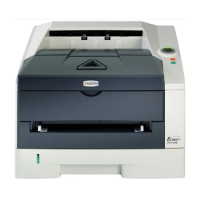
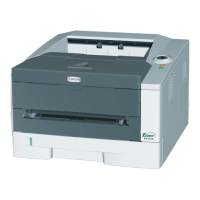
Kyocera FS-1110
88 pages
Print Icon
To Next Page IconTo Next Page
Loading...
FS-1110
OPERATION GUIDE

Table of Contents

Questions and Answers

  • H
    hmontesAug 18, 2025
    Why Kyocera FS-1110 will not print from computer?
    • M
      Mr. Brian ClarkAug 18, 2025
      If your Kyocera printer isn't printing from your computer, first check for any errors as described on page 1-5 and clear them. If a status page prints correctly, the issue might be the computer connection. Refer to the Quick Installation Guide to verify the connection. As a last resort, try turning the printer off and then on again before reprinting the job.
  • K
    kyledavisAug 20, 2025
    What to do if Kyocera FS-1110 has completely blank printout?
    • J
      Jacob AlexanderAug 20, 2025
      If your Kyocera printer is producing completely blank printouts, open the front cover and ensure that the toner container is correctly installed in the printer. Refer to page 4-2 for instructions on toner container replacement.
  • A
    Andrew WhiteAug 23, 2025
    How to fix dirt on Kyocera FS-1110 Printer paper?
    • P
      phillipsronaldAug 23, 2025
      If you notice dirt on the top edge or back of the paper from your Kyocera printer, try cleaning the registration roller. Refer to Cleaning the Printer on page 4-6. If the problem continues after cleaning, it is recommended to call for service.
  • R
    Rachel MorrisonAug 26, 2025
    What to do if Kyocera FS-1110 Printer indicators are off?
    • K
      Kristen AguilarAug 26, 2025
      If the indicators on your Kyocera printer are off and the fan isn't working, ensure that both ends of the power cord are securely connected. If the problem persists, try replacing the power cord. Refer to the Quick Installation Guide for more information.
  • W
    whitney16Aug 28, 2025
    What to do if Kyocera FS-1110 prints status page but not data?
    • J
      James AdkinsAug 28, 2025
      If your Kyocera printer prints a status page but not data from the computer, try printing a different file or using another print command. If the problem persists with a specific file or application, review the printer settings for that application. Also, ensure both ends of the interface cable are securely connected, and consider replacing the printer cable. Additional information can be found in the Quick Installation Guide.
  • K
    Kimberly MartinAug 30, 2025
    Why is my Kyocera Printer printing faint or blurred?
    • A
      Angela WilliamsAug 30, 2025
      If your Kyocera printer is producing faint or blurred prints, the toner container may need to be checked and replaced if necessary. You can find instructions for this on page 4-2. Additionally, try cleaning the charger wire as described on page 4-6.
  • R
    Robert MartinezSep 2, 2025
    How to fix vertical streaks on Kyocera FS-1110 Printer?
    • J
      Jennifer ReidSep 2, 2025
      To address vertical streaks on your Kyocera printer, start by checking the toner container and replacing it if needed, as detailed on page 4-2. If the issue persists, clean the charger wire and ensure the charger cleaner of the drum unit is in its original position. Refer to page 4-6 for instructions on cleaning the printer.
  • R
    robertwrightSep 4, 2025
    Why does my Kyocera Printer have gray background?
    • J
      joann61Sep 4, 2025
      If your Kyocera printer is producing a gray background on prints, first check the toner container and replace it if necessary. Instructions for toner container replacement can be found on page 4-2. Also, verify that the developer unit and drum unit are correctly installed, referring to page 4-6 for guidance.
  • M
    Madison WaltonSep 6, 2025
    What to do if Kyocera Printer printing is incomplete?
    • T
      Theodore ParkerSep 6, 2025
      If your Kyocera printer output is incomplete or out of position, ensure that the printing settings are correct both in the application software and the printer driver.
  • T
    Tracy SandovalSep 9, 2025
    Why is vapor emitted near the Kyocera Printer top tray?
    • S
      Sherri BryantSep 9, 2025
      Vapor emitted near the top tray of your Kyocera printer may be due to low room temperature or the paper being used having been exposed to humidity. To resolve this, increase the room temperature and use paper stored in a dry place.

Summary

Machine Parts

Components Overview

Identifies and illustrates components at the front and rear of the printer.

Operation Panel Details

Describes the operation panel, its indicators, and keys for user interaction.

Loading Paper

Paper Handling Guidelines

Provides guidelines on paper selection, specifications, and availability.

Paper Type and Size Selection

Guidance on selecting appropriate paper types and sizes for the printer.

Loading Paper Procedures

Step-by-step instructions for preparing and loading paper into the printer.

Connecting and Printing

Printer Setup and Connection

Details how to connect the printer to the computer via USB and power cord.

Driver Installation and Printing

Instructions for installing the printer driver and performing printing operations.

Printer Software Utilities

Covers Status Monitor and Configuration Tool for managing printer status and settings.

Uninstalling Software

Provides instructions for uninstalling the printer software using the CD-ROM.

Maintenance

Printer Upkeep Overview

Provides an overview of basic maintenance tasks for the printer.

Toner and Maintenance Kit Management

Explains how to replace toner containers and maintenance kits.

Cleaning and Handling

Details printer cleaning procedures and care for non-use and moving.

Troubleshooting

Problem Diagnosis and Solutions

Offers solutions for common printer problems and print quality issues.

Indicator Status and Jams

Explains indicator meanings and procedures for clearing paper jams.

Appendix

Printer Specifications

Lists the technical specifications of the printer, including paper handling and performance.

Environmental Standards

Details the environmental standard requirements the machine conforms to.

Kyocera FS-1110 Specifications

General IconGeneral
TypeMonochrome Laser Printer
TechnologyLaser
Print Speed20 ppm
Maximum Resolution1200 x 1200 dpi
Paper Capacity250 sheets
ConnectivityUSB 2.0
Internal memory32 MB
Standard output capacity100 sheets
Paper size (main tray)A4, Letter
Supported Operating SystemsWindows, Mac, Linux

Related product manuals