EasyManua.ls Logo

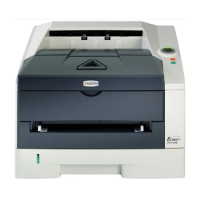
Kyocera FS FS-1020D - User Manual

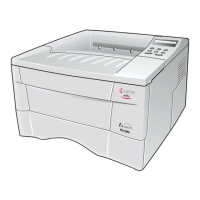
Kyocera FS FS-1020D
98 pages
Print Icon
To Next Page IconTo Next Page
Loading...
FS-1020D
Page Printer
Operation Guide

Table of Contents

Questions and Answers

  • W
    William HarrisAug 15, 2025
    Why Kyocera Printer will not print from the computer?
    • V
      Victoria CowanAug 15, 2025
      If your Kyocera printer isn't printing from your computer, several factors could be at play. Ensure the printer is online by pressing the key to switch it to online status. Also, there might be an issue with the computer's network connection. It's recommended to check these aspects and any other relevant items to identify the problem.
  • K
    Karen MooreAug 18, 2025
    How to fix Paper jam in Kyocera FS FS-1020D?
    • T
      Tabitha TerryAug 18, 2025
      To fix a paper jam in your Kyocera printer, open the printer and remove the jammed paper. The location of the paper jam is indicated in place of #’s. You can also try turning off the printer, removing the process unit, gently shaking it horizontally, and then reinstalling it before turning the printer back on.
  • R
    raymond77Aug 21, 2025
    How to resolve faint or blurred printing on Kyocera Printer?
    • W
      whartAug 21, 2025
      If you're experiencing faint or blurred printing with your Kyocera printer, try the following: First, check the EcoPrint setting and switch it to Off. If the toner indicator is flashing, install a new toner kit. Additionally, clean the charger wire by opening the printer's top and front covers, removing the process unit, and sliding the charger knob back and forth. You might also try setting the thin paper mode or adjusting the custom paper type setting.
  • J
    Jeremiah ReedAug 25, 2025
    What causes black or white vertical streaks on Kyocera FS FS-1020D?
    • C
      Cindy WilkersonAug 25, 2025
      If your Kyocera printer is producing black or white vertical streaks, several factors could be the cause. Check the toner indicator on the operator panel; if it's flashing, install a new toner kit and clean the printer after replacement. Also, clean the charger wire by opening the printer's top and front covers, removing the process unit, and sliding the charger knob back and forth. Ensure the charger cleaner knob is in its home position. You may also need to change the corresponding custom paper type setting, ensuring you select Normal 1 as the corresponding weight in the KM-NET for Clients.
  • A
    Angela CantrellAug 27, 2025
    How to fix grey background on Kyocera Printer?
    • M
      Matthew HickmanAug 28, 2025
      To address a grey background issue on your Kyocera printer, check the toner indicator on the operator panel and install a new toner kit if it's flashing. Also, ensure the process unit is properly installed by opening the printer's top and front covers and checking its placement.
  • J
    Joseph JimenezAug 30, 2025
    How to eliminate dirt on the top edge or back of the paper from Kyocera FS FS-1020D?
    • B
      Beverly GilbertAug 31, 2025
      If you notice dirt on the top edge or back of the paper from your Kyocera printer, check the transfer roller by opening the printer’s top and front covers, removing the process unit, and inspecting the roller for dirt. If dirty, print several pages to eliminate the dirt. Also, check the registration roller for toner soiling and wipe it clean with the supplied wiper cloth.
  • N
    Nathan PowersSep 2, 2025
    How to correct dropouts, horizontal streaks, stray dots on Kyocera FS FS-1020D?
    • S
      Shane LoweSep 3, 2025
      To correct dropouts, horizontal streaks, or stray dots on your Kyocera printer, clean the charger wire. Open the printer’s top and front covers, remove the process unit from the printer, and slide the charger knob back and forth to clean the charger wire.
  • C
    Chad WoodSep 5, 2025
    How to fix characters out of position on Kyocera Printer?
    • L
      Lauren Myers MDSep 5, 2025
      To fix characters that are out of position on your Kyocera printer, first check the file or program for PRESCRIBE command errors. If the issue is specific to a file or program, it's likely due to an error in a command parameter or syntax. Also, ensure the paper size setting is correct by verifying that the paper size set in the paper source matches the paper size set on the KM-NET for Clients.
  • P
    Patty HernandezSep 8, 2025
    What to do if Kyocera Printer prints a status page but not data from the computer?
    • K
      Kaitlyn LaneSep 8, 2025
      If your Kyocera printer is printing a status page but not data from the computer, try these steps: First, ensure both ends of the interface cable are securely connected. If the issue persists, try replacing the printer cable. Also, test printing another file or using a different print command to see if the problem is specific to a certain file or application. If so, check the printer settings for that application.
  • A
    Adam QuinnSep 12, 2025
    What to do if nothing lights on the operator panel of Kyocera FS FS-1020D Printer?
    • S
      shawn56Sep 12, 2025
      If nothing lights up on the operator panel of your Kyocera printer, even when the power is on and the fan is silent, turn off the printer, securely plug in the power cord, and try turning it on again. Also, make sure the power switch is in the ON (|) position.

Summary

Chapter 1 Basic Operations

Operator Panel

Describes the printer's control panel, indicators, and keys for operation.

Chapter 2 Maintenance

Toner Container Replacement

Instructions for replacing the toner container and its interval.

Cleaning the Printer

Procedures for cleaning the printer's interior to maintain print quality.

Chapter 3 Troubleshooting

General Guide for Troubleshooting

Basic steps to resolve common printer problems before contacting service.

Print Quality Problems

Identifies common print quality issues and their corrective actions.

Indicators

Explains the status indicators on the operator panel and their meanings.

Paper Jam Removal

Detailed steps for clearing paper jams from various locations within the printer.

Chapter 4 Paper Selection

Appendix A Options

Expansion Memory Installation

Instructions for installing additional memory modules to enhance printer performance.

Appendix B Host Computer Interface

Appendix C Printer Specifications

Kyocera FS FS-1020D Specifications

General IconGeneral
Print TechnologyLaser
Resolution600 x 600 dpi
Memory32 MB
Standard Input Capacity250 sheets
ConnectivityUSB 2.0
Print Speed20 ppm
Paper SizesA4, A5, A6, B5, Letter, Legal
Operating System CompatibilityWindows, Mac, Linux
Warm-up TimeLess than 15 seconds
Time to First PageLess than 10 seconds

Related product manuals