EasyManua.ls Logo

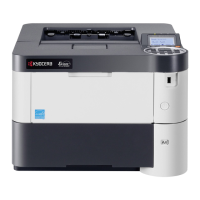
Kyocera FS-4100DN - User Manual

Kyocera FS-4100DN
310 pages
Print Icon
To Next Page IconTo Next Page
Loading...
O
PERATI
O
N
GU
ID
E
FS-2100D
FS-4100DN
FS-4300DN
FS-2100DN
FS-4200DN

Table of Contents

Other manuals for Kyocera FS-4100DN

Questions and Answers

  • L
    Lawrence NguyenSep 8, 2025
    How to resolve 'Load paper in cassette #. A4 Different paper size is set' error on Kyocera Printer?
    • T
      Tammy RichardsSep 8, 2025
      The error message 'Load paper in cassette #. A4 Different paper size is set' on your Kyocera printer indicates that the paper size in the cassette does not match the paper size set on the paper size dial. Verify that the paper size setting is correct.
  • M
    Mary CunninghamSep 10, 2025
    Why does my Kyocera Printer produce a gray background?
    • F
      Francis WilliamsSep 10, 2025
      To address a gray background issue on your Kyocera printer, refresh the drum to restore printing quality. If this doesn't solve the issue, consider adjusting the print density. If the problem persists, it is recommended to call for service.
  • J
    Jeremy James PhDSep 12, 2025
    How to remove dirt from paper edges on Kyocera Printer?
    • J
      Jason CarpenterSep 12, 2025
      To remove dirt from the top edge or back of the paper on your Kyocera printer outputs, try printing several pages to see if the issue resolves itself. If the problem continues, clean the registration roller. If the problem persists after cleaning, call for service.
  • L
    Lee GarciaSep 13, 2025
    What to do if Kyocera Printer displays 'Incorrect account ID'?
    • C
      Clinton ChanSep 13, 2025
      If your Kyocera printer displays 'Incorrect account ID', it indicates that the entered Account ID does not match the registered ID. Ensure you are using the correct Account ID.
  • D
    Deborah MyersSep 15, 2025
    How to adjust altitude settings on Kyocera Printer?
    • N
      nblairSep 15, 2025
      If you are at an altitude of 1500 m or higher and notice dropouts or stray dots in your Kyocera printer's output, change the Altitude Adj. setting in the Service Setting menu to High 1. If the issue persists, change the setting to High 2.
  • D
    Danny GarciaSep 18, 2025
    What does 'Machine failure. Call service' mean on Kyocera Printer?
    • U
      ubrownSep 18, 2025
      When your Kyocera printer displays the message 'Machine failure. Call service,' it indicates a mechanical error. The printer will not operate, and it is necessary to call for service.

Kyocera FS-4100DN Specifications

General IconGeneral
ColorNo
Duplex printingYes
Print technologyLaser
Maximum resolution1200 x 1200 DPI
Time to first page (black, normal)9 s
Print speed (black, normal quality, A4/US Letter)45 ppm
Mobile printing technologies-
PCL fonts93
Printer fontsBitmap, PCL, PostScript
Maximum duty cycle200.000 pages per month
Number of print cartridges1
Page description languagesEpson LQ, IBM ProPrinter, PCL 5c, PCL 6, PDF 1.7, PostScript 3
Processor model465
Processor familyPowerPC
Maximum internal memory1280 MB
Sound power level (standby)30 dB
Sound pressure level (printing)54 dB
Total input capacity600 sheets
Total output capacity500 sheets
Maximum input capacity2600 sheets
Maximum number of input trays5
Multi-Purpose tray input capacity100 sheets
Custom media width70 - 216 mm
Maximum print size216 x 356 mm
Custom media length148 - 356 mm
Paper tray media typesPlain paper
Paper tray media weight60 - 120 g/m²
Non-ISO print media sizesLetter
ISO A-series sizes (A0...A9)A4, A5, A6
ISO B-series sizes (B0...B9)B5
Maximum ISO A-series paper sizeA4
Multi-Purpose Tray media weight60 - 220 g/m²
Standard interfacesEthernet, USB 2.0
Optional connectivityEthernet, Parallel, Wireless LAN
USB 2.0 ports quantityUSB 2.0 ports have a data transmission speed of 480 Mbps, and are backwards compatible with USB 1.1 ports. You can connect all kinds of peripheral devices to them.
Mac operating systems supportedMac OS X 10.4 Tiger, Mac OS X 10.5 Leopard, Mac OS X 10.6 Snow Leopard, Mac OS X 10.7 Lion
AC input voltage220 - 240 V
AC input frequency50 - 60 Hz
Power consumption (standby)13.3 W
Power consumption (printing)618 W
Power consumption (PowerSave)1.6 W
DisplayLCD
CertificationGS, TÜV, CE
Product colorBlack, White
Media thickness0.11 mm
Sustainability certificatesBlue Angel, ENERGY STAR
Weight and Dimensions IconWeight and Dimensions
Depth416 mm
Width380 mm
Height320 mm
Dimensions (WxDxH)380 x 416 x 320 mm

Related product manuals