16 User Manual
To manage folders:
1. Tap a folder icon you want to manage.
2. The following options are available:
Tap the Unnamed Folder field. The
keyboard opens and you can name
the folder. To rename it, tap the
name.
Drag the app out of the folder and
drop it anywhere on the Home
screen to remove it.
Drag the app to “Remove” at the top
of the screen to remove it from the
Home screen.
Change the Wallpaper
1. Touch and hold the background on the
Home screen.
2. Tap WALLPAPERS .
3. Tap Pick image to use your own image,
or browse through the choices.
4. Tap the item to use and then tap SET
WALLPAPER or Set wallpaper.
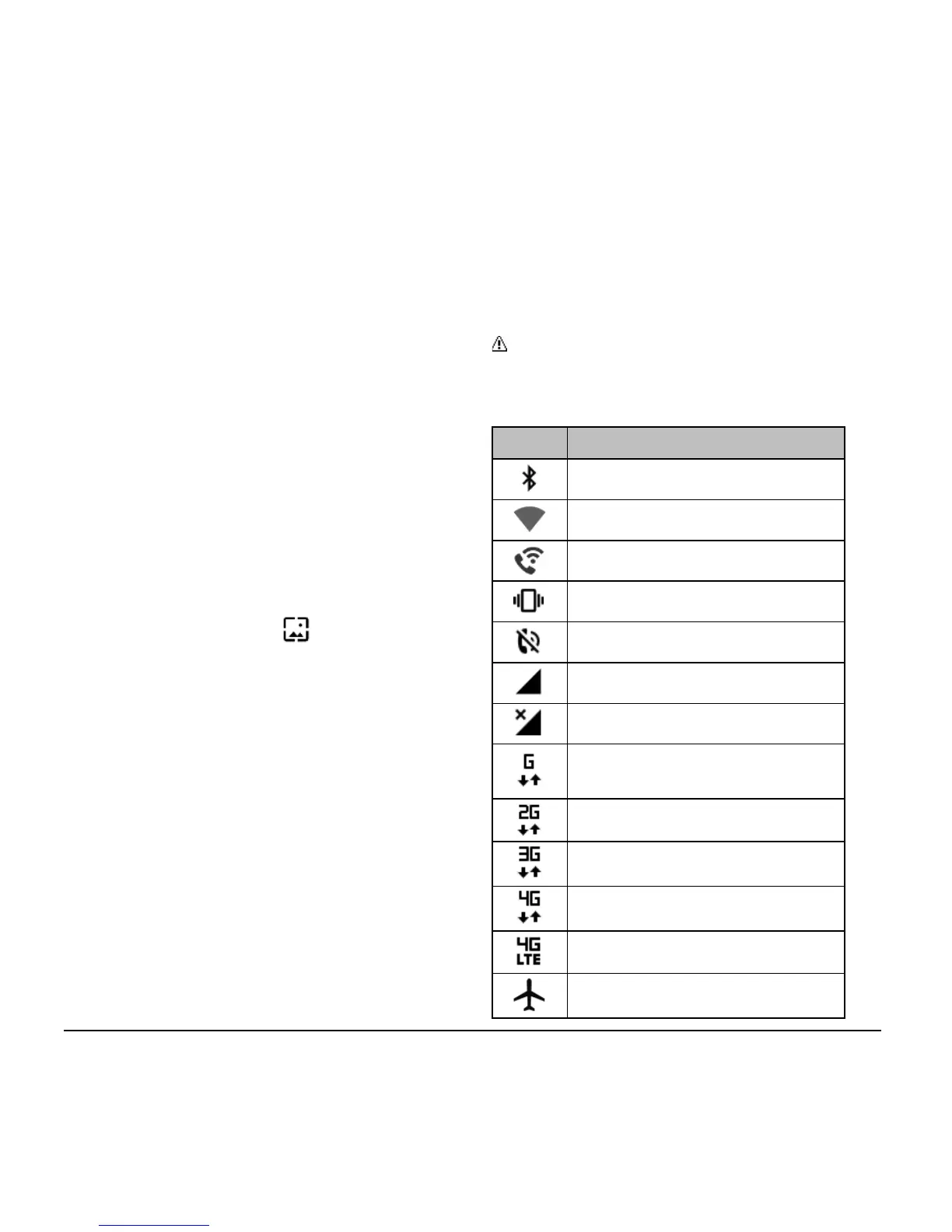
Status Bar
The status bar at the top of the screen
provides phone and service status
information on the right side and notification
alerts on the left.
Note: All icons are simulated. Actual
images may vary.
Status Icons












 To Next Page