70 User Manual
3. Keep this screen open to make your
phone visible to unpaired devices.
4. On the sending device, send one or
more files to your phone. Refer to the
device’s documentation for instructions
on sending information over Bluetooth.
5. If prompted, enter the same passcode
on both your phone and the device, or
confirm the auto-generated passcode. A
Bluetooth authorization request is
displayed on your phone.
6. Tap OK.
7. When your phone receives a file
transfer request notification, slide down
the Notifications panel and tap ACCEPT.
8. When a file is transferred, a notification
is displayed. To open the file
immediately, slide down the
Notifications panel and tap the relevant
notification.
microSD Card
A microSD™ card is an optional accessory
that allows you to store images, videos,
music, documents, and voice data on your
phone. Your phone supports a microSD
card up to 32GB.
Note: The microSD card is sold
separately.
Note: You can easily damage the
microSD card by improper operation.
Please be careful when inserting,
removing, or handling it.
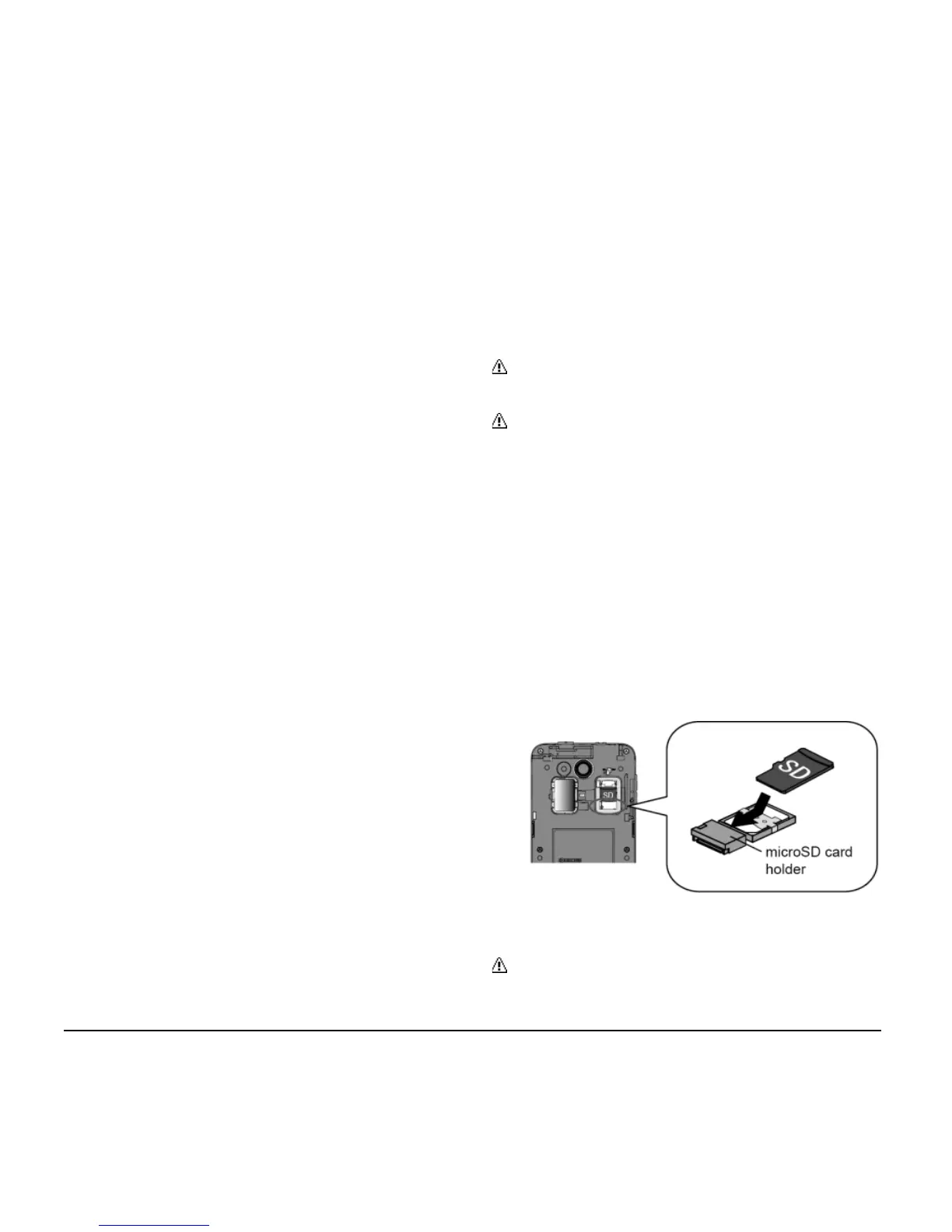
Insert a microSD Card
1. Remove the back cover and open the
SIM/microSD card holder cover.
2. Insert the microSD card into the
microSD card holder with the gold
contacts facing down. Gently push the
card in until it snaps into place.
3. Close the SIM/microSD card holder
cover and replace the back cover.
Warning: To ensure that your phone is
waterproof, make sure the SIM/microSD
card holder cover is properly sealed.












 To Next Page