Contacts 31
4 Contacts
Display Contacts
► From the Home screen, tap Apps >
Contacts. You will see the Contacts list.
Contacts List
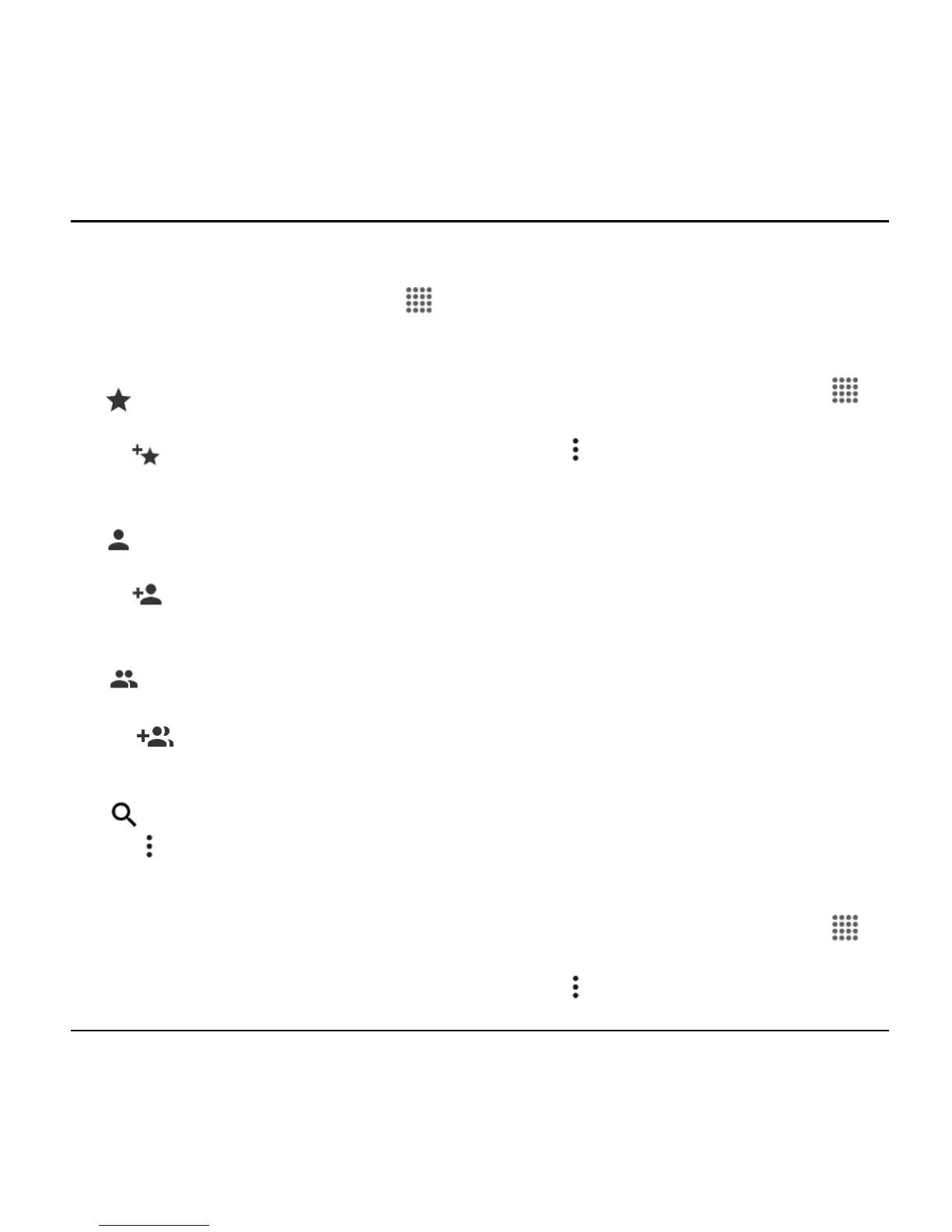
● FAVORITES: Tap to display your
favorite contacts.
Add new favorite: Tap to add a
new favorite contact. See “Add a
Contact to Favorites” on page 34.
● CONTACTS: Tap to display all the
contacts you save.
Add new contact: Tap to add a
new contact. See “Add a Contact” on
page 32.
● GROUPS: Tap to display the group
contacts.
Add new group: Tap to add a
new group contact. See “Add a
Group Contact” on page 34.
● Search: Tap to search a contact.
● Tap :
Delete: Allows you to select
contact(s) you want to delete.
Contacts to display: Selects
contacts to be displayed on Contacts.
Import/export: Imports/exports your
contacts from/to the microSD card,
SIM card and phone or shares your
visible contacts.
Settings: Opens the display settings
screen.
Display Options
1. From the Home screen, tap Apps >
Contacts.
2. Tap > Contacts to display.
3. Select one of the following options:
All contacts to display all the
contacts you save.
Phone to display all the contacts
saved in your phone.
SIM to display all the contacts saved
in your SIM card.
An account (for example, Google) to
display only its contacts.
Customize to select whether to
display all the contacts saved in your
phone or SIM card and to select
contact types for each account. Tap
Phone, SIM or an account name,
make your selection and then tap OK.
You can also select how your contacts are
displayed.
1. From the Home screen, tap Apps >
Contacts.
2. Tap > Settings.












 To Next Page