56 User Manual
8 Camera and Video
Take Pictures
Open the Camera App
► From the Home screen, tap Apps >
Camera.
Close the Camera App
► On the Camera screen, tap Home
or Back .
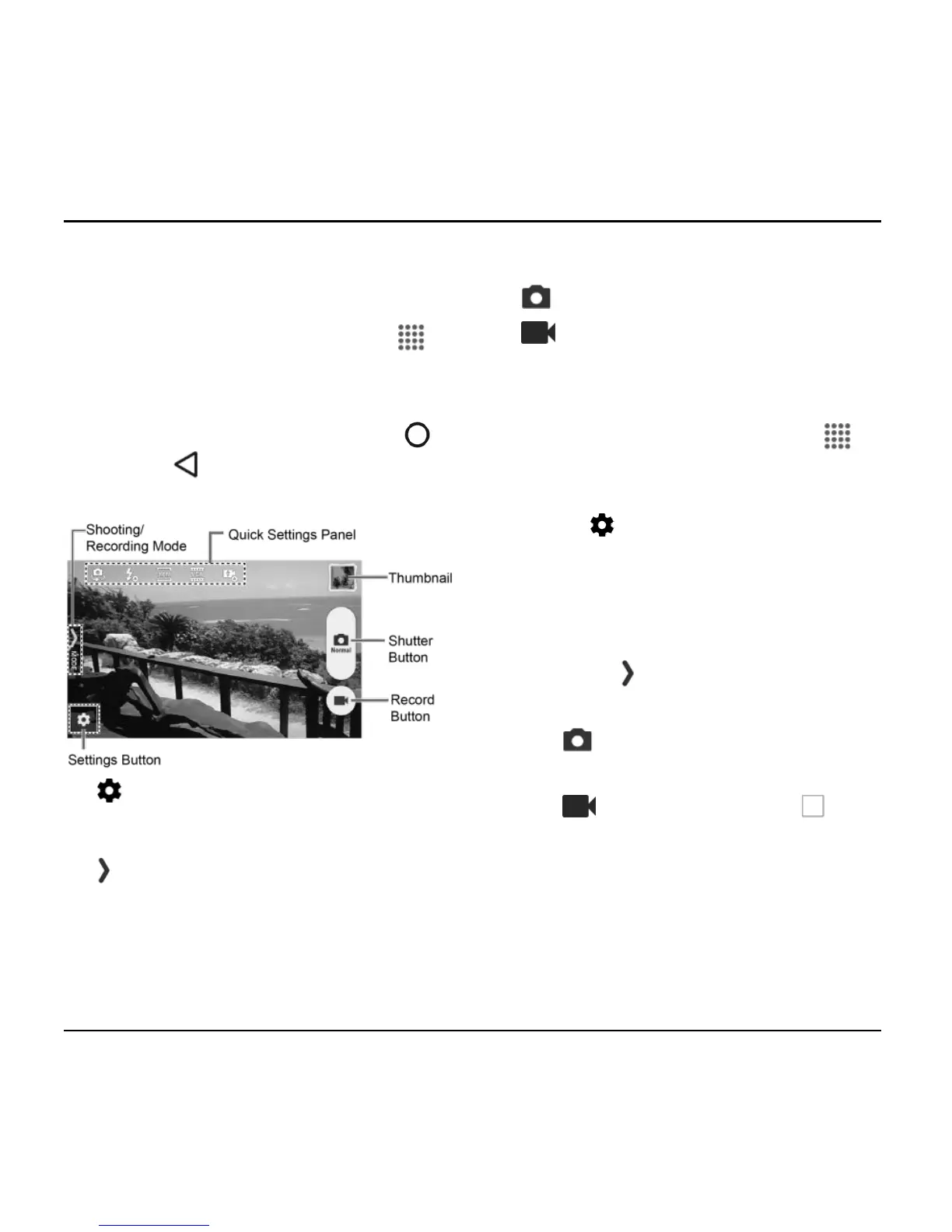
Viewfinder Screen
● Settings Button: Opens the camera
and video settings menu to select basic
and advanced settings.
● Shooting/Recording Mode: Opens
the navigation drawer to switch the
shooting/recording mode.
●
Quick Settings Panel: Displays the
settings you use most frequently.
● Thumbnail: Displays the thumbnail of
the latest image.
● Shutter Button: Takes a picture.
● Record Button: Records a video.
Take a Picture or Record a
Video
1. From the Home screen, tap Apps >
Camera.
2. Do the following to change the settings:
Tap to change the camera and
video settings as desired. See
“Camera and Video Settings” on
page 57.
Select the shooting/recording mode
by swiping from the left edge or by
tapping MODE icon.
3. Frame your subject on the screen.
4. Tap to take a picture.
– or –
Tap to record a video. Tap to
stop recording.












 To Next Page