EasyManua.ls Logo

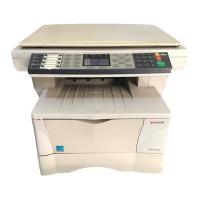
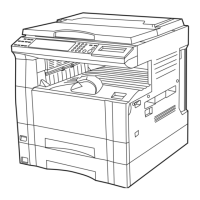
Kyocera KM-1530 - Service Manual

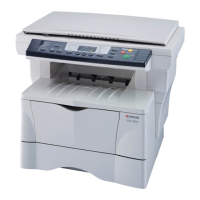
Kyocera KM-1530
19 pages
Print Icon
To Next Page IconTo Next Page
Loading...
SERVICE
MANUAL
Published in Oct.’00
842AV110

Other manuals for Kyocera KM-1530

Questions and Answers

  • D
    David WilkinsonAug 13, 2025
    Why do copies come out blank on my Kyocera All in One Printer?
    • M
      Matthew RaymondAug 13, 2025
      If you're getting blank copies from your Kyocera All in One Printer, check the originals. When using the platen, ensure the originals are placed face-down. If you are using the optional Document Feeder (DF), make sure the originals are placed face-up.
  • J
    Joseph EspinozaAug 16, 2025
    Why are my Kyocera KM-1530 All in One Printer copies too light?
    • S
      Sheryl JonesAug 16, 2025
      If your copies are too light, several factors could be the cause. First, if the copier is in auto exposure mode, try performing the auto exposure adjustment. If it's in Text & Photo, Photo, or Text mode, adjust the exposure using the copy exposure adjustment keys or perform the exposure adjustment for that specific mode. Also, check if the 'Add Toner' indicator is lit, and if so, replace the toner cartridge. Finally, ensure the paper isn't wet; if it is, replace it with new paper.
  • J
    Jackson TrevinoAug 20, 2025
    What to do if my Kyocera KM-1530 All in One Printer copies are too dark?
    • T
      torrAug 20, 2025
      If your copies are too dark, and the copier is in auto exposure mode, perform the auto exposure adjustment. If it is in Text & Photo, Photo, or Text mode, adjust the exposure to the correct degree using the copy exposure adjustment keys. You can also perform the exposure adjustment for the Text & Photo, Photo, or Text mode to change the overall exposure.
  • W
    William KerrAug 25, 2025
    How to fix misfeeds on Kyocera KM-1530 All in One Printer?
    • C
      Caleb MccoyAug 25, 2025
      To address frequent misfeeds, ensure the paper is correctly set in the drawer(s). Replace any curled, folded, or wrinkled paper with new paper. Also, check inside the copier for any misfed paper or loose scraps and remove them.
  • J
    James KimAug 28, 2025
    Why is the copy image askew on my Kyocera KM-1530 All in One Printer?
    • W
      william15Aug 28, 2025
      If the copy image is askew, check how you're setting the originals. When using the platen, align their edges with the correct original size scale. If using the optional DF, adjust the original insertion guides to the correct size of the originals.
  • K
    Kurt GardnerAug 31, 2025
    Why are my Kyocera KM-1530 All in One Printer copies dirty?
    • T
      Tammy Bruce DDSAug 31, 2025
      If your copies are coming out dirty, the platen or original cover might be dirty. Clean the platen and/or the original cover. Additionally, open the front cover and pull and push back in the cleaning shaft.
  • M
    Melinda WardSep 4, 2025
    What to do if copied sheets are not stored tidily in the copy store section of my Kyocera KM-1530?
    • J
      John PerezSep 4, 2025
      If copied sheets are not stored tidily, it could be because the copied sheets are curled. Remove the paper from the drawer or multi-bypass used and turn the paper upside down.
  • T
    Tina WilliamsSep 8, 2025
    What to do if nothing lights up on the operation panel of my Kyocera KM-1530?
    • C
      Christopher AtkinsonSep 8, 2025
      If nothing lights up on the operation panel when the main switch is turned on, connect the plug to an AC outlet.

Summary

1-1 Specifications

1-1-1 Specifications

Details about copy speed, paper types, and sizes for the 15 cpm copier.

1-1-2 Parts names and their functions

Identifies and describes key components of the copier and operation panel.

1-5 Troubleshooting

1-5-1 Paper misfeed detection

Procedures and codes for diagnosing and resolving paper misfeed errors.

1-5-2 Self-diagnosis

Details the self-diagnostic functions and error codes for the machine.

1-5-3 Image formation problems

Lists common image quality issues and their potential causes and solutions.

1-5-4 Electrical problems

Troubleshoots issues related to the machine's electrical components and power.

1-5-5 Mechanical problems

Addresses mechanical faults, jams, and operational issues.

1-6 Assembly and Disassembly

1-6-1 Precautions for assembly and disassembly

Safety and procedural guidelines before performing assembly or disassembly.

1-7 Requirements on PCB Replacement

1-7-1 Replacing the main PCB

Steps for replacing the main printed circuit board in the machine.

1-7-2 Upgrading the firmware on the main PCB

Instructions for updating the firmware on the main control board.

1-7-3 Upgrading the firmware on the operation unit PCB

Instructions for updating firmware on the operation panel PCB.

2-3 Operation of the PCBs

Kyocera KM-1530 Specifications

Power IconPower
voltage120 V
current9A
operating noise level55 dB
Memory IconMemory
optional memory32 MB or 64 MB
page memory capacity with 32 MB79 Letter Size Pages at 6% Image Area
page memory capacity with 64 MB250 Letter Size Pages at 6% Image Area
Printing and Copying IconPrinting and Copying
resolution600 x 600 dpi
grayscale levels256 Levels
multi copy speed without memory board15 CPM Invoice and Letter, 8 CPM Legal, 8 CPM Ledger
multi copy speed with memory board18 CPM Invoice and Letter, 10 CPM Legal, 9 CPM Ledger
Paper Handling IconPaper Handling
paper weight drawers17-22 lbs. Bond, 35-45 lbs. Index
paper weight bypass12-42 lbs. Bond, 25-88 lbs. Index
minimum/maximum paper size5.5" x 8.5"/11" x 17"
Weight and Dimensions IconWeight and Dimensions
width22"
depth22"
height18"
weight86 lbs.

Related product manuals