EasyManua.ls Logo

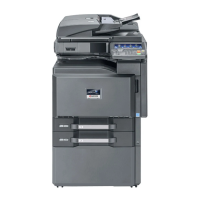
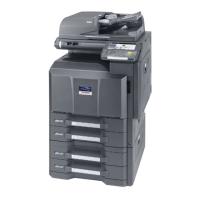
Kyocera TASKalfa 520i - Service Manual

Kyocera TASKalfa 520i
508 pages
Print Icon
To Next Page IconTo Next Page
Loading...
SERVICE
MANUAL
Published in May 2010
842KS113
2KSSM063
Rev. 3
TASKalfa 420i
TASKalfa 520i

Table of Contents

Questions and Answers

  • M
    Melissa KerrNov 21, 2025
    What to do if Kyocera TASKalfa 520i network connection fails?
    • J
      John WatkinsNov 22, 2025
      If a network connection fails, for example, indicated by a Send Error, try the following: * Connect the network cable and properly set up TCP/IP. * Check folder sharing and access permissions in the Folder Properties dialog box. * Enable the SMB protocol setting. * Verify the host name of the destination computer and the name of the shared folder. * Confirm the domain name and domain user name are correct. * Ensure the login password is correct. * If the domain name specified in [Host Name] differs from the one specified in [Login User Name], delete the domain name and a \\ from the name entered in [Login User Name]. * Also, ensure the time setting is the same between the machine, PC, and the domain server. * To configure Windows Firewall, open Control Panel from the Sta...
  • C
    Carly MckinneyAug 25, 2025
    Why Kyocera TASKalfa 520i All in One Printer cannot send document?
    • J
      Jose KeithAug 26, 2025
      If your Kyocera All in One Printer cannot send a document, make sure the modular cord is correctly connected. If a send error is displayed, identify the cause of the error and try sending again. Also, verify whether TX (transmission) restriction is activated and, if so, cancel the TX restriction.
  • B
    Brittany GonzalezAug 27, 2025
    Why Kyocera TASKalfa 520i All in One Printer cannot receive document?
    • C
      Crystal WebbAug 27, 2025
      If your Kyocera All in One Printer cannot receive a document, first check that the modular cord is correctly connected. If a communication error is displayed, address the cause of the error and ask the sender to retry. Additionally, check if RX (reception) restriction is activated and, if it is, cancel the RX restriction.
  • M
    mercedes71Aug 27, 2025
    Why Kyocera TASKalfa 520i All in One Printer has no print output after reception?
    • Z
      zmoodyAug 27, 2025
      If there is no print output after reception on your Kyocera All in One Printer, check if memory forwarding is activated and verify the forwarding destination.
  • P
    Philip CoffeyAug 28, 2025
    What to do if Kyocera TASKalfa 520i says to add paper?
    • Y
      Yvonne GarrettAug 28, 2025
      If your Kyocera All in One Printer displays this message, it means the indicated cassette or MP tray is out of paper. Add paper of the same size as indicated. If a specific type of printing paper is specified, the necessary paper types will also be displayed. To use a different paper source, select the desired paper source and press [Continue]. You can also press [MP Tray Setting] to change the paper size/type of the MP tray. Also, make sure that the cassette is securely loaded; remove it and reload it completely.
  • D
    daniel52Sep 15, 2025
    Why Kyocera All in One Printer cannot use polling reception?
    • J
      Jeffrey PhillipsSep 15, 2025
      If your Kyocera All in One Printer cannot use polling reception, check with the recipient to ensure that polling transmission is being used correctly on the sending machine.
  • D
    Dylan SuttonSep 12, 2025
    Why Kyocera TASKalfa 520i cannot use the remote switching function?
    • H
      hendersonkimberlySep 12, 2025
      If you cannot use the remote switching function on your Kyocera All in One Printer, consider the following: * If you are using a pulse line, some phones may transmit tone signals using buttons. Consult your phone's manual. * Verify that the remote switching number is correct. (Default: 55)
  • A
    Alexander HuertaSep 13, 2025
    Why Kyocera TASKalfa 520i All in One Printer cannot output from a FAX Box?
    • T
      Tamara SotoSep 14, 2025
      If your Kyocera All in One Printer cannot output from a FAX Box, make sure you enter the correct box password if one has been set.
  • J
    Jason DeleonSep 5, 2025
    Why Kyocera All in One Printer cannot perform memory forwarding?
    • A
      angelica72Sep 5, 2025
      If your Kyocera All in One Printer cannot perform memory forwarding, check whether memory forwarding is set to [On] in the settings.
  • V
    vleeSep 3, 2025
    Why Kyocera TASKalfa 520i cannot perform broadcast transmission?
    • B
      Becky GarciaSep 3, 2025
      If your Kyocera All in One Printer cannot perform broadcast transmission, it's likely because there isn't enough free space in the memory. Try again after freeing up memory, or create free space in the memory.

Summary

Safety Precautions

Symbols

Indicates warnings, dangers, and cautions, with specific points of attention shown inside the symbol.

1.Installation Precautions

2.Precautions for Maintenance

3.Miscellaneous

1-1 Specifications

1-1-1 Specifications

Details machine specifications like type, printing method, supported original types, paper weight, and size.

1-1-2 Parts names

Identifies and labels major machine parts using figures and numbers.

1-1-3 Machine cross section

Provides a cross-sectional view of the machine, illustrating the paper path and internal components.

1-2 Installation

1-2-1 Installation environment

Specifies environmental requirements, location, and installation dimensions for the machine.

1-2-2 Unpacking and installation

Outlines the step-by-step procedure for unpacking the machine and completing the initial setup.

1-2-3 Installing the key counter (option)

Details the components and procedure required for installing the optional key counter system.

1-2-4 Replacing the expanded memory

Provides instructions for safely removing and installing expanded memory modules within the machine.

1-3 Maintenance Mode

1-3-1 Maintenance mode

Explains how to enter and execute various maintenance items for servicing the machine.

1-3-2 Management mode

Describes the management functions accessible by users for changing settings like default configurations.

1-3-3 Maintenance modes item list

Lists all available maintenance mode items, their numbers, content, and initial settings.

1-4 Troubleshooting

1-4-1 Paper misfeed detection

Details paper misfeed indications, causes, and corrective measures for various locations.

1-4-2 Self-diagnosis

Explains the self-diagnostic function and lists system errors with their causes and corrective actions.

1-4-3 Image formation problems

Illustrates common image quality issues like light image, dark image, or blurred image with potential causes.

1-4-4 Electric problems

Lists electrical issues, their causes, and troubleshooting steps for components like motors and power supply.

1-4-5 Mechanical problems

Covers mechanical issues such as paper feed problems, worn rollers, and misaligned parts.

1-4-6 Send error code

Lists error codes for sending functions like Scan to SMB, FTP, and E-mail, with causes and solutions.

1-5 Assembly and Disassembly

1-5-1 Precautions for assembly and disassembly

Outlines critical safety warnings and precautions to be followed before starting disassembly or reassembly.

1-5-2 Paper feed section

Details the procedure for detaching and refitting pulleys and cleaners in the paper feed section.

1-5-3 Optical section

Explains the process for detaching and refitting components within the optical section, such as the exposure lamp.

1-5-4 Drum section

Provides instructions for detaching and refitting the drum unit and main charger unit.

1-5-5 Developing section

Details the procedure for detaching and refitting the developing unit and toner replenishment.

1-5-6 Transfer section

Explains how to detach and refit the transfer roller unit and clear counter values.

1-5-7 Fuser section

Covers procedures for detaching and refitting fuser unit components like heaters, thermistors, and rollers.

1-5-8 Others

Details replacement procedures for components like ozone filters, dust filters, and the hard disk.

1-6 Requirements on PWB Replacement

1-6-1 Upgrading the firmware

Describes the procedure for upgrading the machine's firmware using a USB memory.

1-6-2 Adjustment-free variable resistors (VR)

Lists the adjustment-free variable resistors (VR) that are factory set and cannot be adjusted in the field.

1-6-3 Remarks on main PWB replacement

Provides remarks for main PWB replacement, including EEPROM transfer.

1-6-4 Remarks on engine PWB replacement

Offers remarks for engine PWB replacement, emphasizing EEPROM transfer.

2-1 Mechanical construction

2-1-1 Paper feed section

Explains the paper feed mechanism, including cassette and MP tray paper feed subsections.

2-1-2 Optical section

Describes the optical section, covering the scanner, mirror frame, and image scanner unit.

2-1-3 Drum section

Details the drum section components like the drum, main charger unit, and cleaning section.

2-1-4 Developing section

Explains the developing section, including the developing unit and toner container for replenishment.

2-1-5 Transfer and separation sections

Covers the transfer roller, separation electrode, and drum separation claws for paper transfer and separation.

2-1-6 Fuser section

Details the fuser section components like heat roller, press roller, and fuser heaters for fusing toner.

2-1-7 Eject and switchback sections

Explains the eject and switchback sections responsible for paper ejection and transfer path switching.

2-1-8 Duplex section

Describes the duplex section, where paper is reversed for duplex copying.

2-2 Electrical Parts Layout

2-2-1 Electrical parts layout

Lists the electrical parts layout, including PWBs, switches, sensors, motors, and other components.

2-3 Operation of the PWBs

2-3-1 Power source PWB

Explains the function of the power source PWB in generating voltages and controlling fuser heaters.

2-3-2 Engine PWB

Describes the engine PWB's role in controlling other PWBs and machine components.

2-3-3 Main PWB

Details the main PWB's functions in controlling image processing and the operation panel.

2-3-4 ISM PWB

Explains the ISM PWB's role in controlling the scanner section.

2-3-5 Main operation PWB

Describes the main operation PWB's functions in controlling the touch panel and LCD indication.

2-4 Appendixes

Maintenance parts list

Lists all maintenance parts with their service manual names, part numbers, and alternative part numbers.

Maintenance kits

Lists available maintenance kits, their part numbers, and alternative part numbers.

Periodic maintenance procedures

Outlines periodic maintenance tasks, user calls, 500K checks, points, cautions, and page references.

Chart of image adjustment procedures

Provides a chart detailing image adjustment procedures, including items, descriptions, and modes.

Wiring diagram No.1

Illustrates the electrical connections between various components using Wiring Diagram No.1.

Wiring diagram No.2

Illustrates the electrical connections between various components using Wiring Diagram No.2.

Wiring diagram No.3

Illustrates the electrical connections between various components using Wiring Diagram No.3.

Wiring diagram No.4

Illustrates the electrical connections between various components using Wiring Diagram No.4.

Wiring diagram No.5

Illustrates the electrical connections between various components using Wiring Diagram No.5.

Kyocera TASKalfa 520i Specifications

General IconGeneral
FunctionPrint, Copy, Scan, Fax
Print Speed (Black)52 ppm
Print Resolution1200 x 1200 dpi
Standard Paper Capacity1, 150 sheets
Scan Resolution600 x 600 dpi
Fax Modem Speed33.6 Kbps
ConnectivityUSB, Ethernet, Wi-Fi
Operating System CompatibilityWindows, macOS, Linux
TypeAll-in-One Printer
Memory (Standard)2 GB
Max Print Resolution1200 x 1200 dpi
Duplex PrintingStandard

Related product manuals