Page | 7
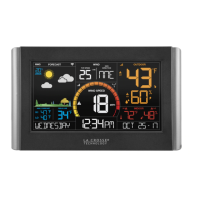
Professional Remote Monitoring Station
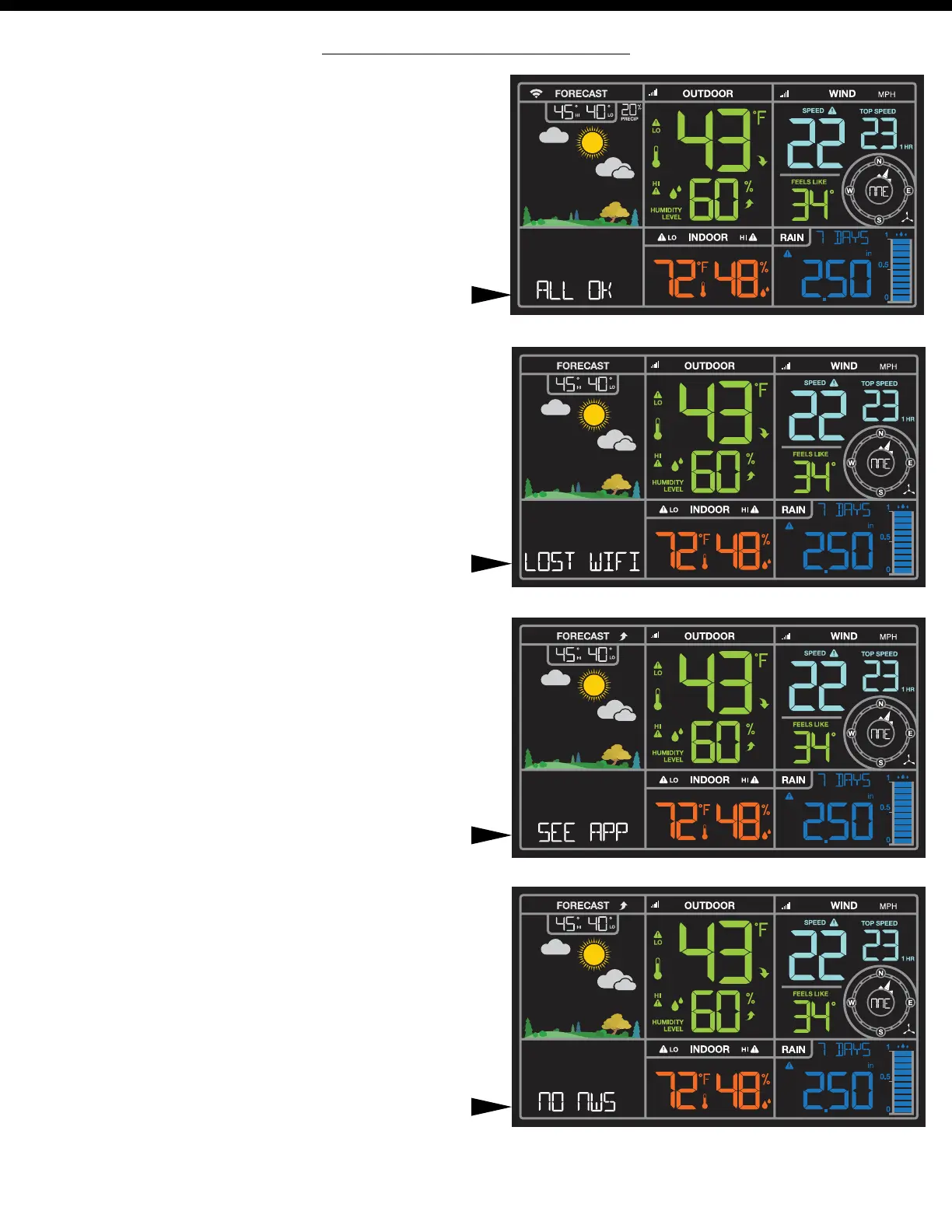
“LOST Wi-Fi”
• Check your power cord connection.
(power cord required to connect)
• When trying to reestablish your station’s Wi-Fi
connection, be sure your mobile device is on the
same 2.4GHz network you want your station to use.
• Check your network connection.
• Hold the + and - buttons together for 3 seconds to
search for Wi-Fi. SEE APP should show.
“SEE APP”
• The Wi-Fi router connection is working.
• Scan your station bar code ID on the back.
• Check your connection to the La Crosse View™ app.
• Enter your Wi-Fi password again.
• Is there an update to install?
“NO NWS”
• This indicates an error on the NWS server.
• NWS Expanded Forecast, will not update or show.
• The NWS will resolve this.
• Very rare to have this error.
Note: When you first connect to the La Crosse View™ app, “NO NWS” may alternate with “ALL OK” for a few
seconds until the station establishes contact with the NWS server.
“ALL OK ”
• Your station is connected, there are no problems.
Simple Status Messages
• Your station has built-in connection status messages
for your convenience.
• Press and release the SET button to view.
Note: Only one relevant status message will display.



 To Next Page