Page | 8
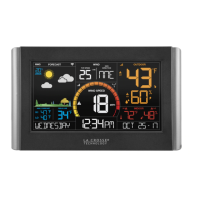
Professional Remote Monitoring Station
Connect Additional Sensors to Your La Crosse View™ App
Add Sensors:
Open your La Crosse View™ app to add sensors.
1. From Main Menu - select “Devices” under “Add/Edit”
2. On Edit Devices page - select “ADD DEVICE”
3. Scan Device ID - Scan the bar code on your sensor or choose “ADD MANUALLY” to type in the number on
the bar code. Select “CONTINUE”.
4. On Confirm Device page - Confirm the sensor image and select “YES”
5. On Enter Device and Location Name page - enter Device Name and select a location or enter a Location
Name for your sensor. Select “DONE”.
Repeat steps 1-5 for any additional sensors you wish to add.
Note: Additional sensors may be purchased and added to your La Crosse View™ app at any time. Compatible
additional sensors start with the letters “LTV-”. Always check your product page for available sensors:
www.lacrossetechnology.com/V40-PRO
DID YOU KNOW?
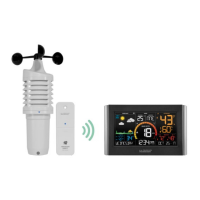
You can expand your system’s coverage with additional sensors (sold separately). These add-on sensors will use your
weather station as a gateway to the La Crosse View app, where their data can be viewed and tracked 24/7 from any-
where.
Expand your coverage:
• Your baby’s room
• Your wine cellar
• Your basement
• Your attic
• Your garage
Just add a sensor and use your La Crosse View
™ app to monitor its data anywhere on-the-go.
For support and guidance of your La Crosse View™ app, please visit:
www.lacrossetechnology.com/lacrosseviewsupport



 To Next Page