CloudBox User Manual 90
SET UP REMOTE BACKUPS
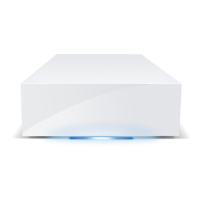
Remote backups will copy data from a folder on your LaCie CloudBox to a folder on a second network attached
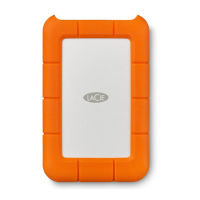
storage, also known as NAS. A second NAS could be another LaCie CloudBox or an alternative LaCie NAS device
(see LaCie Network Storage for details). The folder that you wish to back up on your LaCie CloudBox is the
Source. The second NAS is the Destination hard drive that will store the backup.
Source NAS Destination NAS
Destination NAS
Location
Destination Folder
Type of
Remote
Backup
LaCie
CloudBox A at
home
LaCie CloudBox B or a
third-party rsync
compatible NAS (see note
on rsync below)
Home network
NetBackup Share
(see NetBackup
Share)
Home
NAS-to-NAS
LaCie
CloudBox A at
home
LaCie CloudBox B or a
third-party rsync
compatible NAS (see note
on rsync below)
Network outside of
the home (e.g. a
relative or friend's
home)
NetBackup Share
(see NetBackup
Share)
Offsite
NAS-to-NAS
Note on rsync: A complete explanation of the networking term rsync is beyond the scope of this user
manual. For your CloudBox, rsync is used to indicate compatibility for data transfers/backups to non-LaCie
(third-party) network hard drives. For more information on rsync, see http://en.wikipedia.org/wiki/Rsync.
NetBackup Share
All Remote Backups from your LaCie CloudBox must be copied to a special share called NetBackup on the
Destination NAS. Therefore, it is important to enable the NetBackup Share on the destination NAS before setting
up a remote backup.
Enable the NetBackup Share
Launch the Dashboard for the Destination NAS.1.
Choose the Backup page in the Dashboard and select the tab NetBackup server.2.







 To Next Page