Rugged RAID User Manual 10
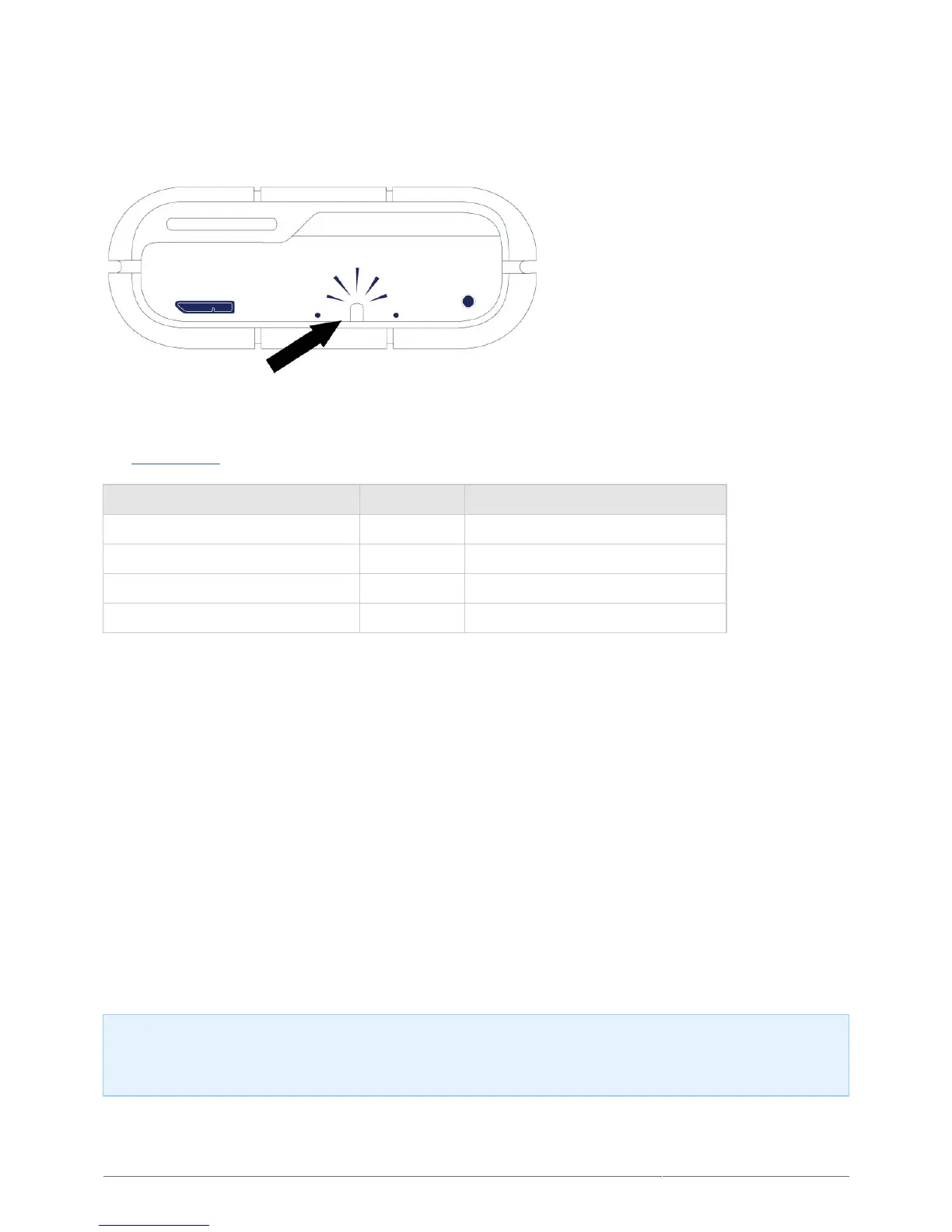
RAID LED
Use a thin, pointed object to push the RAID select and RAID confirm buttons. For example, use the pointed end
of a paperclip to access and push the buttons.
See Manage RAID for instructions on how to check or change the RAID level.
Action Behavior State
Push once on the RAID select button Solid white The device is set to RAID 0.
Push once on the RAID select button Blinking white The device is set to RAID 1.
Push twice on the RAID select button Solid white The device will be changed to RAID 0.
Push twice on the RAID select button Blinking white The device will be changed to RAID 1.
RECEIVING POWER
Thunderbolt connection
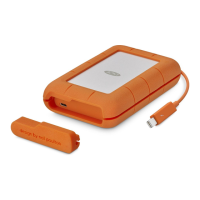
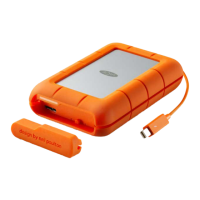
The LaCie Rugged RAID powers on automatically when it is connected to a computer that supports Thunderbolt
technology. Use the embedded Thunderbolt technology cable when connecting the Rugged RAID to a computer.
USB 3.0
The power cable must be connected to an active outlet when using the Rugged RAID’s USB 3.0 port.
Note on the USB 3.0 connection: The Rugged RAID can be connected to a USB 2.0 port on your computer.
To take advantage of SuperSpeed USB 3.0 transfer rates, you must connect the Rugged RAID to a computer
with a USB 3.0 port.





 To Next Page