6.8 Expert menu (if activated in the settings)
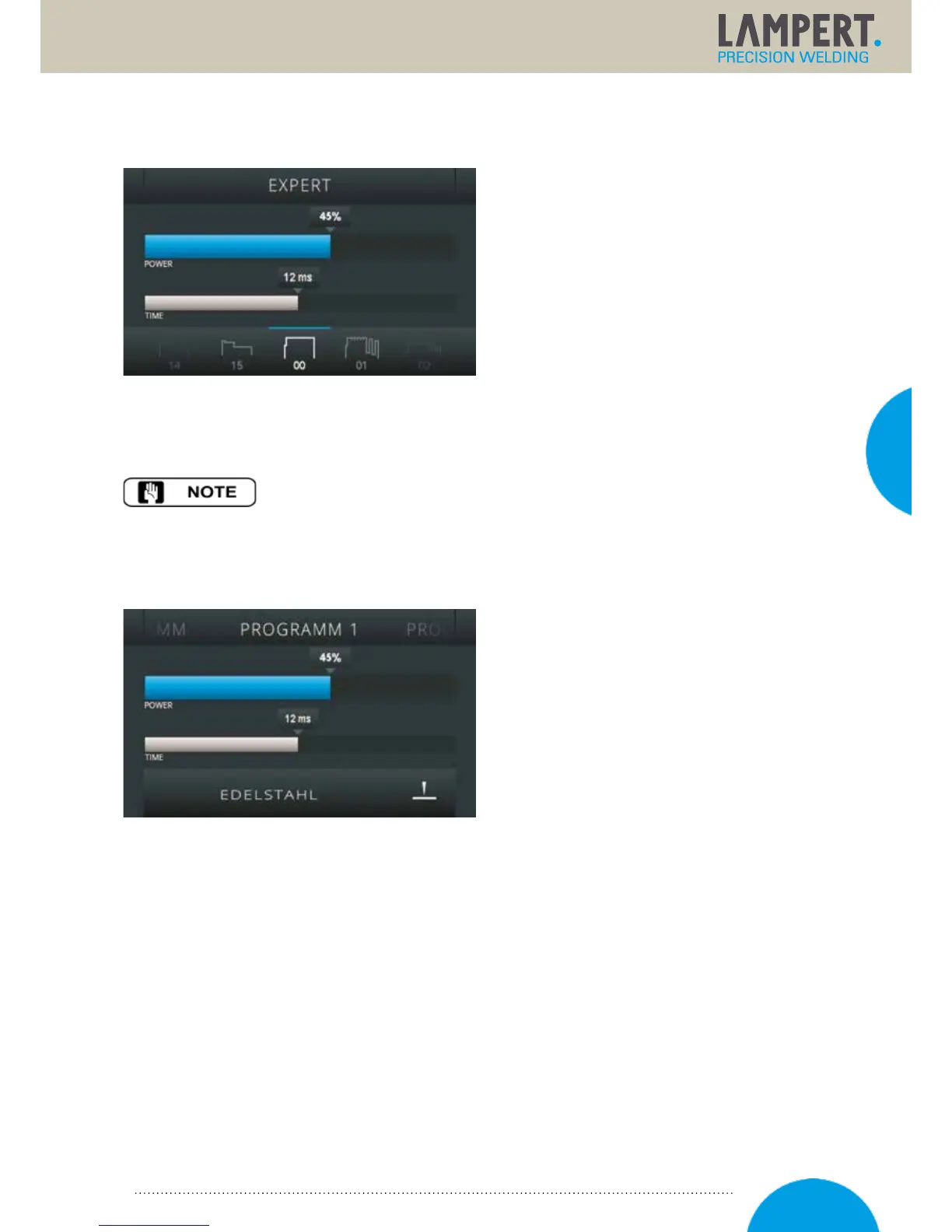
The expert menu can be activated in the settings
user level. .After activation, the expert menu
appears as a separate user level, which can
beaccessed by pressing and holding the
multifunctional controller. The various welding
characteristic curves are stored in the expert menu,
which have been developed and defined in the start
menu for the preconfigured metals and welding
geometries. However, here they are shown without
content-related assignment. This mode is designed
for experienced welders who want to experiment with the various stored energy characteristic curves
(pulsemodulations). In this user level it is possible to choose between the various energy curves
andstorethese together with individual settings for the power and time.
When switching from the start menu to the expert menu, the relevant settings are
carried over from the start menu. This means that the welding curves stored here
canbe viewed.
6.9 Program memory (if activated in the settings)
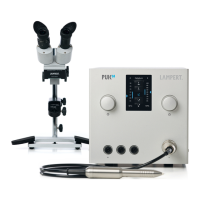
Pressing and holding the metal selection in
thestartmenu or the welding curve in the expert
menu results in the current parameters set being
accepted in the program memory menu. 20 storage
spaces are available here for individual storage.
Inthe first step, the program space is selected
byswiping to the left or right. The set data
isthenaccepted by pressing the “continue” button.
Saved data cannot be deleted. It can only
beoverwritten. A program name is assigned
inthefollowing window. The program name can comprise upper and lower case letters and special characters.
Using the arrow buttons on the display, it is possible to set the active cursor position and select the desired
characters with the multifunctional controller. The next character is then selected with the arrow keys.
Withthis, it is also possible to perform corrections. After entering the name for the storage space, pressing
thesave button completes the entry. After saving, the program memory user level is displayed and the storage
space is active.
20


 To Next Page