Laser 5089 Code Reader User’s Guide_ Laser 5089 Code Reader User’s Guide_
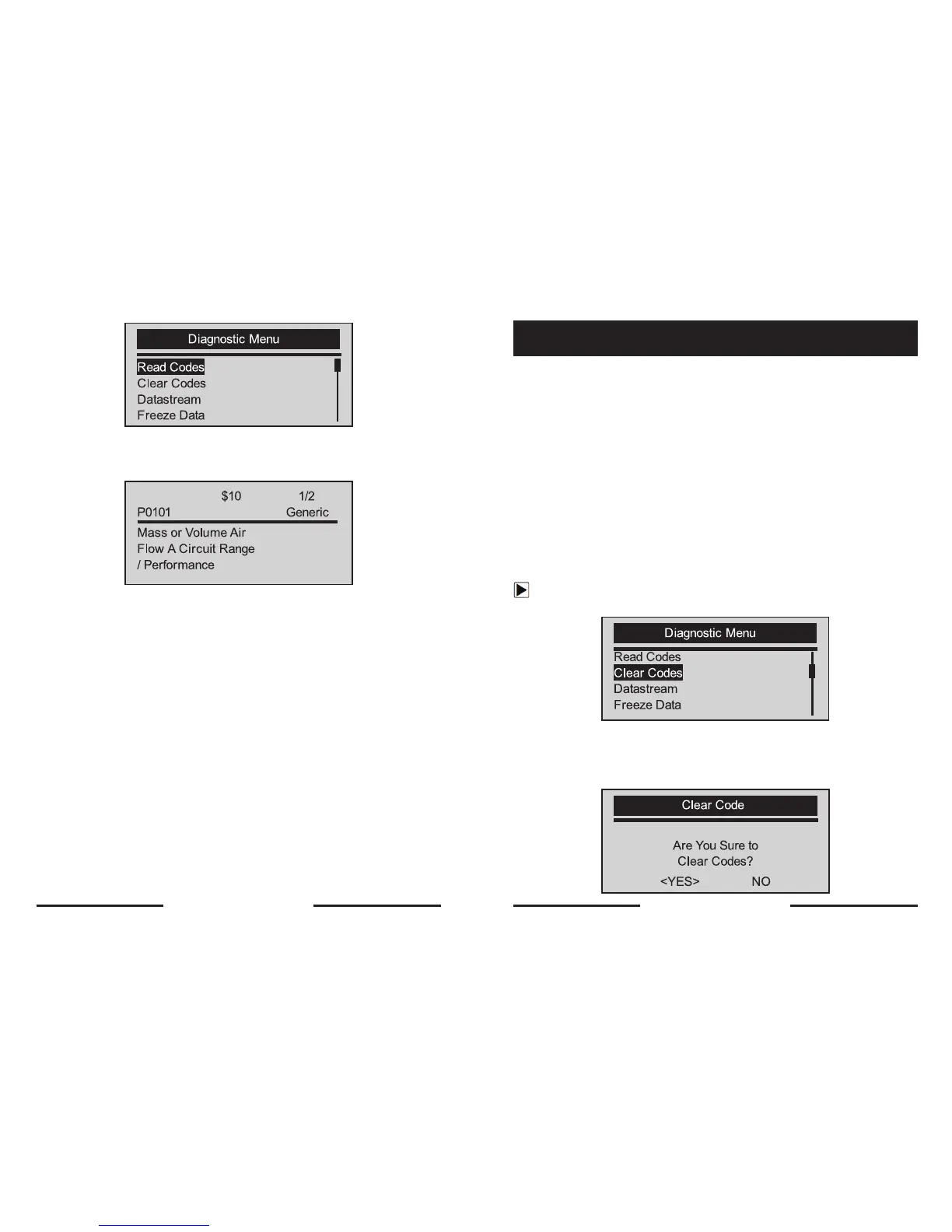
3. Press the YES/NO key to confirm.
4. View DTCs and their definitions.
√ If no DTCs are present a message stating “No (Pending) Codes Found” is
displayed.
√ If any manufacturer specific or enhanced codes detected, a
“Manufacturer specific codes are found! Press any key to select vehicle
make!” message displays prompting you to select vehicle make before
viewing DTC(s).
√ If manufacturer of the vehicle being tested is not list, select Other.
5. Press the YES/NO key to return to Diagnostic Menu screen.
The Clear Codes function is used to delete DTCs and I/M Readiness data from
vehicle’s control module(s). It may also erase freeze data, and set monitors to
incomplete or not ready.
5.2 Clearing DTCs
The Clear Codes function is used to delete DTCs and I/M Readiness data from
vehicle’s control module(s). It may also erase freeze data, and set monitors to
incomplete or not ready.
√ Perform Clear Codes function only after systems have been checked
completely.
√ After servicing the vehicle, erase stored DTCs and verify no codes have
been reset. If a DTC returns, problem has not been fixed or other faults
are present.
√ Depending on which monitor sets a code the vehicle may need to be
driven and the monitor ran before concluding that the fault is repaired.
√ This function is performed with KOEO. Do not start the engine.
To erase codes from vehicle control modules:
1. Use the SCROLL key to select Clear Codes from
Diagnostic Menu screen.
2. Press the YES/NO key to confirm.
3. If codes and diagnostic results are to be cleared, use the SCROLL key to
select YES and press the YES/NO key.
20 21


 To Next Page