16 • Using the PC700 Series Clock
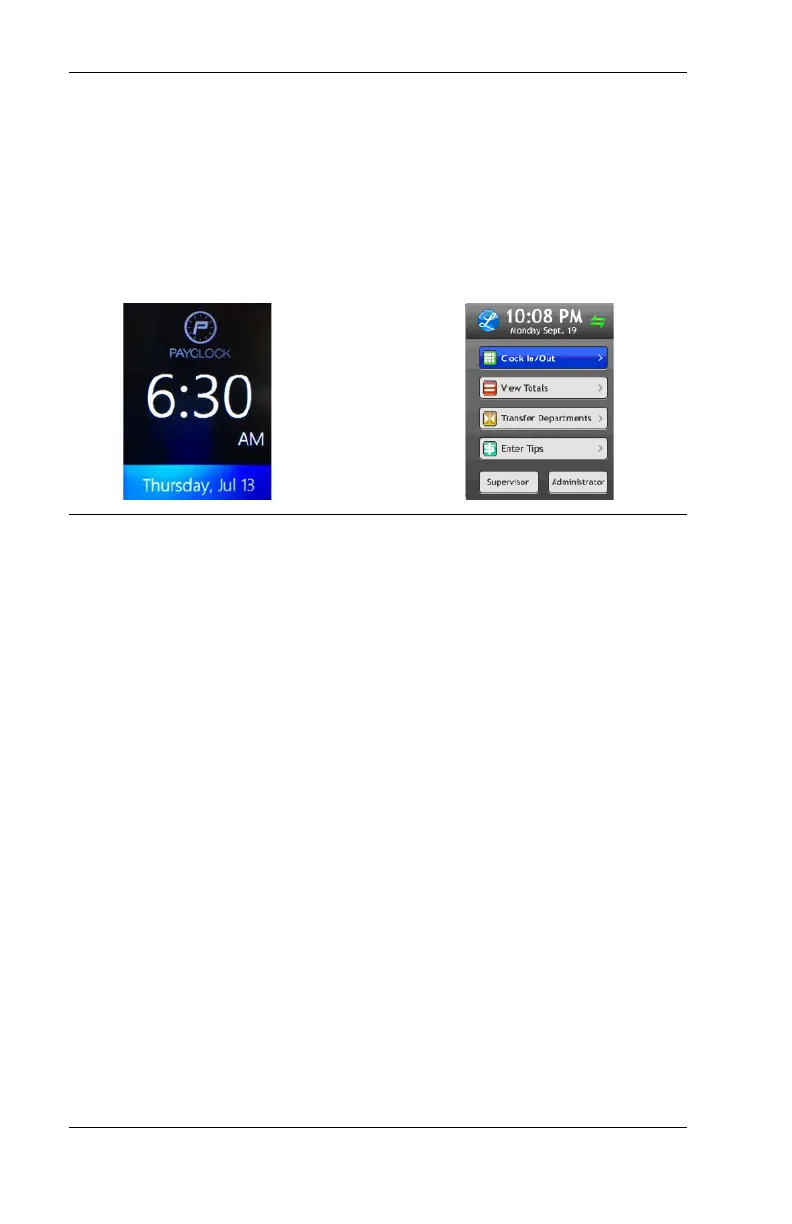
PC700 Series Clock Idle Screen
The clocks display will change to an idle screen when there is no
activity for 2 minutes. While in idle screen mode the day of the week,
time and date will display in large easy to ready characters. The
clock is fully functional while the screen is idle and the display will
exit idle mode when a badge is presented or the screen is tapped or
when the clock is updated.
Employee Transactions using
Badges
Employees can record transactions or view total information by
presenting a badge.
Clocking IN/Out
• Move the badge over the badge reader symbol below the
illuminated oval target area on the front of the clock.
• When the badge is in close to the clock a confirmation beep
will sound, a text message will appear, a custom audio
message may be played, and the oval target area will turn
either green or red indicating a good or bad transaction.
Department Transfers
• Press the Transfer Depts. button on the touch-pad of the
clock.
• Move the badge over the badge reader symbol below the
illuminated oval target area on the front of the clock.



 To Next Page