Using the PC700 Series Clock • 19
Supervisor Transactions
Supervisors have the ability at the clock to view and edit employee
punches, add new employees, send messages and override shift
lockouts. To set up an employee as a supervisor, in PayClock Online
set the desired employees Access Profile to “Supervisor”.
Note: Some supervisor functions require that the clock have an
active connection to the internet.
To enter supervisor mode at the clock, press the Supervisor button.
The Enter PIN screen will display.
• Using the numeric key pad enter the supervisors PIN
number and press Enter or move the supervisors badge over
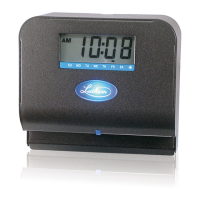
the badge reader symbol below the illuminated oval target
area on the front of the clock.
• The Select an Employee screen will display.
Viewing Punches
At the clock press the Supervisor button. The Enter PIN screen will
display.
• Using the numeric key pad enter the supervisors PIN
number and press Enter or move the supervisors badge over
the badge reader symbol below the illuminated oval target
area on the front of the clock.
• At the Select an Employee screen, press the button of the
desired employee.
• Press View / Edit Punches. The Punches screen will display.
• Use the left, right, up or down arrows to scroll through the
punch information.
• When finished press the
button to return to the default
screen.
Adding Punches
This supervisor function requires that the clock have an active
connection to the internet.
At the clock press the Supervisor button. The Enter PIN screen will
display.



 To Next Page