50
LAUNCH X-431 PAD V
User's Manual
launch Maximus 3.0 application and enter the function menu interface,
then tap “Sensor” to enter the test selection screen.
Fig. 7-2
1. DC voltage simulation
In Fig. 7-2, tap [Current voltage], then tap “+” or “-” to adjust the output
voltage value. Alternatively, user can also tap edit box, then use the
on-screen keyboard to input the desired value directly. After selecting
or inputting the desired voltage based on the working characteristics of
sensor, tap the button, then the Maximus 3.0 will begin to output the
simulation voltages. Please note the red probe is the output terminal
of simulation voltage.
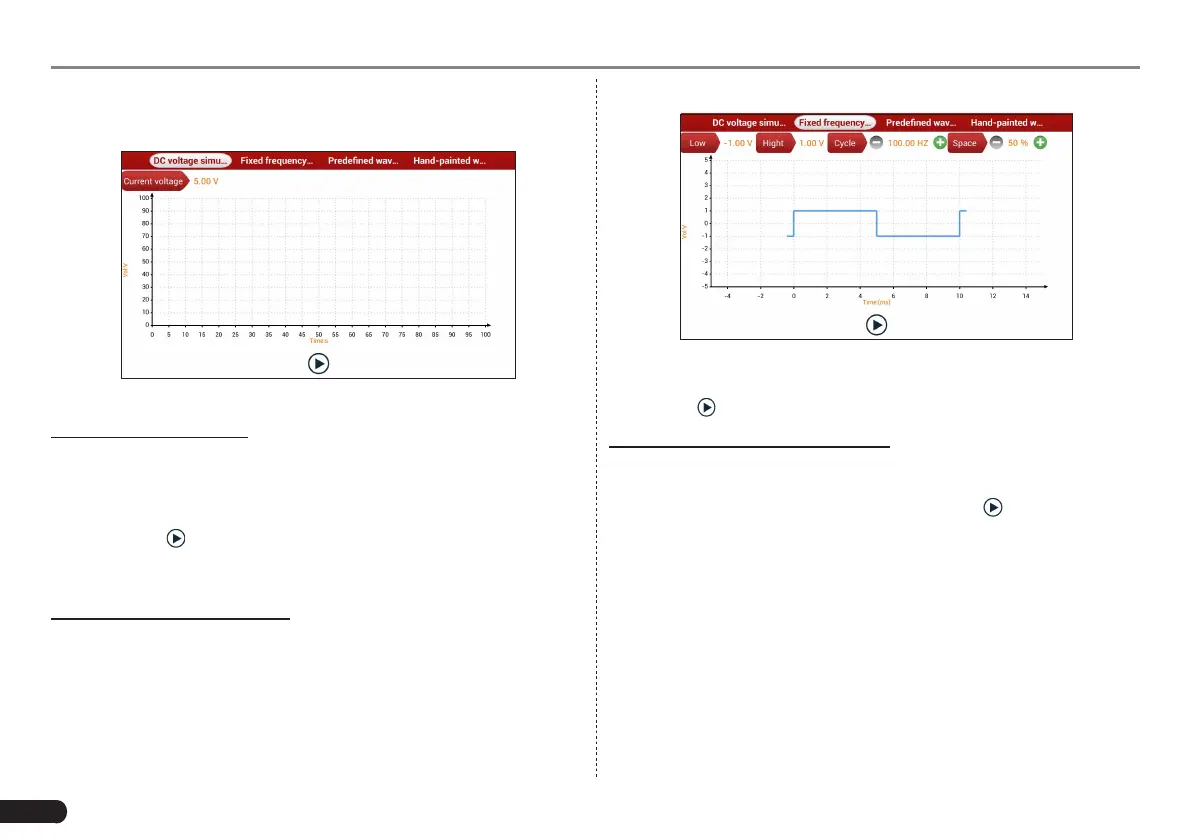
2. Fixed frequency simulation
This option enables you to simulate the square wave signal of pulse
frequency of 0.1 ~ 15 kHz, amplitude range of -5V ~ +5 V and duty
cycle 10% ~ 90%.
In Fig. 7-2, tap “Fixed frequency simulation” to enter a screen similar
to the following gure.
Fig. 7-3
Tap the setting option tab, then tap “+” or “-” to adjust the output,After
setting, tap to perform the test.
3. Predened waveform simulation
Maximus 3.0 provides some common sensor waveforms which have
been predened to facilitate users to simulate sensor signals. As long
as you call out the predened waveform, then tap to start simulating
output of corresponding sensor waveform and no more parameter
settings of simulation waveform are required.
In Fig. 7-2, tap “Predened waveform simulation” to enter the following
screen.



 To Next Page