User Guide
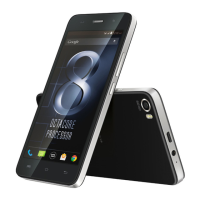
Model – iris X1 Atom 8
Tosettheunlockmethod:
Onthemainmenu,tou ch Settings>Security.
TouchSetupscreenloc k.
Choose thetype of locking asdesired. You can set
yo ur screen lock on the basis of p attern, PIN,
Pas swo r d ornone.
3.4. Using the Touch screen
Youcan usetheto uch screeninthefollowingways :
Touch: Acts on items on the screen, su ch as
application and settings icons, to type l etters and
symbols using the on screen keyboar d, or to press
onscreenbuttons.
Touch and hold: Touch and hold an item on the
screenuntilan act iono ccurs.
Drag: Touch and hold an item and move yo u r
finger on the screen until yo u rea ch the targe t
position.
Sw i pe orslide:Qui ckl yslide yo u rfingeracrossthe
surface of the screen, (without drag ging an item).
For exa mp le , slide thescreen up or down to scroll
alist,
Double‐tap:Tapquicklytwiceonawe b p a g e , map,
or ot he r screen to zo om . For examp le , double‐tap
a section of a we b p a g e in Browser to zoom that
section to fitthewidt h of thescreen.Youca nalso
double‐ta p to co ntrol t zoom, in Maps, and in
oth er application s.
Pinch: In some applications (Such as Maps,
Browse r, and Gallery) yo u can zoom in and out by
placing two fingers on the screen at on ce and
pinchingthemtoget he r(tozoomout)orspreading
themapart(tozoomin).
Rotate the screen: On mo st screen s, the
orientation of the scre en ch anges as you rota te it.
Youcan turnthisfea t ur e onandoff.
3.5. Using the Phone’s Buttons
The phone’s buttons offer a lot of functions and
shortcut s.



 To Next Page