3.Operating and Programming
14
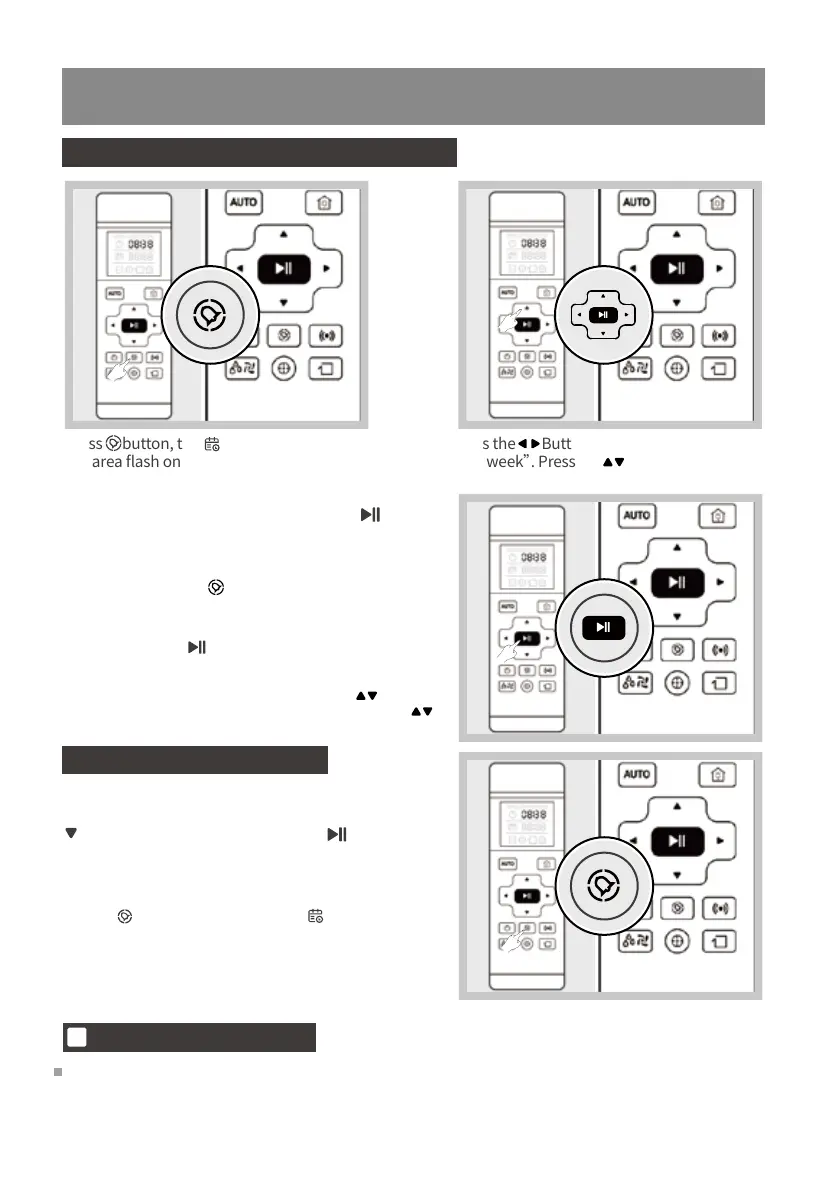
Schedule the Cleaning Time using Remote Control
press button, the icon and the weekcolu
mn area flash on the Remote Controlscreen.
Press the Buttons to switch “hour” “minute”
and“week”. Press the Buttons to adjust
“hour”, “minute”and “selected day of the week".
If you do not press button to save, the scheduledcl
eaning time setting is unsuccessful; the clock settingi
s automatically exited after 10s without operation.
*Note: Adjust the hour each time you press button
hours +1/-1, adjust the minute each time you press
button minutes +5/-1.
After the scheduled cleaning time is adjust, align
theremote control with the robot, press the button
on the remote control to save the settings, the robot
will give a voice prompt, and go to the scheduling tim
esetting of the next day. After the configuration
iscomplete, press the button to exit the setup, and the
robot will automatically cleans at the scheduled clean
ingtime.
Cancel Scheduled Cleaning Time
【Cancel the Scheduled cleaning time】Set the time
to 00:00. When the minute digit flashesand press the
button to change to --:--, then press to cancel
the Scheduled cleaning time of the day,
The robot will give a voice prompt.
【Cancel all scheduled cleaning time】 Press and
holdthe button for 3 seconds, the icon disappears
onthe screen to display --:--, the robot gives a voice
prompt, canceling the scheduled cleaning time function.
*When the robot is powered off or the remote control
battery is removed, You need to reset the current time
and scheduled cleaning time setting.
APP Time scheduled setting
(set cleaning at different times every day See APP quick start gui
de for more details)
There is no connection between the remote control time scheduling setting and APP time scheduling setting,
the setting via remote control will not affect the APP's appointment setting, they are independent of each other.
3


 To Next Page