3.Operating and Programming
In order to meet different needs, robot includes three time scheduling function: One-click time sch
eduling on on the robot or remote control time scheduling and APP time scheduling.
13
3.4 Scheduling setting
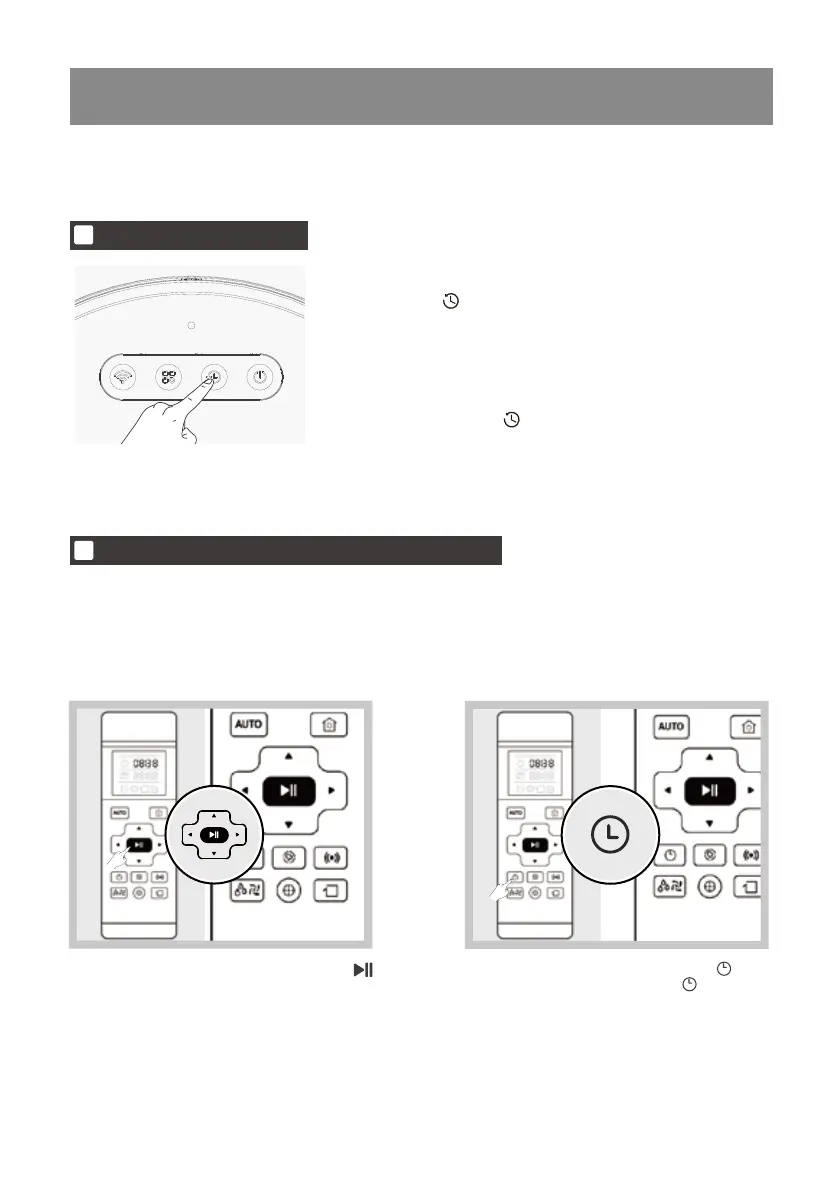
One-click time scheduling
(set the current time to the daily cleaning time)
*If you need to change the daily cleaning time, you can cancel the setting first, and then set it again at
the time you want to set.
When the Robot’s power switch is turned off, the time scheduling setting will be removed.
Press the Robot ( ) button for 2 seconds, the robot will send
a tone to indicate that the setting is successful, the robot will Start
cleaning at this time every day。
For example: if you set it at 9:00, the robot will automatically start
cleaning at 9:00 every day.
Press and hold the robot ( ) button again for 2 seconds, and the
robot will sound a tone indicating that the cancellation was succes
sful。
Time Scheduled Cleaning setting via remote control
If the remote control does not set the time, you need to set the clock time before setting the reservation time.
* The remote control is 24-hour system
* Before setting the current time and Schedule cleaning time, make sure that the Start/Pause button is always
on in blue and the robot is awake.
* When the Robot’s power switch is turned off, the time scheduling setting will be removed.
* If the robot does not wake up, please press the Start/Pause button on the robot or remote control button to
wake it up.
(set cleaning at different times every day)
2
1
After the time adjustment is completed,press to
save,the robot will give a voice prompt, and the cur
rent time is set successfully.
[Week day and time setting] Short press button,
the remote control screen displays The icon and
the weekcolumn area flash.


 To Next Page