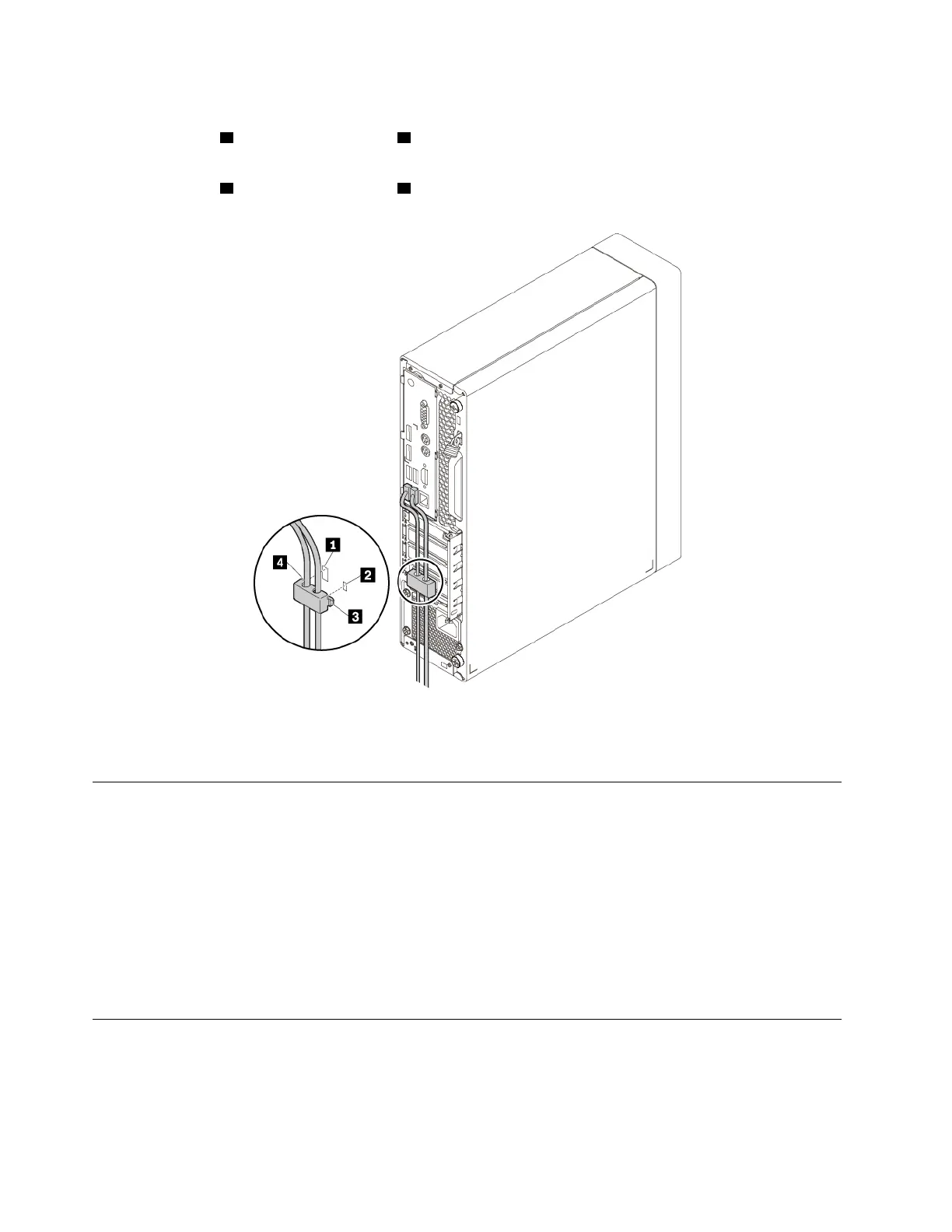
To attach a cable lock, do the following:
1. Insert the clip
3 into the cable-lock slot 2 .
2. Pull the cables you want to lock through the dents in the cable lock.
3. Press the clip
4 into the cable-lock slot 1 until it snaps into position.
Figure 10. Installing a cable lock
Viewing and changing security settings in the Setup Utility program
To view and change security settings in the Setup Utility program, do the following:
1. Start the Setup Utility program. See “Starting the Setup Utility program” on page 33.
2. Select Security.
3. Follow the instructions on the right side of the screen to view and change security settings. You can refer
to “Using the Setup Utility program” on page 33 to get basic information about some major security
settings.
4. To save settings and exit the Setup Utility program, press F10 or Fn+F10 (depending on the keyboard
settings). Then, select Yes in the window displayed, and press Enter.
Using passwords and Windows accounts
You can use BIOS passwords and Windows accounts to prevent unauthorized access to your computer and
data. To use the BIOS passwords or the Windows accounts, do the following:
• To use BIOS passwords, see “Using BIOS passwords” on page 36.
30
P330 User Guide




![Preview: Lenovo F0B2 [C20-30]](https://data.easymanua.ls/products/594284/200x200/lenovo-f0b2-c20-30.webp)

 To Next Page