
 Need help?
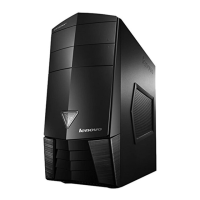
Do you have a question about the Lenovo Erazer X310 and is the answer not in the manual?
Rules and precautions for general safety during maintenance.
Precautions for working with electrical components and avoiding shock hazards.
Checklist for identifying potentially unsafe conditions in the computer.
Procedures for safely handling components sensitive to electrostatic discharge (ESD).
Importance and methods of proper electrical grounding for safety and system function.
General safety warnings and precautions for electrical hazards.
Physical specifications for the Lenovo Erazer X310 computer, including environment.
Steps to enter and start the BIOS Setup Utility program.
How to navigate and modify system configuration options within the BIOS.
Setting and managing Administrator and Power-On passwords for security.
Guidelines for creating strong and secure passwords.
Details on setting, changing, and deleting Administrator passwords.
Information on setting, changing, and deleting Power-On passwords.
Options to enable or disable specific hardware devices via BIOS settings.
Procedures for choosing a temporary or permanent boot device.
Steps for saving or discarding changes and exiting the BIOS utility.
Common causes and actions for hard disk drive boot failures.
Troubleshooting steps for identifying and resolving power supply issues.
Provides additional helpful information for service representatives.
Illustration showing the location of major internal computer components.
Diagram labeling components on the computer's main circuit board (motherboard).
Instructions for replacing the keyboard and mouse.
Step-by-step guide to safely remove the computer's outer casing.
Procedure for detaching the front panel or bezel of the computer.
Steps to replace or upgrade RAM modules in the computer.
Guide for removing and installing a new hard disk drive.
Instructions on how to replace the CD/DVD drive.
Steps for removing and installing a graphics card.
Procedure for replacing the computer's internal power supply unit.
Instructions on how to replace the CPU cooling fan.
Guide for removing and installing the CPU heat sink.
Detailed steps for safely removing and installing the central processing unit (CPU).
Instructions for replacing the wireless network card.
Comprehensive guide for replacing the main system board.
List of Field Replaceable Units (FRUs) with part numbers and CRU status.
Provides additional helpful information for service representatives.
 General
| Processor | Up to 4th Generation Intel® Core™ i7 Processor |
|---|---|
| Operating System | Windows 8.1 |
| Graphics | Up to NVIDIA® GeForce® GTX 760 2GB |
| Memory | Up to 16GB DDR3 |
| Storage | Up to 2TB HDD or 256GB SSD |
| Optical Drive | DVD-RW |
| Ports | 2 x USB 3.0 (front), 4 x USB 2.0 (rear), Microphone, Headphone, HDMI, VGA, Ethernet |
| Wi-Fi | 802.11 b/g/n |
| Connectivity | Gigabit Ethernet |
| Bluetooth | Bluetooth 4.0 |
| Audio | Integrated 5.1 Channel Audio Support |






 To Next Page