Replacingamemorymodule
Note:Forthisprocedure,ithelpstolaythecomputerflat.
Toreplaceamemorymodule:
Step1.Removethecomputercover.Referto“Removingthecomputercover”.
Step2.Locatethememorymoduleconnectors.Referto“Locatingcomponents”.
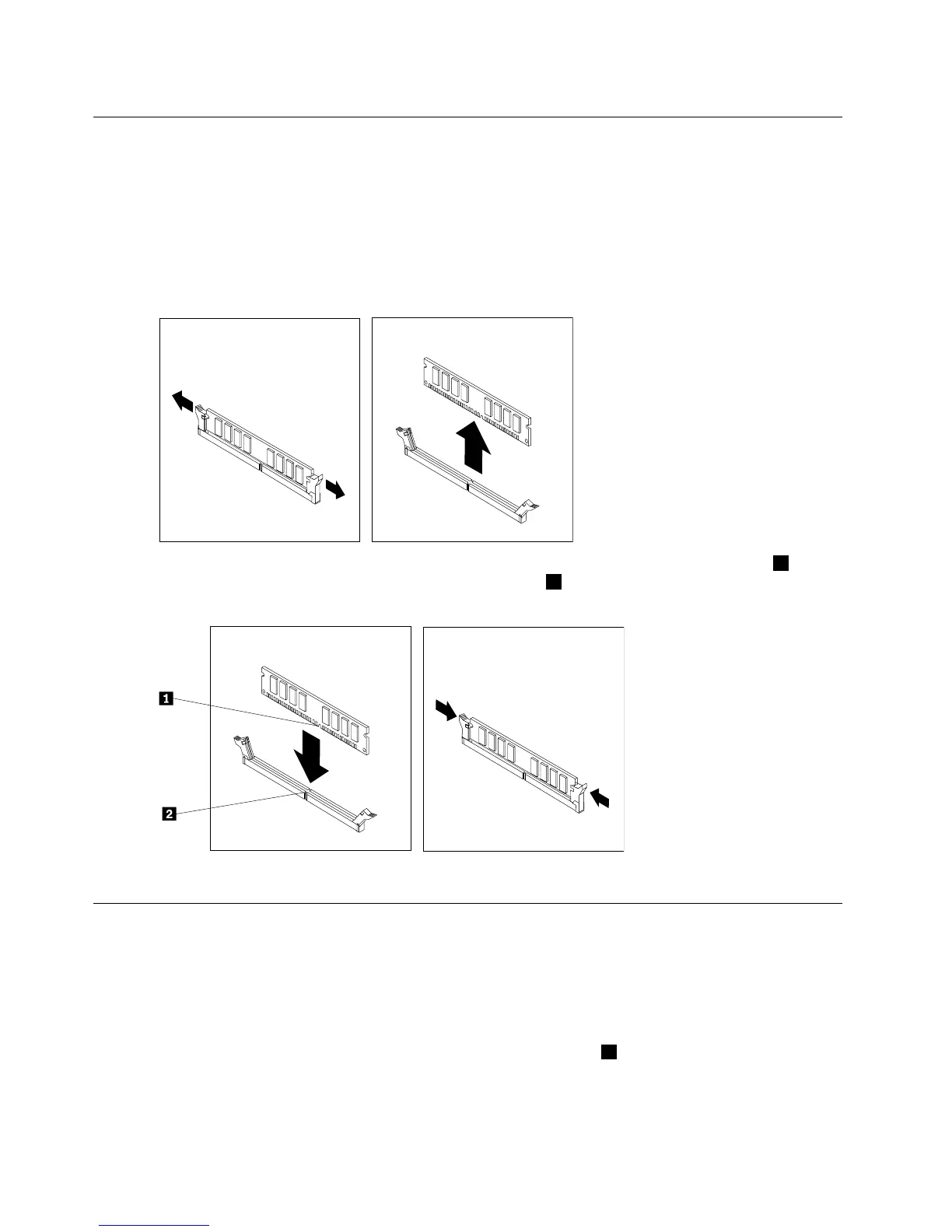
Step3.Removethememorymoduletobereplacedbyopeningtheretainingclipsasshown.
Step4.Positionthenewmemorymoduleoverthememoryconnector.Makesurethatthenotch1onthe
memorymodulealignscorrectlywiththeconnectorkey
2onthesystemboard.Pushthememory
modulestraightdownintotheconnectoruntiltheretainingclipsclose.
Step5.Reattachthecomputercover.
Replacingaharddiskdrive
Note:Forthisprocedure,ithelpstolaythecomputerflat.
Toreplaceaharddiskdrive:
Step1.Removethecomputercover.Referto“Removingthecomputercover”.
Step2.Disconnectthedataandpowercablesfromtheharddiskdrive.1
28LenovoErazerX310HardwareMaintenanceManual







 To Next Page