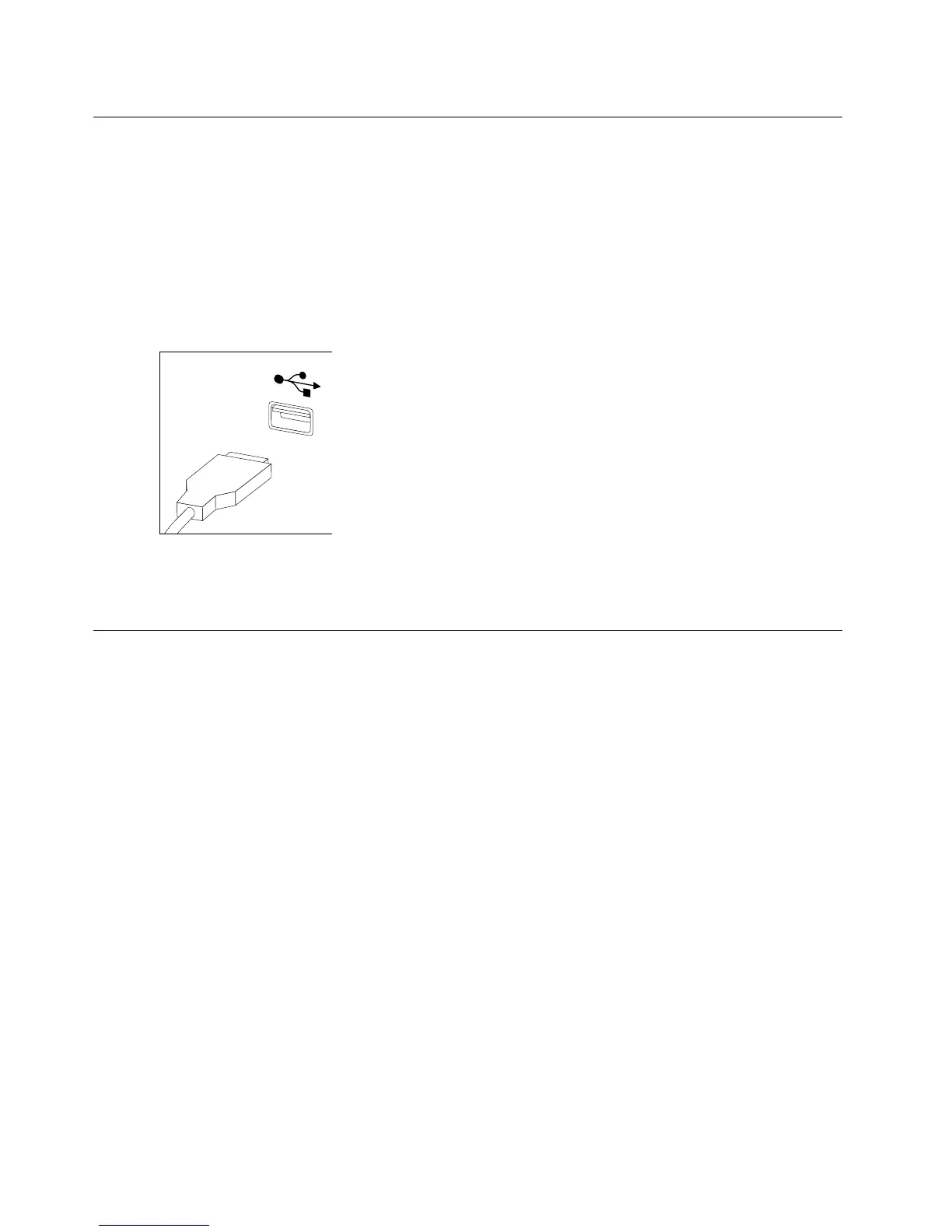
Replacingthekeyboardandmouse
Note:YourkeyboardwillbeconnectedtoaUSBconnectorateitherfrontorattherearofthecomputer.
Toreplacethekeyboard:
Step1.Removeanymedia(disks,CDs,ormemorycards)fromthedrives,shutdownthecomputer,and
turnoffallattacheddevices.
Step2.Unplugallpowercordsfromelectricaloutlets.
Step3.Locatetheconnectorforthekeyboard.Referto“Frontviewofthechassis”and“Rearviewofthe
chassis”.
Step4.Disconnectthedefectivekeyboardcablefromthecomputerandconnectthenewkeyboardcable
tothesameconnector.
Step5.Themousecanbereplacedusingthesamemethod.
Removingthecomputercover
Attention:
•T urnoffthecomputerandwait3to5minutestoletitcooldownbeforeremovingthecover.
•Forthisprocedure,ithelpstolaythecomputeronaflat,stablesurface.
Toremovethecomputercover:
Step1.Removeanymedia(disks,CDs,ormemorycards)fromthedrives,shutdownthecomputer,and
turnoffallattacheddevices.
Step2.Unplugallpowercordsfromelectricaloutlets.
Step3.Disconnectallcablesattachedtothecomputer.Thisincludespowercords,input/output(I/O)
cables,andanyothercablesthatareconnectedtothecomputer.Referto“Locatingconnectors
ontherearofthecomputer”.
Step4.Removethetwoscrewsthatsecurethecomputercoverattherearofthechassis.
26LenovoErazerX310HardwareMaintenanceManual






 To Next Page